GuideHow to update WordPress safely
Last updated: 29 October 2026
Updates fix bugs and close security holes, and most security holes in WordPress websites are found in plugins. But an update can also break something, so it pays to update WordPress safely: know what updates by itself, back up before the big ones, and know how to undo an update that goes wrong. This guide shows how, step by step. It takes about 10 minutes.
What updates by itself
- WordPress's maintenance and security releases, such as 7.1.3 to 7.1.4. That's the control panel's default: the Toolkit's WordPress version setting is Update only to minor versions. Major versions, such as 7.2, wait for you.
- Plugins and themes with auto-updates turned on. Each one has Enable auto-updates in the Toolkit and on WordPress's Plugins page.
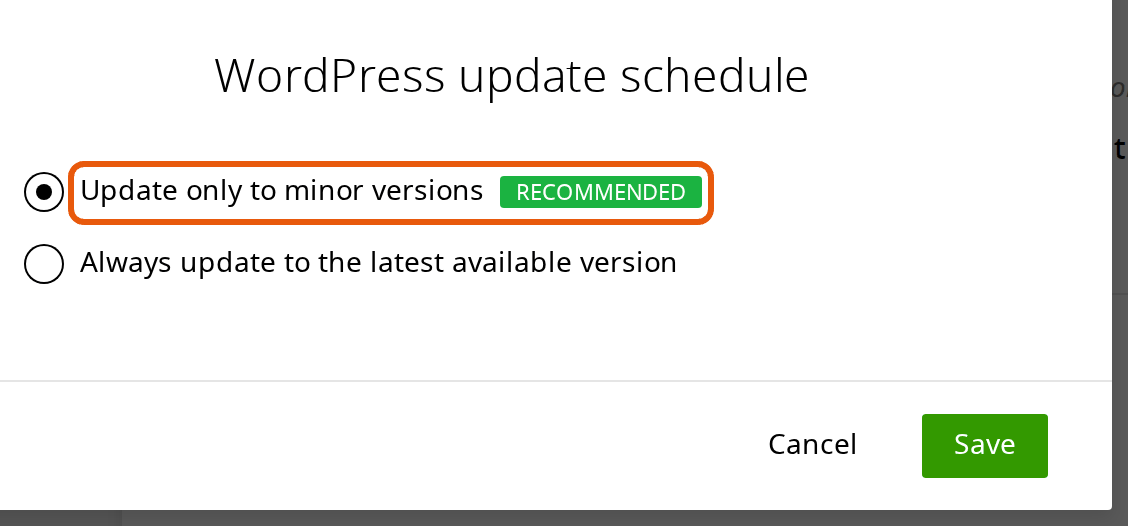
Everything else waits for you. To change these settings, see WordPress tools in the control panel.
Update WordPress safely: before a big update
A new major version of WordPress, your theme, a page builder or a shop plugin such as WooCommerce changes a lot at once. Before one of those:
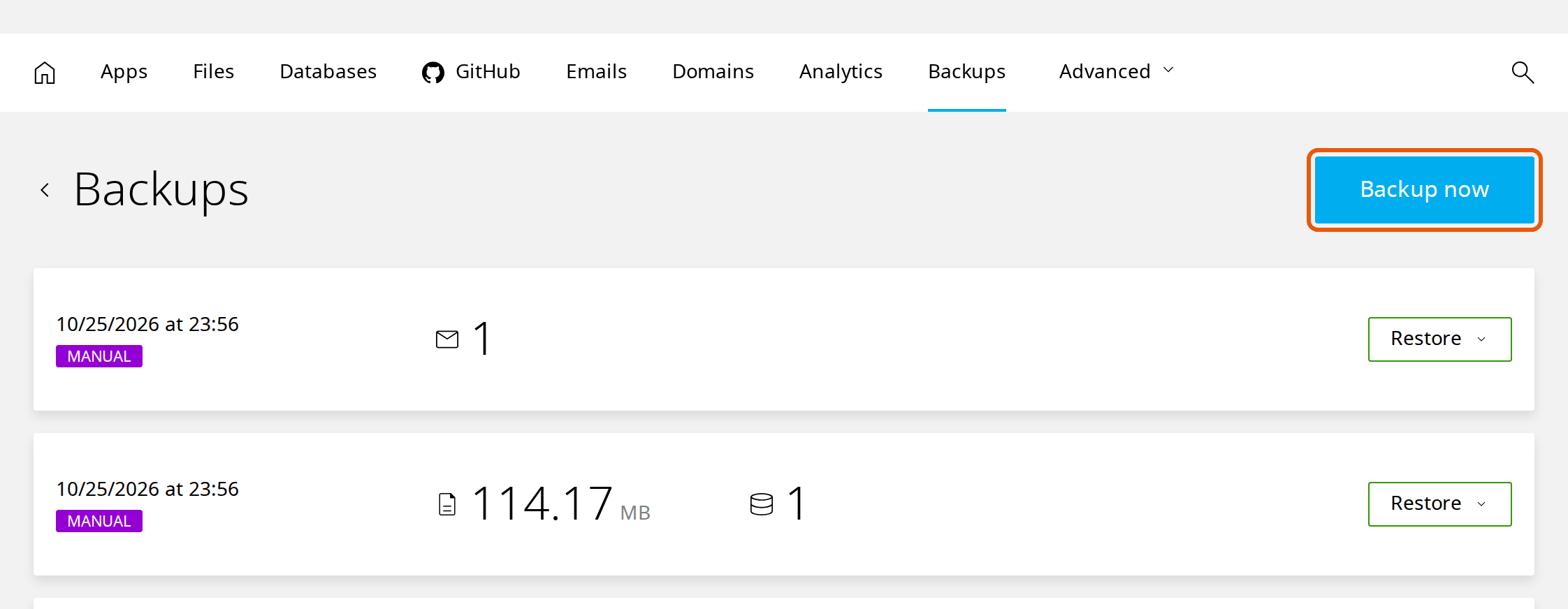
- Make a backup. Your website is backed up every day, but make one now so nothing since last night is lost: on your website's Backups page, click Backup now.
- For a shop or a busy website, try it on a staging copy first. Make a copy, run the update there, check it, then update your live website the same way. See Make a staging copy of your website.
Update WordPress, plugins and themes
- Log in to WordPress. The Admin button on your website's page in the control panel signs you straight in.
- Go to Dashboard → Updates. It lists what can be updated: WordPress itself, your plugins and your themes.
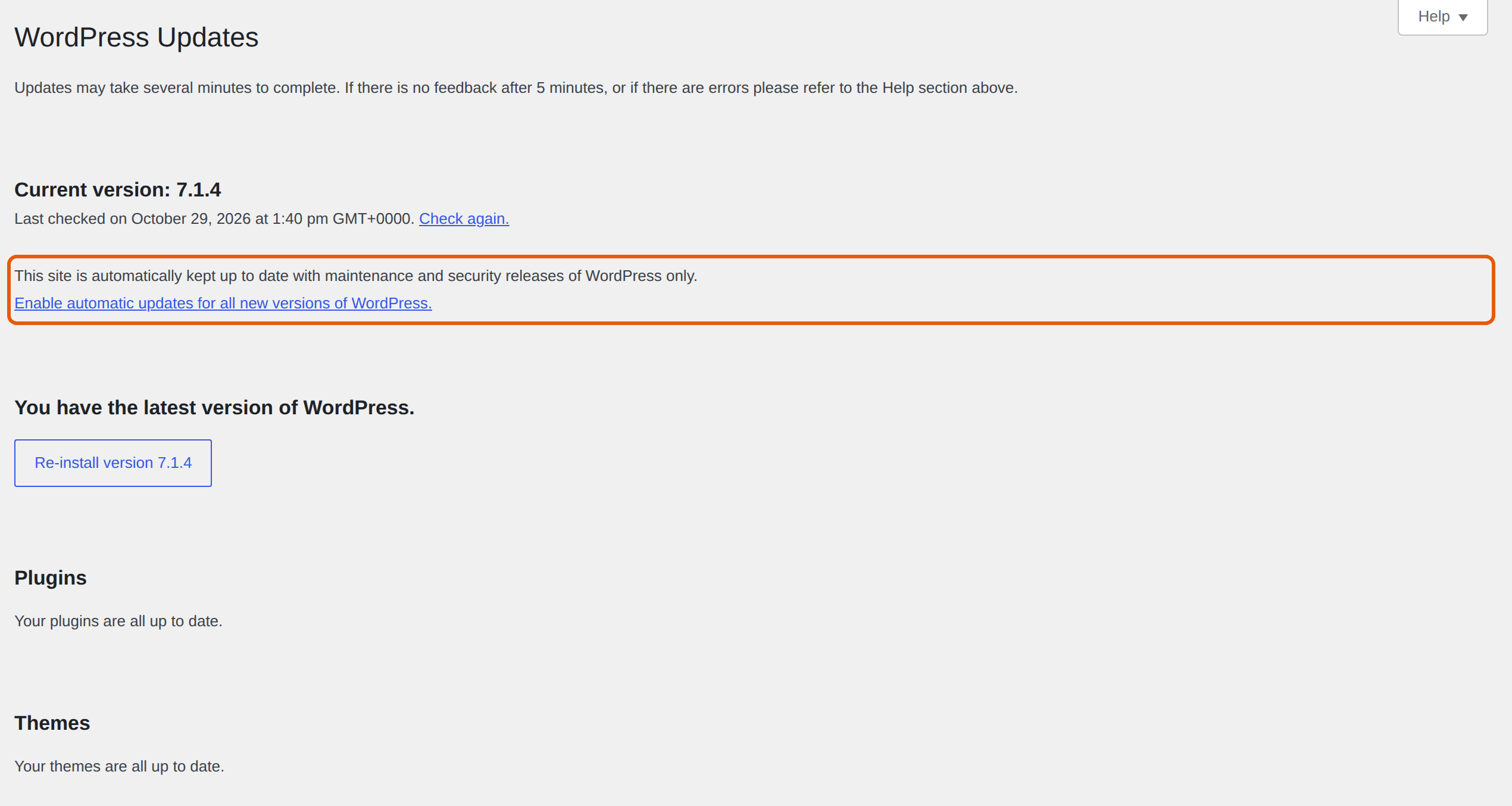
- Tick one plugin, or a few, and click Update Plugins. Do the same for themes, and click the button to update WordPress when a new version is listed.
- After each update, check your website in a private browser window: your home page, a page with a form, and your shop's cart and checkout if you have one.
Updating one or two at a time makes it easy to tell which update caused a problem. A plugin you bought may only update while its licence is active: if it stays out of date, check your licence in the plugin's settings.
If an update breaks your website
- You see "There has been a critical error" or a blank page. Switch off the plugin you just updated from the control panel, even if you can't log in: see Deactivate a plugin without logging in.
- The update went through but something looks wrong. Put your website back as it was before the update: see Back up and restore your website.
Then tell the plugin's developer what happened, turn off its auto-updates for now, and update again once they've released a fix.
Keep updates easy
- Delete plugins and themes you don't use. They still need updating, even when they're switched off. Keep one of WordPress's own themes, such as Twenty Twenty-Five: WordPress switches to it if your theme breaks.
- Choose plugins that are looked after: updated in the last few months, with good reviews and plenty of websites using them.
- Keep your PHP version current, so new versions of your plugins keep working: see Change your PHP version.
Next steps
To see what went wrong after an update, see Check your WordPress error log and Fix common WordPress errors.
Rather we looked after it?
WordPress Care updates your site, checks it after every update, and fixes anything an update breaks.
Keep reading
Back up and restore your website
Make a backup before a big change, and put back your whole site or only some files, without a ticket.
Read the guideMake a staging copy of your website
Try updates or a redesign on a private copy, then push it live in one step.
Read the guideFix common WordPress errors
The critical error, a blank page, database and redirect errors: find the cause and switch it off yourself.
Read the guide