GuideHow to deactivate WordPress plugins without logging in
Last updated: 27 October 2026
When a plugin breaks your website, you often can't reach your WordPress dashboard to switch it off. On MariHost you don't need to: the control panel can switch off any plugin, even while WordPress shows "There has been a critical error on this website" or a blank page.
Open your website's WordPress tools
Sign in to your client area at billing.marihost.com, open your hosting plan and click Login to Control Panel. Then:
- Click Websites in the left sidebar and choose your website.
- Click Apps at the top. Your WordPress site is listed under Applications.
- Click your website's address, or Toolkit next to it.
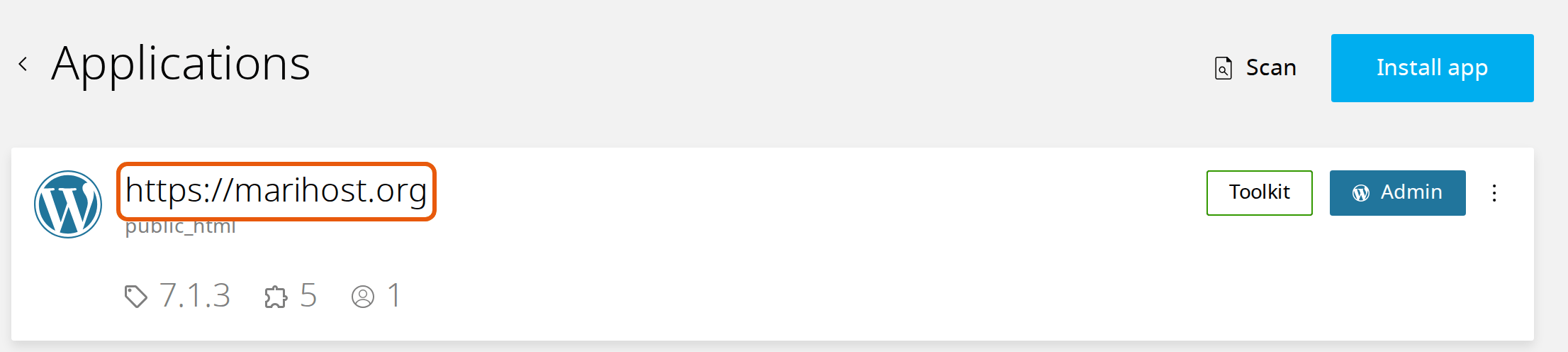
Your website's WordPress tools open, with General, Plugins, Themes, Users, Single sign on and Debug on the left.
Deactivate WordPress plugins in the Toolkit
- Click Plugins. Then click the refresh button next to the number of plugins, so the list shows your plugins as they are now.
- Find the plugin. Plugins that are switched on have a green Active label.
- Click Deactivate under it, then Deactivate again to confirm.
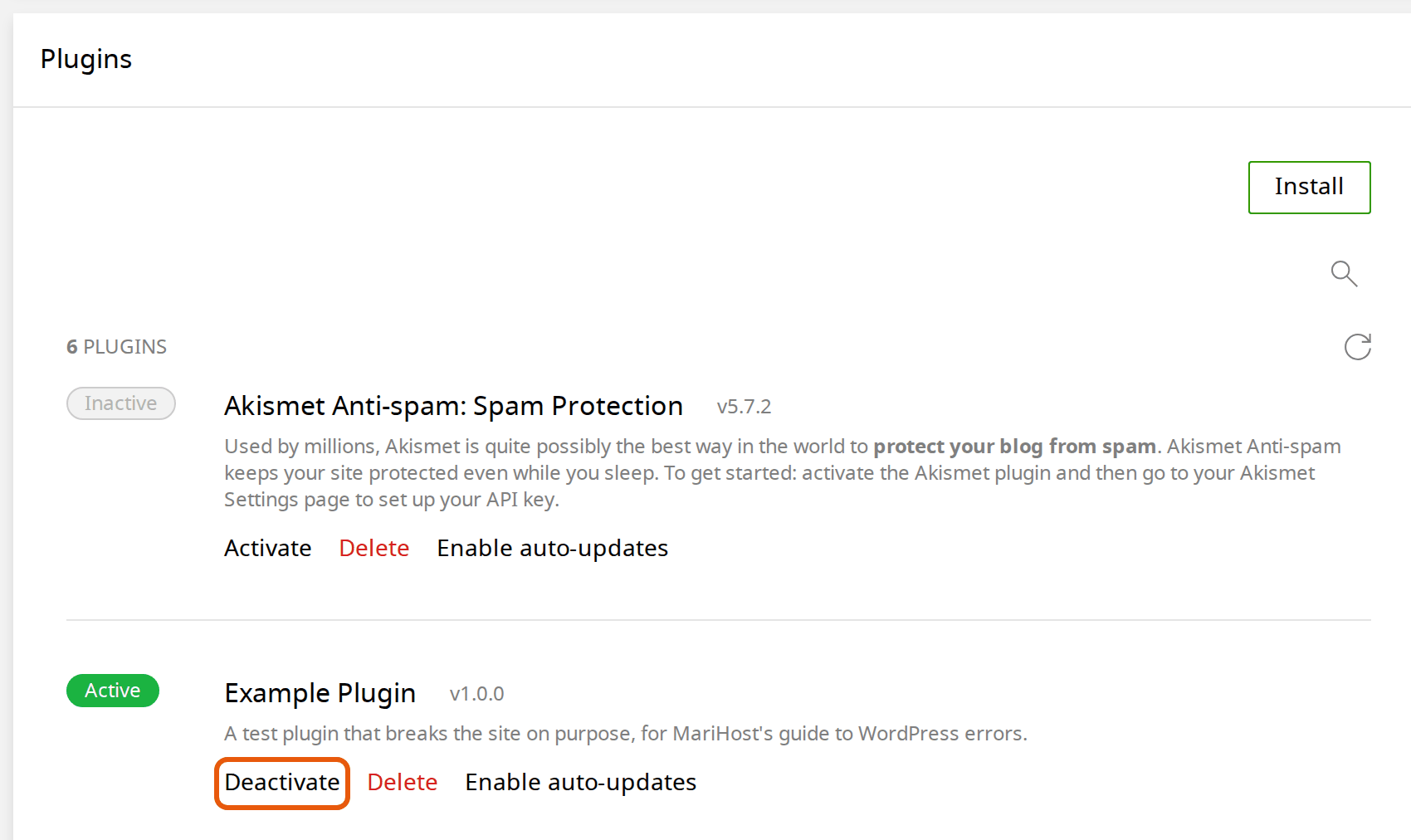
Reload your website. If it works again, leave the plugin off and look for a fixed version, or ask its developer.
Deactivate, don't delete. Deactivating keeps the plugin and its settings, so you can switch it back on later. Delete removes its files.
Not sure which plugin?
- Start with the one you installed or updated last. That's the usual cause.
- Check the error log. It often names the plugin: see Fix common WordPress errors.
- Still not sure? Deactivate the active plugins one at a time, reloading your website after each. When it works, the last one you switched off is the cause. Switch the others back on with Activate.
If your theme is the problem rather than a plugin, the Toolkit's theme list may be out of date: rename the theme's folder instead, as Fix common WordPress errors shows.
Switch it back on
When a fixed version is out, click Activate under the plugin in the same list, then check your website again. Or, once you can log in, update and activate it in WordPress, under Plugins.
Next steps
To stop an update from breaking your live website, try it on a staging copy first, and make a backup before big changes.
Rather we looked after it?
WordPress Care updates your site, checks it after every update, and fixes anything an update breaks.
Keep reading
Fix common WordPress errors
The critical error, a blank page, database and redirect errors: find the cause and switch it off yourself.
Read the guideMake a staging copy of your website
Try updates or a redesign on a private copy, then push it live in one step.
Read the guideBack up and restore your website
Make a backup before a big change, and put back your whole site or only some files, without a ticket.
Read the guide