GuideHow to add a domain to your website
Last updated: 30 October 2026
Own more than one domain for your business, such as yourbusiness.my as well as yourbusiness.com, or an old name from before a rebrand? Add a domain to your website as an extra address, and visitors who type it reach the same site. This guide shows how to add a domain to your website in the control panel, and how to check it's working. It takes about five minutes.
Before you start
- Your plan includes as many extra domains as it has websites: Starter 1, Business 5, Pro 10 and Agency 30. Use them on any of your websites. The www version of each domain works automatically and doesn't count.
- The domain must be registered, with us or anywhere else: see Register or transfer a domain.
- It's easiest when the domain uses our nameservers, ns1.maridns.com and ns2.maridns.com: the control panel then sets up its DNS records for you. If its DNS is somewhere else, such as Cloudflare or your registrar, see Point your domain to MariHost.
Add a domain to your website
1. Open your website's Domains
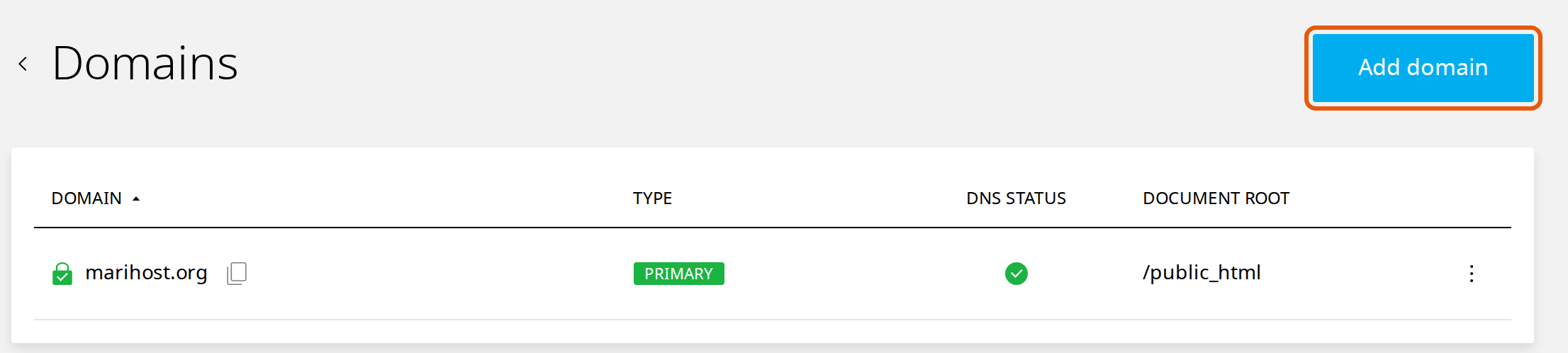
Sign in to your client area at billing.marihost.com, open your hosting plan and click Login to Control Panel. Open Websites in the left sidebar, choose your website, then click Domains in the top menu. Click Add domain.
2. Type the domain
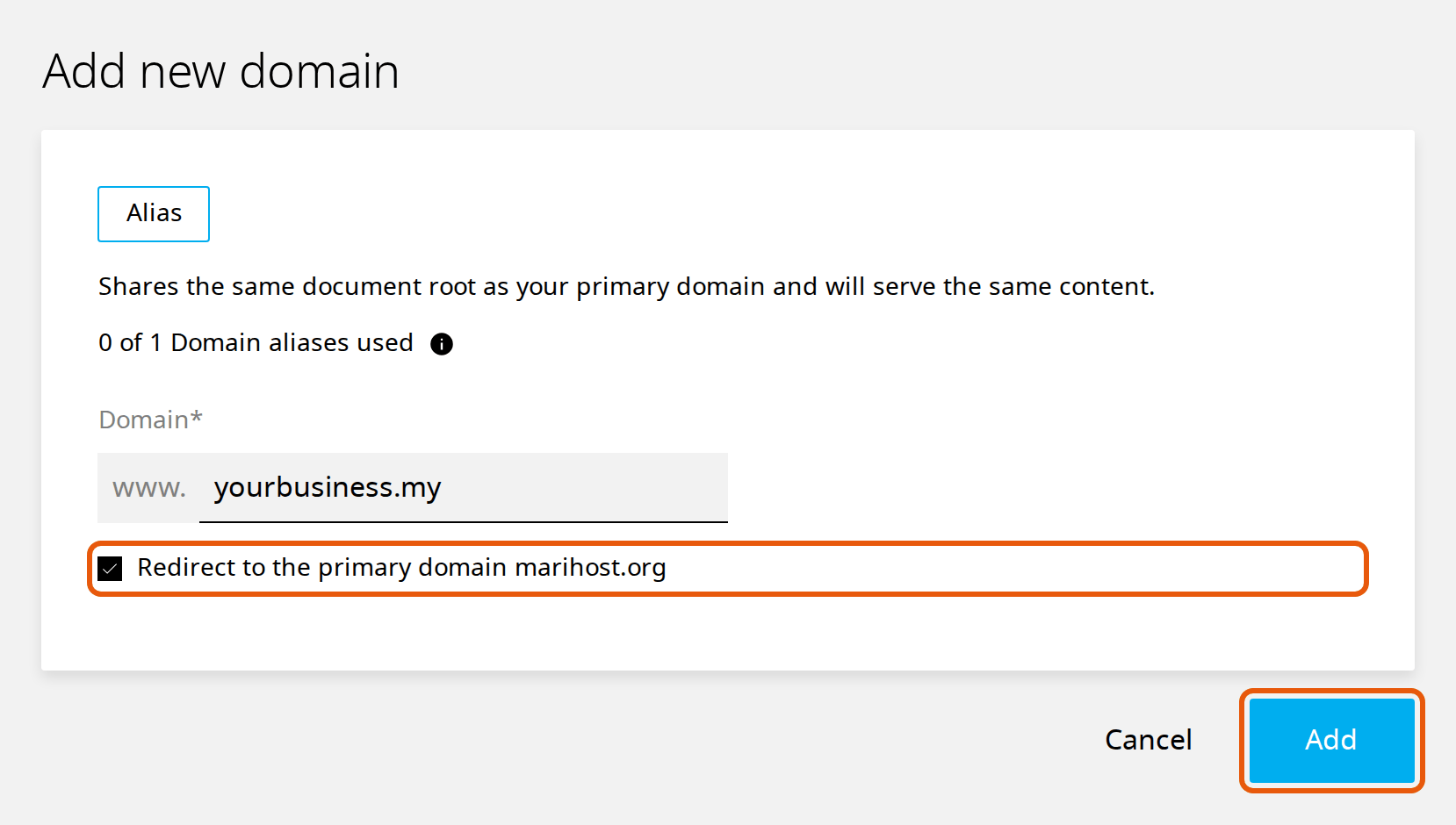
Add new domain adds it as an Alias: it shows the same website as your main domain. Under it, you can see how many of your plan's extra domains you've used.
- Domain: type the domain without www, such as yourbusiness.my.
- Redirect to the primary domain: tick it to send visitors to your main address. Search engines then see one address for your website, and your visitors always see the same one. Leave it unticked only if you want your website to show at both addresses.
3. Add it
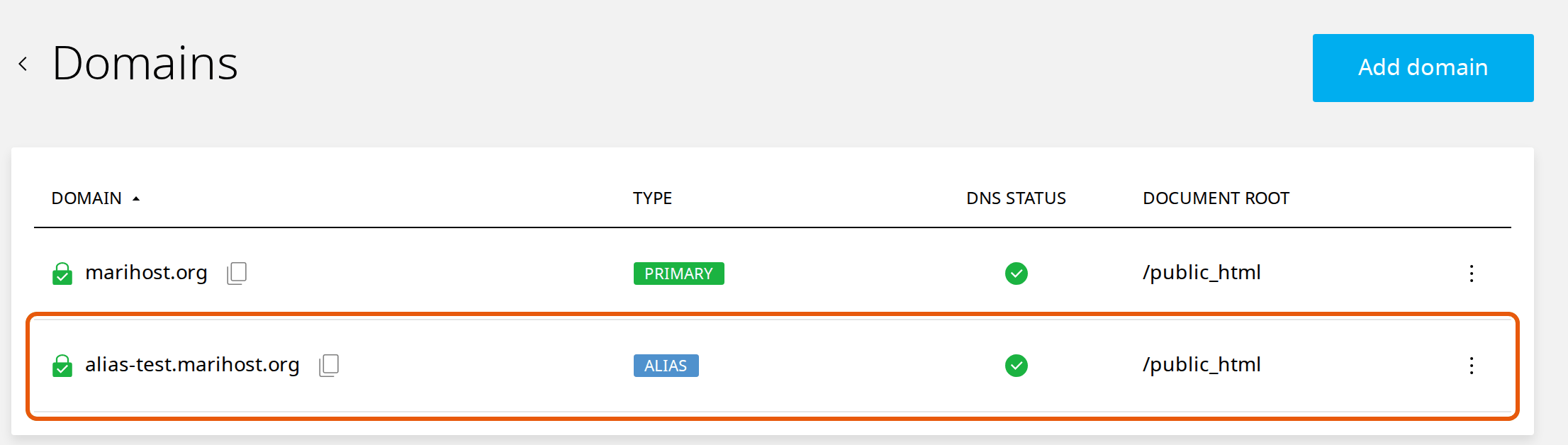
Click Add. The domain appears in your website's list as ALIAS.
Check it's working
Once you add a domain to your website, check these three things:
- DNS status: a green tick within a few minutes, if the domain uses our nameservers. A warning that doesn't go away means its DNS points somewhere else: see Point your domain to MariHost.
- The padlock next to the domain turns green once its free SSL certificate is ready, usually within 10 minutes.
- Open the domain in your browser. With Redirect to the primary domain ticked, you land on your main address.
The extra domain can have email addresses too: when you add an email account, choose it next to the address. See Create a business email account.
Change or remove a domain
Click ⋮ at the end of the domain's row:
- Manage opens its settings, including its DNS records: see Manage DNS records.
- Delete removes it from your website. The domain itself stays registered.
Moving your website to a new main domain for good? Open a ticket and we'll do it with you: WordPress's own address has to change at the same time.
A different website on a domain
An extra domain always shows the same website. For a separate website, such as a second business or a shop on shop.yourbusiness.my, add it as a website of its own: see Start a WordPress website. Each separate site counts as one of your plan's websites. Need more? Upgrade your hosting plan.
What's next
- Use your domain with us: Point your domain to MariHost
- Add records for other services: Manage DNS records
- Get email on your domain: Create a business email account
Keep reading
Point your domain to MariHost
Nameservers or DNS records: which to use, and how to change them at your registrar.
Read the guideManage DNS records
What A, CNAME, MX and TXT records do, and how to add, change and delete them.
Read the guideRegister or transfer a domain
Register a new domain, or bring one from another registrar with its transfer code.
Read the guide