GuideHow to upgrade your hosting plan, or move to a smaller one
Last updated: 30 October 2026
Need more websites, storage or bandwidth? You can upgrade your hosting plan from your client area whenever you like, and pay only the difference for the rest of your billing period. This guide shows how to upgrade, what you pay, and how to move to a smaller plan. It takes about two minutes, and your websites, email and files stay exactly where they are.
Upgrade your hosting plan
1. Open your plan
Sign in to your client area at billing.marihost.com (Log in to your client area and control panel shows how). Click Products & services, then your hosting plan.
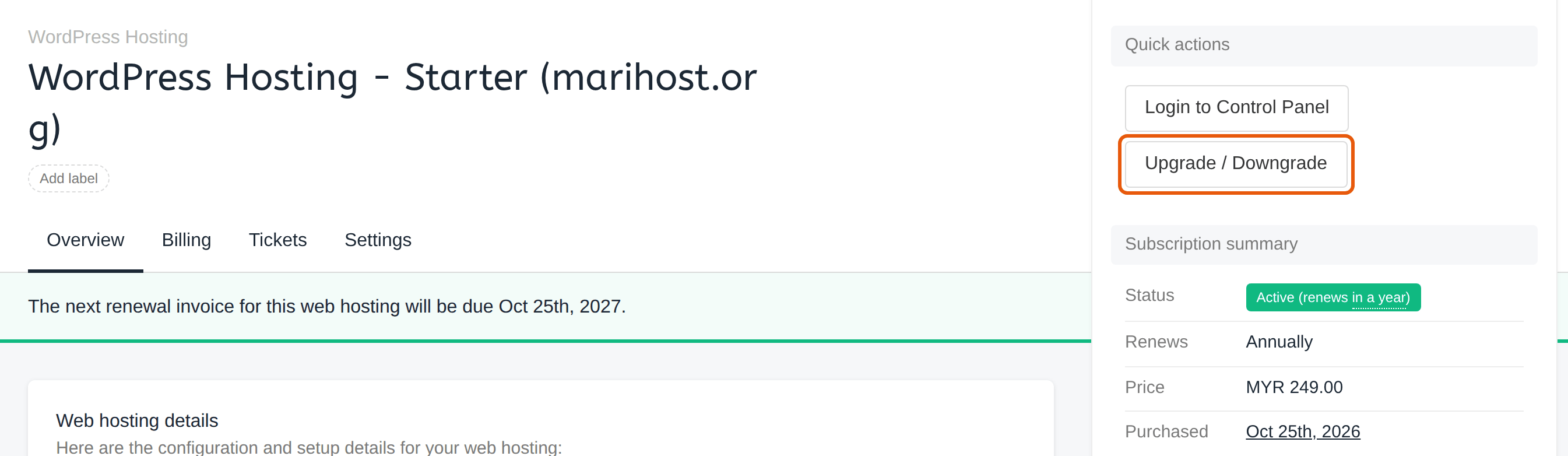
2. Click Upgrade / Downgrade
Under Quick actions, click Upgrade / Downgrade. It's also on the plan's Billing tab.
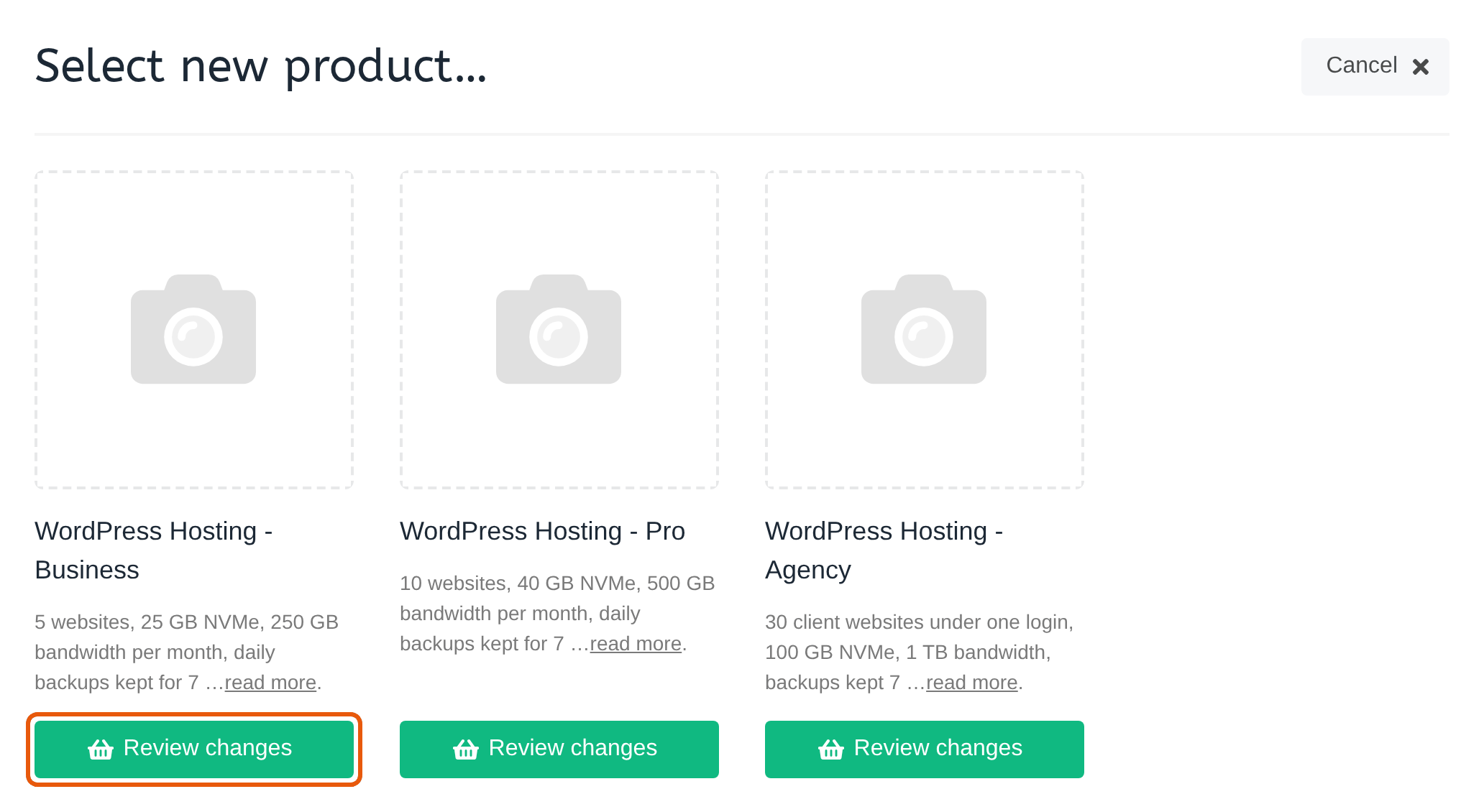
3. Choose the new plan
Select new product lists the plans you can move to, each with what it includes. Not sure which one you need? Choosing a hosting plan explains the differences. Click Review changes under the plan you want.
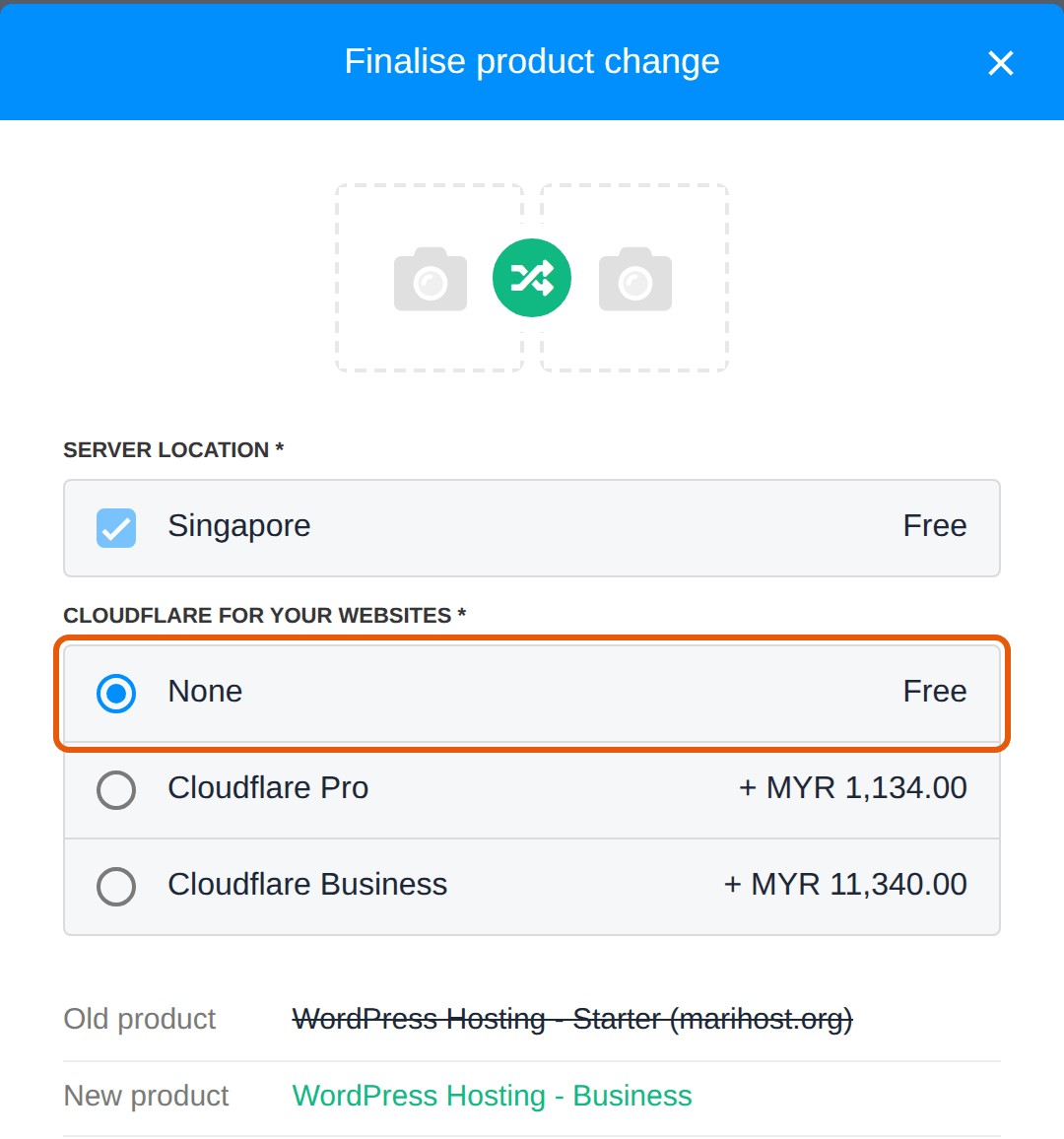
4. Check the change, and confirm
Finalise product change shows your old and new plan:
- Server location: stays as it is.
- Cloudflare for your websites: leave it on None, unless you want us to set up Cloudflare Pro or Business, which adds its price. Choose it, and set Qty to the number of websites it's for.
- Pro rata fee: what you pay now, for the rest of your current billing period.
- Effective: when the new plan applies.
Click Confirm changes.
What you pay, and when it changes
We create an invoice for the difference between the two plans, for the time left in your current billing period. Pay it from Billing → My invoices in your client area, and your new plan applies as soon as it's paid. From your next renewal, you pay the new plan's usual price.
Your websites don't move: your control panel account switches to the new plan's limits, with nothing to set up again.
On an older plan, such as Bronze, Silver or Gold? Upgrade / Downgrade lists the new WordPress plans too, and the same steps move you onto one.
Move to a smaller plan
The same steps move you to a smaller plan: choose it in step 3. It applies straight away, and you pay its lower price from your next renewal.
Before you move down, check that your websites, storage and mailboxes fit the smaller plan's limits. Check your website's resource usage shows how much you use. If something doesn't fit, remove it first, or open a ticket and we'll help.
Switch between monthly and yearly
Your client area doesn't change the billing term itself. Open a ticket and tell us which term you'd like: we switch it from your next renewal. A year costs the same as 10 months.
What's next
- See how much your plan uses: Check your website's resource usage
- Add a website to your bigger plan: Start a WordPress website
- Have sites elsewhere? Move your site to MariHost: we do it for free.
Not sure which plan you need?
Open a ticket and we'll look at your usage with you.
Keep reading
Choosing a hosting plan
Websites, storage and bandwidth explained, so you can pick a plan with room to grow.
Read the guideCheck your disk space and bandwidth
See what your plan and each website use, and what to do when one gets close to a limit.
Read the guideLog in to your client area and control panel
Sign in once, open the control panel with one click, and what to do if you can't get in.
Read the guide