GuideStart an online shop with WooCommerce in Malaysia
Last updated: 30 October 2026
WooCommerce turns a WordPress website into an online shop, and it's free. This WooCommerce Malaysia guide sets it up for selling in Malaysia: prices in ringgit, shipping to Peninsular and East Malaysia, and payments by FPX online banking, DuitNow, cards and e-wallets through CHIP or Bayarcash, two Malaysian payment gateways. It also covers SST and e-invoices. Allow about an hour, plus a few days for the payment gateway to approve your account.
Before you start
You need:
- A WordPress website. A shop builds many pages fresh for each visitor, such as the cart and checkout, so it needs more power than a company site. On MariHost, the Business plan suits a small shop better than Starter. New to WordPress? Start with Start a WordPress website.
- A business registration and a bank account. Payment gateways check your business before you can take real payments. Bayarcash needs an SSM registration (or ROS for an NGO).
- Your products: names, prices, photos and a short description of each.
WooCommerce asks for PHP 8.3 or newer, 256 MB of memory for WordPress, and HTTPS. Every MariHost website already has all three.
Already have a busy website? Try the shop on a staging copy first.
Install WooCommerce
- In WordPress, go to Plugins → Add Plugin and search for WooCommerce.
- On WooCommerce's card (by Automattic), click Install Now, then Activate.
- WooCommerce opens a short set-up wizard. Answer its questions, or skip it: everything below is in WooCommerce → Settings.
Your shop stays hidden behind a "coming soon" page while you set it up. When you're ready, open WooCommerce → Settings → Site visibility and choose Live.
Set up your shop for Malaysia
Go to WooCommerce → Settings → General:
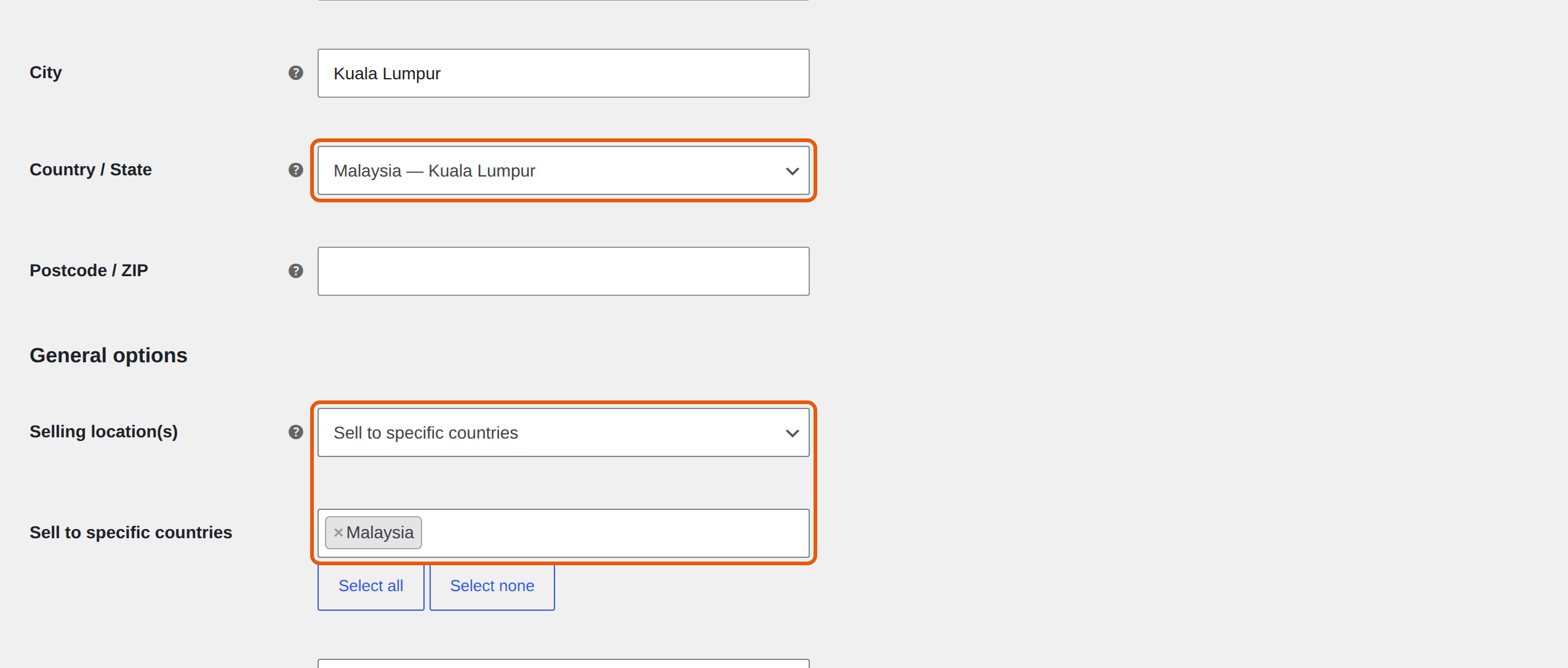
- Country / State: Malaysia, then your state, such as Malaysia — Selangor. Fill in your address above it.
- Selling location(s): Sell to specific countries, then Malaysia, unless you'll sell abroad.
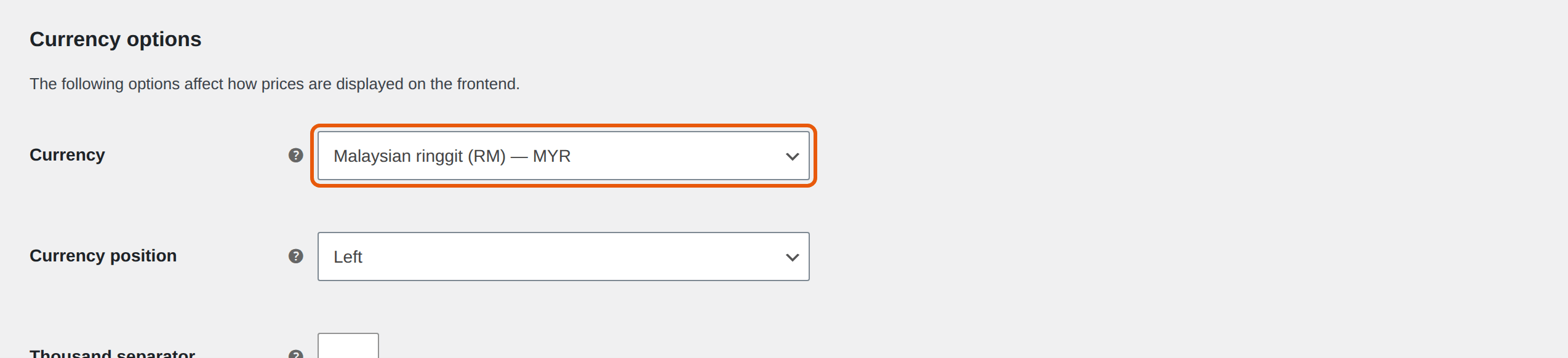
Further down, under Currency options, set Currency to Malaysian ringgit (RM), with 2 decimals. Then click Save changes at the bottom.
Ship across Malaysia
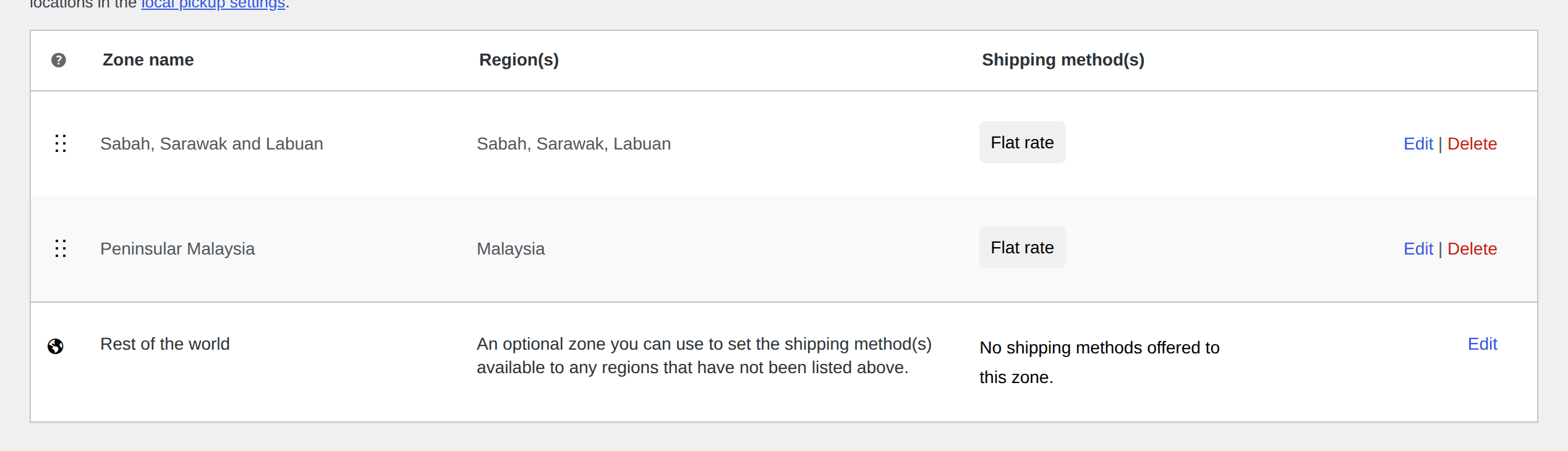
Sending a parcel to Sabah or Sarawak costs more than within Peninsular Malaysia, so make two shipping zones. Go to WooCommerce → Settings → Shipping and click Add zone.
1. East Malaysia
- Zone name: Sabah, Sarawak and Labuan.
- Zone regions: type and tick Sabah, Sarawak and Labuan.
- Click Save changes, then Add shipping method → Flat rate → Continue, type the Cost, such as 15, and click Save.
2. Peninsular Malaysia
Add a second zone named Peninsular Malaysia, with Malaysia as its region and its own flat rate, such as 8.
WooCommerce matches each customer to the first zone from the top of the list that covers their address. Because the East Malaysia zone is above, customers in Sabah, Sarawak and Labuan get its rate, and everyone else in Malaysia gets the Peninsular one.
To offer free shipping over a certain amount, add Free shipping to a zone and set Free shipping requires… to A minimum order amount.
Want live courier rates and printed labels? EasyParcel, J&T Express and Delyva each publish a WooCommerce plugin. Check that the one you choose is kept up to date before you rely on it.
Take payments with CHIP or Bayarcash
FPX online banking is how many Malaysians prefer to pay online. CHIP and Bayarcash both take FPX and DuitNow QR, and add their own options to WooCommerce's Payments.
| CHIP | Bayarcash | |
|---|---|---|
| Ways to pay | FPX, cards, DuitNow QR, e-wallets, Atome | FPX, DuitNow, cards, e-wallets, direct debit |
| Who can sign up | Ask CHIP | Businesses registered with SSM, and NGOs with ROS |
| Refunds in WooCommerce | Yes | No |
| Testing | A test key | Sandbox mode |
Both take Touch 'n Go, GrabPay and ShopeePay; CHIP adds Maybank QRPay, and Bayarcash adds Boost. Bayarcash is Shariah-compliant, so it doesn't accept some businesses, such as those selling alcohol, pork, tobacco or gambling.
Fees change, so compare them on each provider's own pricing page: CHIP and Bayarcash. You can install both and offer each customer a choice.
1. CHIP
- Sign up at chip-in.asia. CHIP checks your business before it approves the account.
- In WordPress, go to Plugins → Add Plugin, search for CHIP for WooCommerce (by Chip In Sdn Bhd), then Install Now and Activate.
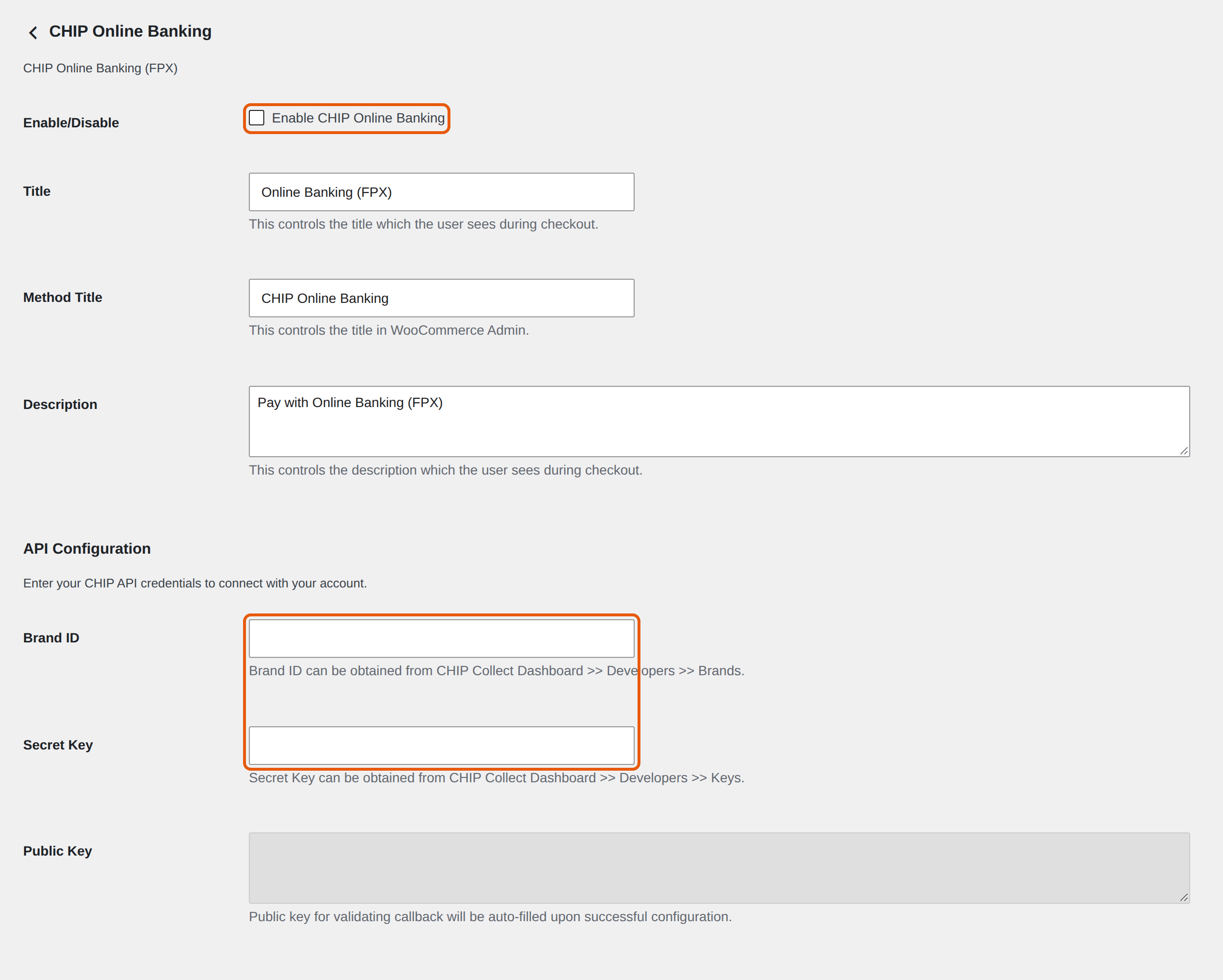
- Go to WooCommerce → Settings → Payments and click Manage next to CHIP Online Banking.
- Tick Enable CHIP Online Banking. Paste your Brand ID and Secret Key: in your CHIP dashboard, they're under Developers (Brands and Keys).
- Click Save changes. The Public Key fills itself in when the details are right.
Do the same for each CHIP option you want, such as CHIP DuitNow QR or CHIP Card. Start with CHIP's test secret key: test payments show an approve or decline screen instead of your bank, so you can place a test order safely. Then paste the live key.
2. Bayarcash
- Sign up at bayarcash.com with your SSM registration.
- In WordPress, install and activate Bayarcash WooCommerce.
- Go to WooCommerce → Settings → Payments and click Manage next to Bayarcash FPX.
- Paste your Personal Access Token (PAT) from the Bayarcash console and click Verify Token. Then choose your Portal Key and paste the API Secret Key.
- To test first, tick Enable sandbox mode and use your sandbox account's details. Click Save changes.
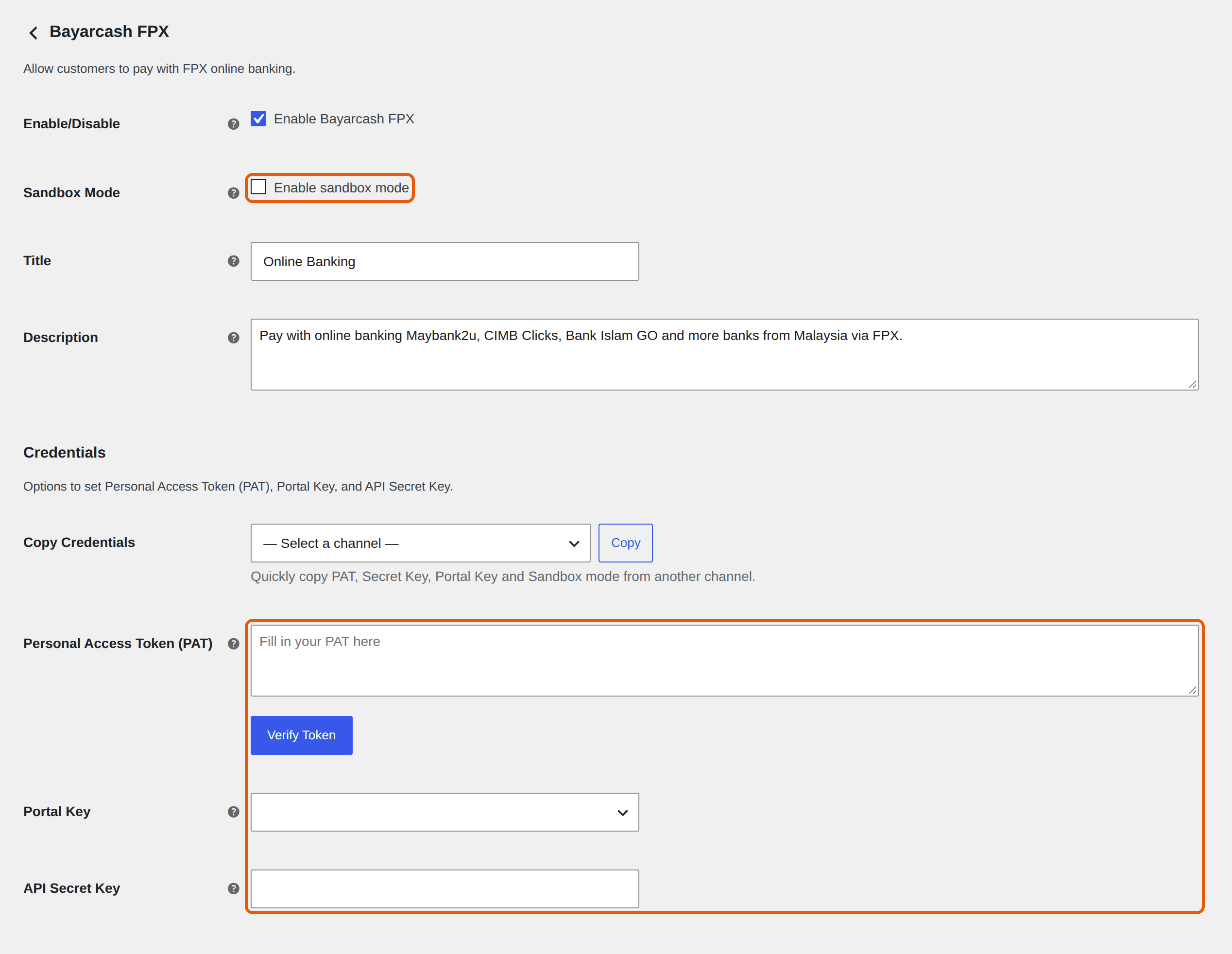
Bayarcash adds one option for each way to pay, and they're all switched on when you install it. Turn off the ones you won't use, and on the others, use Copy Credentials to copy the same details across.
SST and e-invoices
Most small online shops in Malaysia don't charge SST:
- Sales tax is charged by manufacturers of taxable goods, once their taxable sales pass RM500,000 in 12 months. A shop that resells goods doesn't charge it.
- Service tax applies only to the services the government lists, and selling goods online isn't one of them.
If your business is registered for SST, turn on Enable tax rates and calculations in WooCommerce → Settings → General, then add your rate in the Tax tab. Check which rate applies to you with your accountant or MySST, the Royal Malaysian Customs SST site.
e-Invoices: businesses with yearly sales under RM3 million don't have to issue them, according to LHDN (from 1 September 2026).
Keep your shop fast and safe
- Caching: LiteSpeed Cache leaves the cart, checkout and account pages out of its cache, as long as they're set in WooCommerce → Settings → Advanced. See LiteSpeed Cache settings.
- Backups: an online shop takes orders every day, so back up before every big change. See Back up and restore your website.
- Updates: keep WooCommerce and your payment plugin up to date, testing on a staging copy first. See Update WordPress safely.
What's next
- Add your products: Products → Add New Product.
- Place a test order with each way to pay before you go live.
- Need more memory for a big catalogue? Increase the upload size and PHP limits
Building a shop?
The Business plan gives a shop room to grow, with daily backups and free migration from your current host.
Keep reading
Start a WordPress website
From choosing a domain to publishing your first page, step by step.
Read the guideBack up and restore your website
Make a backup before a big change, and put back your whole site or only some files, without a ticket.
Read the guideLiteSpeed Cache settings
The settings we recommend: the page cache, opcode caching and Redis for faster dashboards and shops, and a CDN.
Read the guide