GuideGoogle Workspace email and Microsoft 365: MX records for your MariHost website
Last updated: 26 October 2026
Already use Google Workspace or Microsoft 365 for your business email? You can keep it there and host your website with us. Your email stays exactly where it is; you only need to tell the internet which service handles it, with a few DNS records, and change one setting in our control panel. This guide shows you how for both. It takes about 15 minutes, and email keeps flowing while you do it.
How it works
Your domain's MX record says which service receives its email. To use Google or Microsoft, your MX record points to them instead of to us, and your SPF and DKIM records tell other mail services that Google or Microsoft may send email for your domain.
Your website still sends its own email from our servers, such as contact form messages and order emails, so your records keep us in too.
This guide is for domains on our nameservers, ns1.maridns.com and ns2.maridns.com, whose DNS records are in our control panel. If your DNS is somewhere else, such as Cloudflare, add the records there, but still do step 1 in our control panel.
Already have mailboxes with us on this domain? After step 2 they stop receiving new email. Copy the email you want to keep first: Google Workspace and Microsoft 365 both have a migration tool that copies mail over IMAP, using our mail server settings.
Step 1: switch to Remote mail
Sign in to your client area at billing.marihost.com, open your hosting plan and click Login to Control Panel. Open Websites in the left sidebar, choose your website, then Domains in the top menu, and click your domain. Under Mail routing settings, choose Remote mail. It's saved straight away, and a green notice says "Mail routing settings updated".
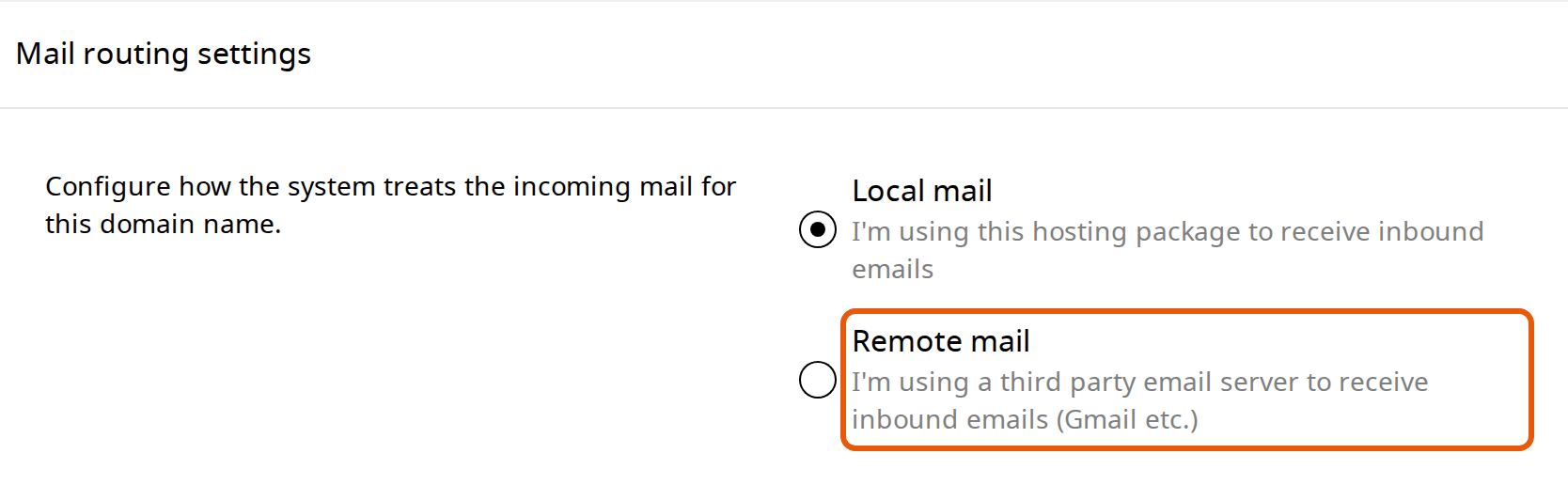
This matters even though the setting is easy to miss. With Local mail, email that our servers send to your domain, such as your website's contact form messages, is delivered to a mailbox here instead of to Google or Microsoft, and never reaches you.
Step 2: remove our mail record
On the same page, scroll down to DNS records. Find the MX record, which points to mail.yourdomain: choosing Remote mail doesn't change it. Click ⋮ at the end of its row, choose Delete, and confirm.
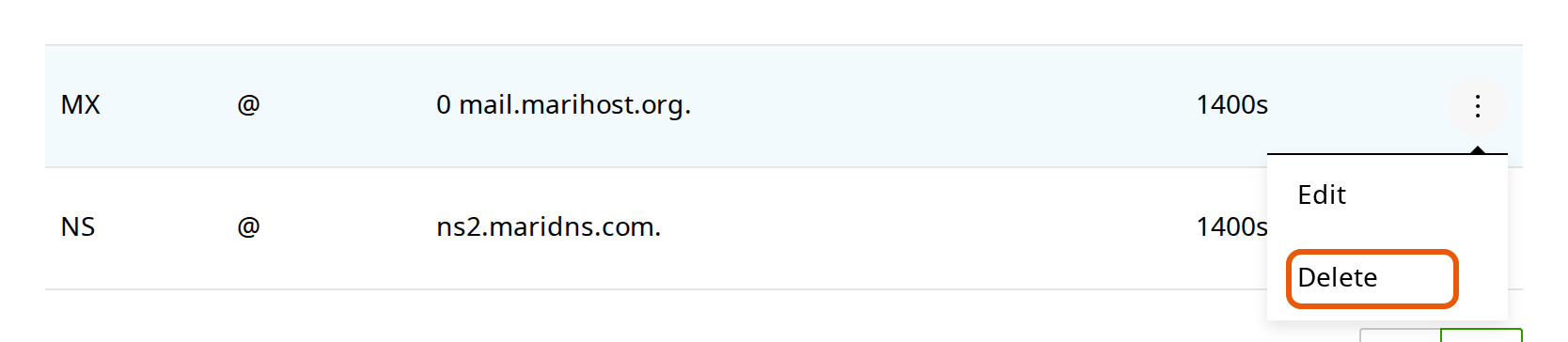
Your domain should have only your provider's MX records: if ours stays, some email goes to the wrong place.
Step 3: add your provider's records
Click Add record, choose the type, fill in the fields and click Create, once for each record in the list for your provider below. Leave Use zone default on for the TTL. For a record on your domain itself, type @ as the hostname.
Type the names of Google's or Microsoft's servers with a dot at the end, as in the lists below: smtp.google.com. Without it, the control panel adds your own domain to the end, and your email goes nowhere. The form reminds you if you forget.
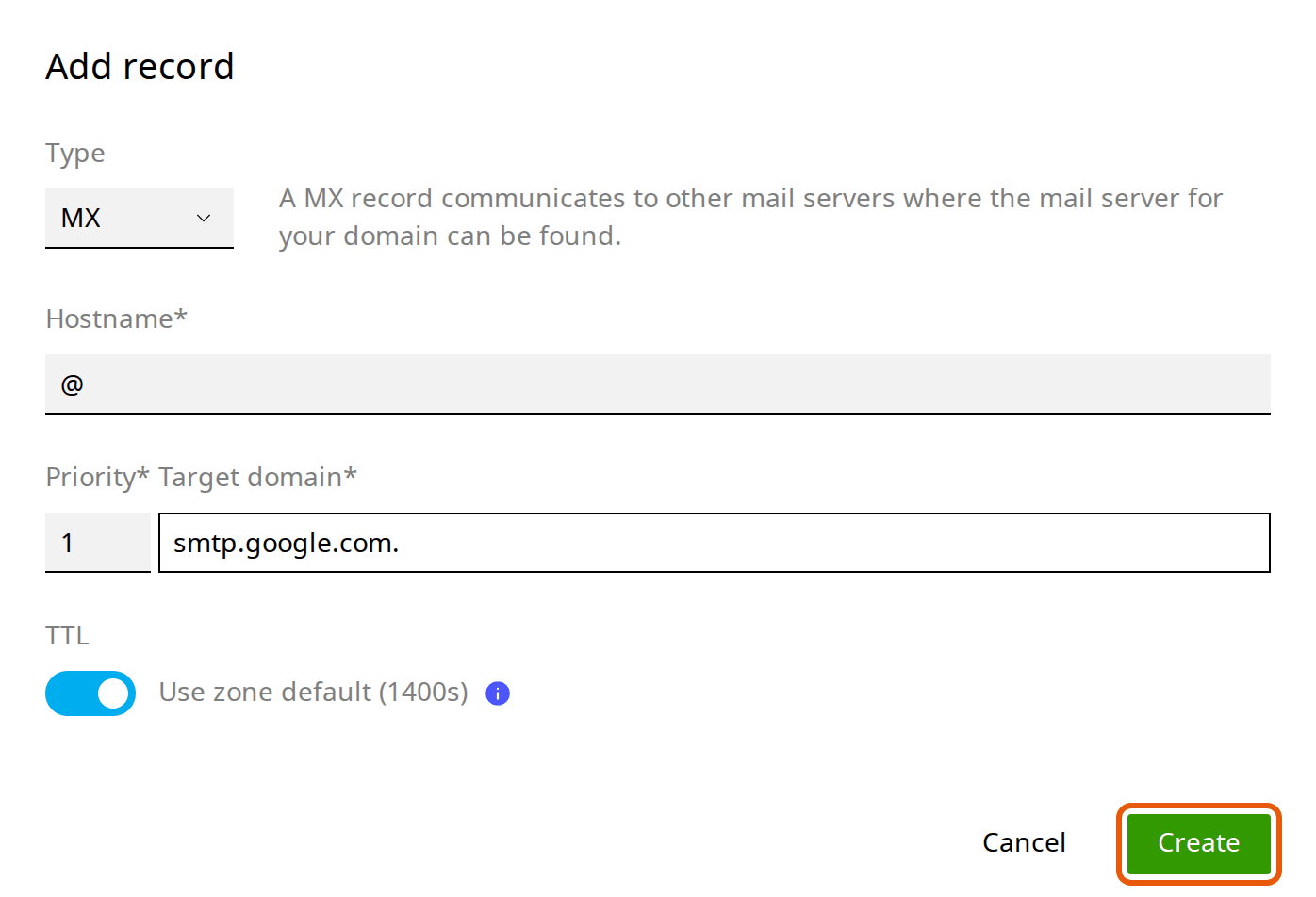
For the SPF record, don't add a second one: a domain can have only one. Find the TXT record that starts v=spf1, click ⋮, choose Edit and change it as shown below.
Records for Google Workspace email
| Type | Hostname | Value |
|---|---|---|
| MX | @ | Priority 1, target smtp.google.com. (with the dot) |
| TXT (SPF, edit the existing one) | @ | v=spf1 a include:_spf.marihost.net include:_spf.google.com ~all |
| TXT (DKIM) | google._domainkey | the value from your Google Admin console (below) |
Google may first ask you to verify your domain with a TXT record that starts google-site-verification=: add it as a TXT record on @.
DKIM for Google: in your Google Admin console, go to Apps → Google Workspace → Gmail → Authenticate email. Click Generate new record, copy the TXT record value and add it in our control panel with the hostname google._domainkey. Back in Google, click Start authentication.
Domains set up with Google before 2023 may use five MX records starting with aspmx.l.google.com. Google still supports them, so if your email works, you can keep them.
Records for Microsoft 365
Microsoft gives each domain its own values. In the Microsoft 365 admin center, go to Settings → Domains, add or choose your domain, and follow the steps until it shows the DNS records to add. Choose to add them yourself, then copy them one by one into our control panel:
| Type | Hostname | Value |
|---|---|---|
| TXT (verification) | @ | MS=…, from the admin center |
| MX | @ | Priority 0, target from the admin center, ending in mail.protection.outlook.com or mx.microsoft, with a dot added at the end |
| CNAME | autodiscover | autodiscover.outlook.com. (with the dot) |
| TXT (SPF, edit the existing one) | @ | v=spf1 a include:_spf.marihost.net include:spf.protection.outlook.com ~all |
DKIM for Microsoft uses two CNAME records, selector1._domainkey and selector2._domainkey. Microsoft shows their values in the Microsoft Defender portal, under the email authentication settings for your domain. Add both, each with a dot at the end, then switch DKIM on there.
Keep our DMARC record (_dmarc) as it is: it works with either provider.
Check it's working
- Send an email to your address from a personal Gmail or Outlook.com account. It should arrive in Google Workspace or Microsoft 365. Changes in our DNS take effect within minutes, but other networks can take a few hours to notice.
- Send a message through your website's contact form to your own address. It should arrive too: if it doesn't, check step 1.
- Check the records with Google's Dig tool: choose MX for your domain. Only your provider's servers should be listed.
- Check the provider's dashboard. Google and Microsoft both show whether they can see your records.
If something's not right
Email still arrives in your MariHost mailbox. Our MX record is still there, or the change hasn't reached every network yet. Delete our MX record and wait an hour.
Email bounces, or Dig shows smtp.google.com.yourdomain. The MX target is missing its final dot. Edit the record and type smtp.google.com. with the dot.
Website emails don't arrive, but other email does. Mail routing settings is still on Local mail. Switch it to Remote mail.
Your emails go to spam, or Google or Microsoft says SPF fails. Check there's only one TXT record starting v=spf1, and that it includes your provider. See SPF, DKIM and DMARC for more.
Microsoft or Google can't verify your domain. Check the hostname: @ for the domain itself. Wait 30 minutes and try again.
Next steps
Learn more about managing DNS records in the control panel, or, if your domain isn't with us yet, point your domain to MariHost.
Moving your email to Google or Microsoft?
Tell us your domain and provider, and we'll check your records with you.
Keep reading
Manage DNS records
What A, CNAME, MX and TXT records do, and how to add, change and delete them.
Read the guideSPF, DKIM and DMARC: keep email out of spam
What each record does, how to switch on DKIM, and the records to add if your DNS is elsewhere.
Read the guidePoint your domain to MariHost
Nameservers or DNS records: which to use, and how to change them at your registrar.
Read the guide