GuideIMAP and SMTP settings: set up your email on any device
Last updated: 26 October 2026
You can read and send your MariHost email in almost any mail app: on an iPhone or Android phone, in the Gmail app, in Outlook or in Apple Mail. All you need are your email address, its password and the settings on this page. Setting up an app takes about five minutes.
Your IMAP and SMTP settings
Use these on every device. They're the same for every MariHost mailbox, whatever your domain.
| Setting | Value |
|---|---|
| Account type | IMAP |
| Incoming mail server (IMAP) | mailbox.marihost.net, port 993, SSL/TLS |
| Outgoing mail server (SMTP) | mailbox.marihost.net, port 465, SSL/TLS (or port 587, STARTTLS) |
| Username, incoming and outgoing | your full email address, such as [email protected] |
| Password | your mailbox's password |
| Outgoing server needs a login | yes, the same username and password |
Choose IMAP, not POP. IMAP keeps your email on our server and shows the same messages, folders and sent mail on every device. POP (port 995, SSL/TLS) downloads email to one device and is best avoided unless you have a reason for it.
Find them in the control panel
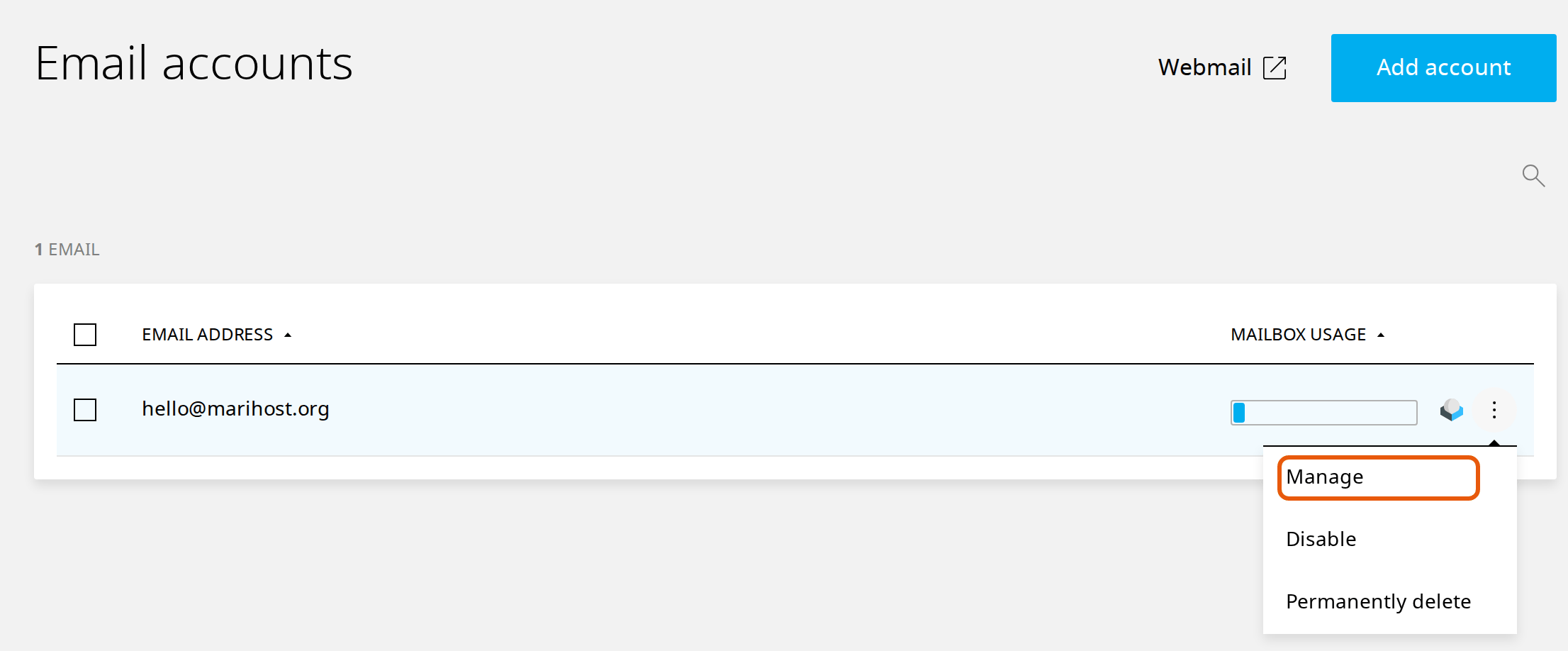
The control panel shows the same settings for each mailbox. Open Emails in the left sidebar, click ⋮ next to your address and choose Manage.
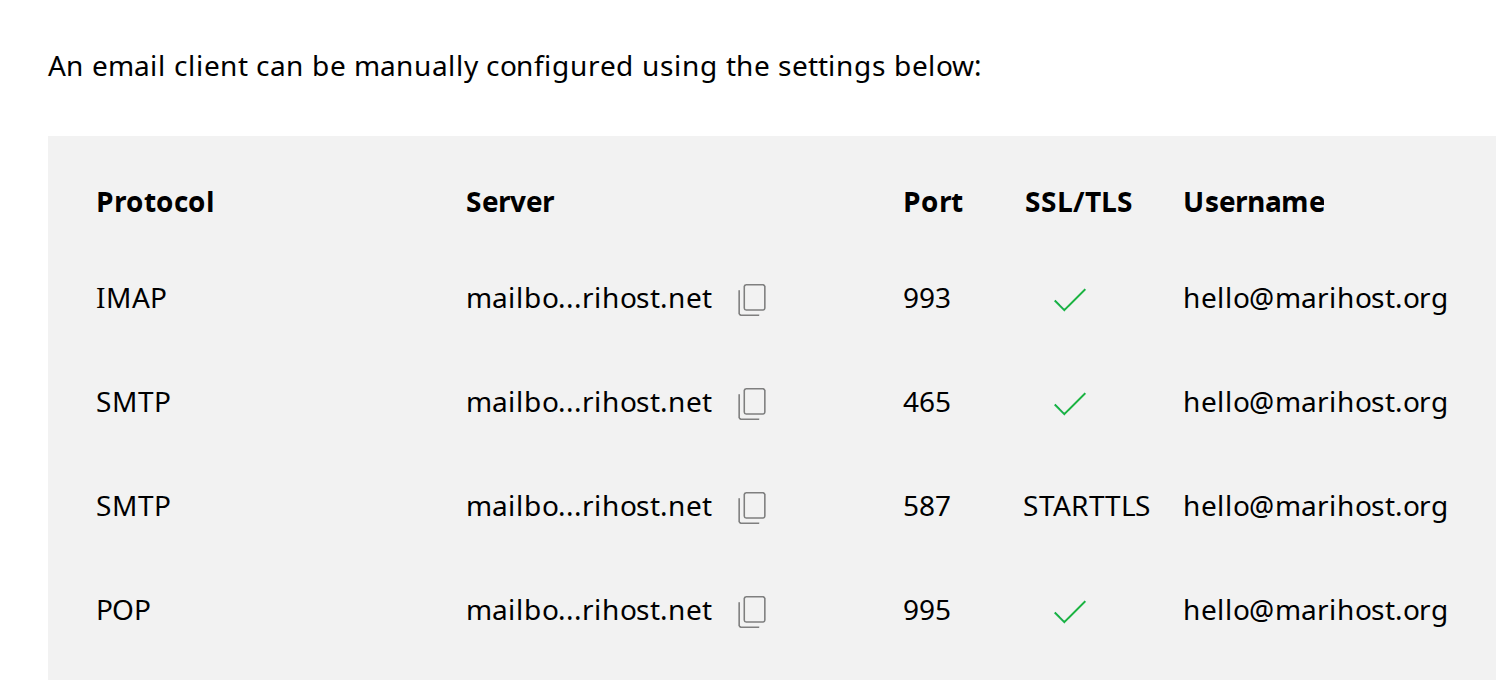
Then click Email client settings. The server name is shortened on screen: the copy button next to it copies it in full.
iPhone and iPad
- Open Settings, tap Apps, then Mail, then Mail Accounts.
- Tap Add Account, type your email address and tap Next.
- Tap Add Other Account, then Mail Account. Enter your name, email address and password, and a description such as "Work", then tap Next.
- If Mail asks for more details, choose IMAP and fill in the Incoming Mail Server and Outgoing Mail Server from the table above: the host name mailbox.marihost.net, your full email address and your password for both.
- Tap Next, then Save.
Android and the Gmail app
The Gmail app works with your MariHost email on Android, iPhone and iPad.
- Open the Gmail app and tap your profile picture at the top right.
- Tap Add another account, then Other.
- Type your email address and tap Next, then choose Personal (IMAP).
- Enter your password, then the incoming and outgoing settings from the table above. Use your full email address as the username each time.
- Follow the last steps to finish. Your email appears under its own account in the app.
Outlook
- In Outlook, add a new account and type your email address.
- If Outlook can't set it up by itself, it asks for the account type: choose IMAP. In classic Outlook, click Advanced options, tick Let me set up my account manually, click Connect and choose IMAP.
- Fill in the incoming and outgoing servers, ports and encryption from the table above, and your password.
Gmail on a computer
Gmail on the web used to collect email from other accounts (Check mail from other accounts). Google has stopped this for new users, and turns it off for everyone in January 2027. Instead:
- Use the Gmail app on your phone, as above, which connects to your mailbox directly.
- Or forward your email to Gmail: in the control panel, Emails → ⋮ → Manage → Forwarders. A copy of each email stays in your MariHost mailbox. Some forwarded email may land in Gmail's spam, so check it now and then.
If something's not right
"Password incorrect" or "authentication failed". The username is your full email address, not only the part before the @. Check the password by signing in to webmail at mailpanel.marihost.com. If that fails too, set a new password in the control panel (Emails → ⋮ → Manage → Password → Reset) and update it in every app.
You can receive but not send. Check the outgoing server: mailbox.marihost.net, port 465 with SSL/TLS, and "requires a login" turned on with your email address and password. If your network blocks port 465, try 587 with STARTTLS.
A warning about the server's certificate. The server name has a typo, or the app guessed a different one. Type mailbox.marihost.net exactly.
Sending stopped for a while. Each mailbox can send up to 50 emails an hour. Mail over the limit is refused until the hour has passed. For newsletters, use a mailing service.
Next steps
Haven't made a mailbox yet? See Create an email account. For email that reaches inboxes rather than spam, check your domain's SPF, DKIM and DMARC.
Stuck setting up a device?
Tell us your email address, the app you use and what it says, and we'll help.
Keep reading
Create an email account, and use webmail
A mailbox on your own domain in a couple of minutes, and your email in any browser.
Read the guideSPF, DKIM and DMARC: keep email out of spam
What each record does, how to switch on DKIM, and the records to add if your DNS is elsewhere.
Read the guideLog in to your client area and control panel
Sign in once, open the control panel with one click, and what to do if you can't get in.
Read the guide