GuideHow to check your website resource usage
Last updated: 29 October 2026
Every hosting plan has limits: how much disk space your websites can use, how much data they can send to visitors each month, and how many websites, mailboxes and databases you can have. This guide shows where to check your website resource usage in the control panel, and what to do when a website gets close to a limit. It takes about five minutes.
Check your website resource usage
In the control panel, click Subscriptions in the left sidebar. Each hosting plan has a card showing what you've used of it:
- Websites and Staging websites: how many you have, of how many your plan allows.
- Disk space: what your websites take up on the server.
- Bandwidth: the data your websites have sent to visitors this month.
- Emails: how many mailboxes you've made. Each mailbox also has its own size limit, 1 GB.
- Databases (MySQL): how many databases you have.
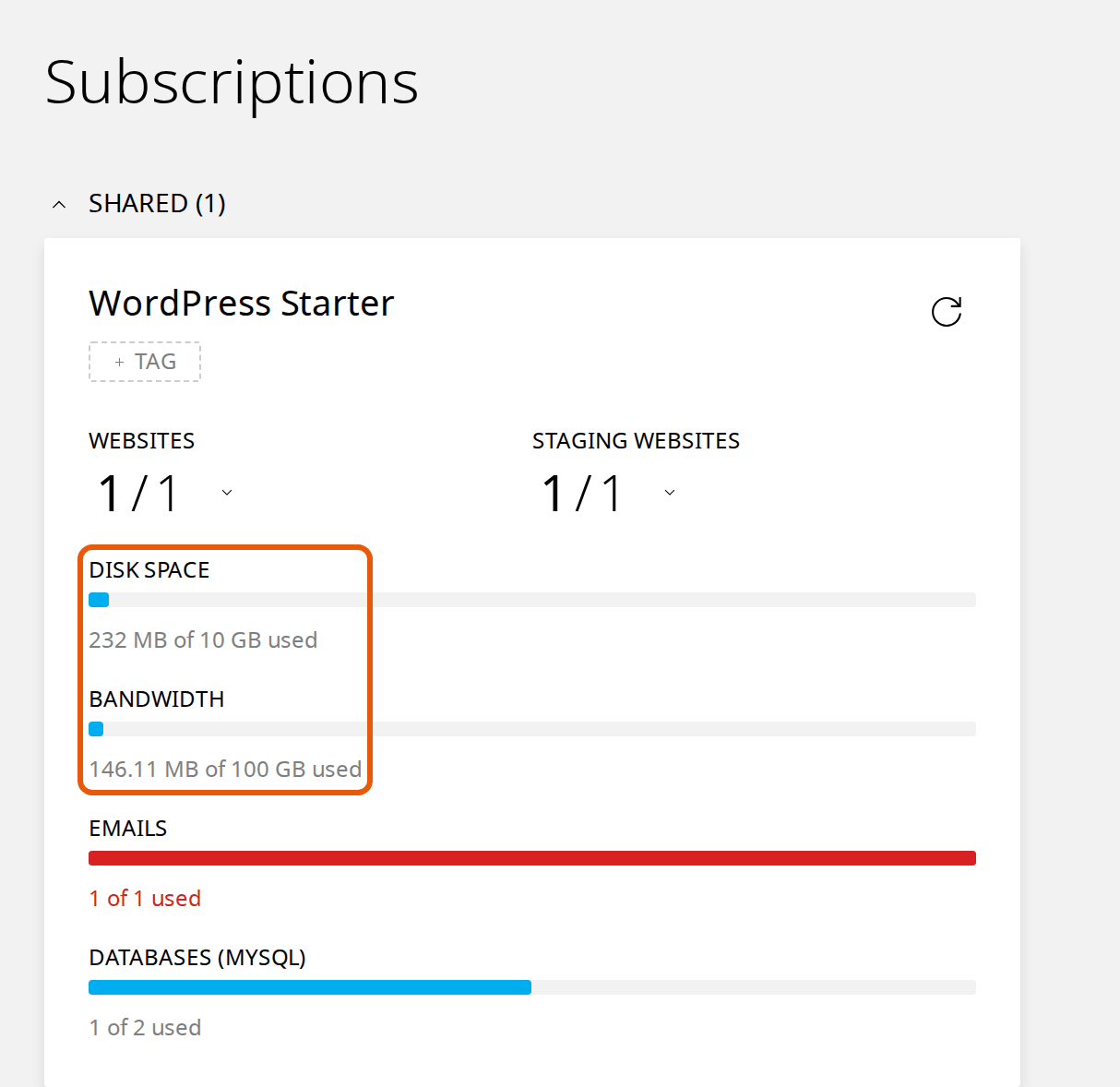
A bar turns red when you've used all of something. The refresh button at the top right of the card loads the latest figures.
A website's bandwidth and visitors
To see one website's traffic, open Websites, choose the website and click Analytics at the top. Choose Today, Last week or Last month at the top right.
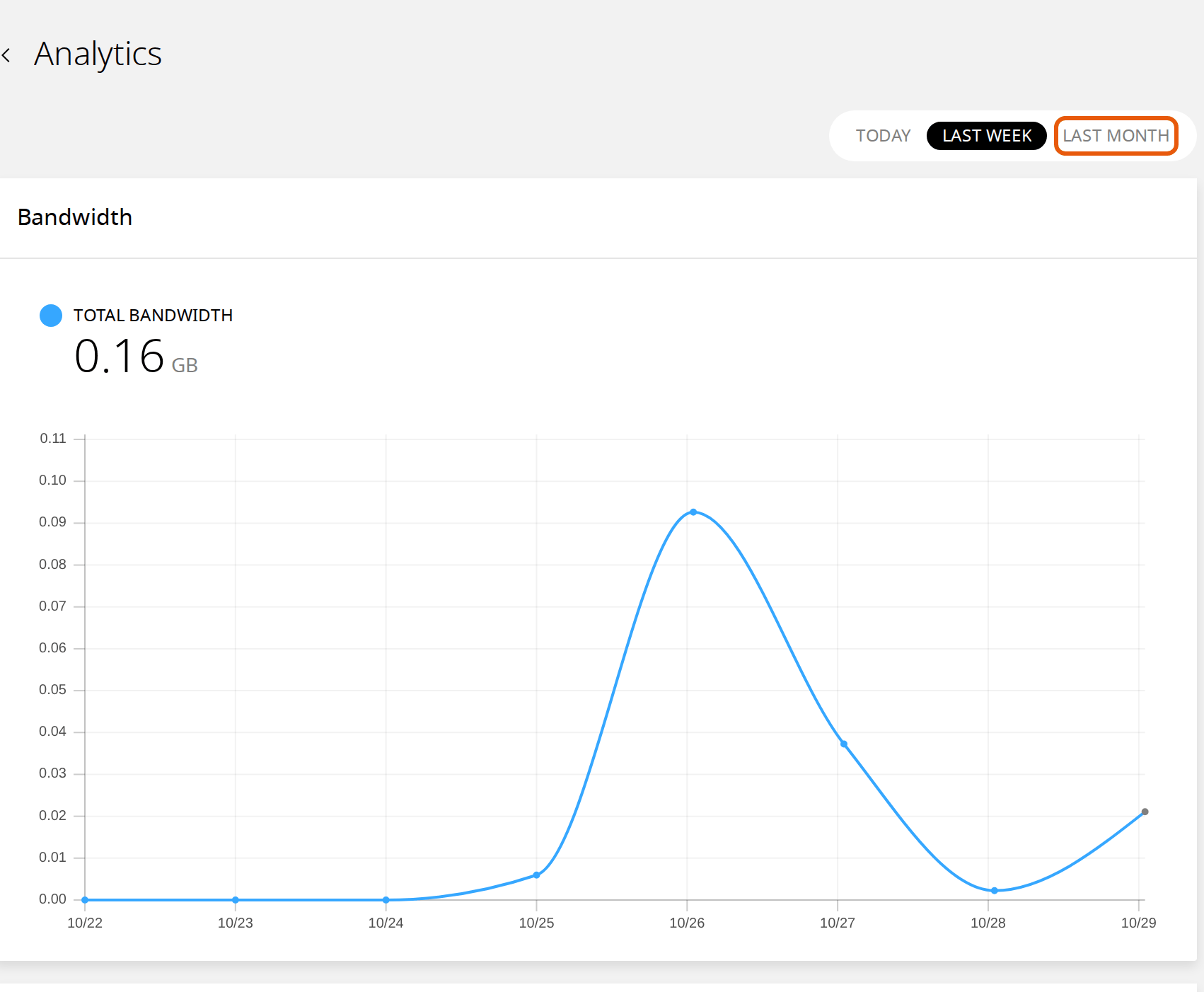
Bandwidth shows how much data the website sent, day by day. Below it, Visitors shows Total hits (every file and page requested) and Unique hits (different visitors). A sudden jump with few unique visitors is often bots rather than people.
When you're near a limit
Disk space. When it's full, new uploads and updates can fail. To free some:
- Delete plugins and themes you don't use, and old staging copies you've finished with.
- Delete backup files that backup plugins keep inside your website, in
wp-content. We back up your website every day already: see Back up and restore your website. - Make big images smaller before you upload them, and delete media you no longer use.
- Delete old log files, such as
wp-content/debug.log.
Bandwidth. If your websites go over the plan's bandwidth, they slow down until it resets. To use less, serve your images and files from a CDN: see Speed up WordPress with MariCDN or Use Cloudflare with your website. Cloudflare can also block bad bots before they reach your website.
Websites, mailboxes or databases. Delete ones you don't use, or move to a bigger plan.
A slow website: CPU and memory
Each website on your plan has its own share of CPU and memory, so a busy website doesn't slow down your others. The control panel doesn't show a graph of them, but a website that slows down when it's busy, or whose dashboard crawls, is often using all of its share. Before you move to a bigger plan, make WordPress do less work:
- Keep LiteSpeed Cache's page cache on, and turn on opcode caching and Redis: see OPcache and the Redis object cache.
- Check your cron jobs: a job that runs every minute uses CPU all day. See Cron jobs.
- Switch off plugins you don't need, especially ones that run on every page.
Still slow? Open a ticket and we'll look at what's using your website's resources. To compare the plans, see Choosing a hosting plan.
Next steps
For a faster website, see LiteSpeed Cache settings. To see why a website shows an error, see Check your WordPress error log.
Rather we looked after it?
WordPress Care updates your site, checks it after every update, and fixes anything an update breaks.
Keep reading
Turn on OPcache and Redis
Two switches in the control panel that make WordPress faster, and how to check both work.
Read the guideSpeed up WordPress with MariCDN
Connect the CDN plugin that comes with your WordPress, free for 3 GB a month, in four steps.
Read the guideChoosing a hosting plan
Websites, storage and bandwidth explained, so you can pick a plan with room to grow.
Read the guide