GuideHow to order a plan and start a free trial
Last updated: 30 October 2026
Every MariHost hosting plan starts with a 3-day free trial: set up your website, move one over, and see how fast it is before you pay anything. This guide shows how to order a plan with the free trial, from choosing it to placing the order, and what happens when the 3 days are up. It takes about five minutes, and you don't need a card to start.
Choose your plan
Open WordPress Hosting, choose Monthly or Yearly and your currency, then click Try free for 3 days on the plan you want. Not sure which one? Choosing a hosting plan explains the differences. You can move to another plan later.
Start the free trial
1. Tick Try before you buy
The plan's order page opens in our shop. Tick Try before you buy, the box with the Free Trial badge at the top. It isn't ticked until you tick it.
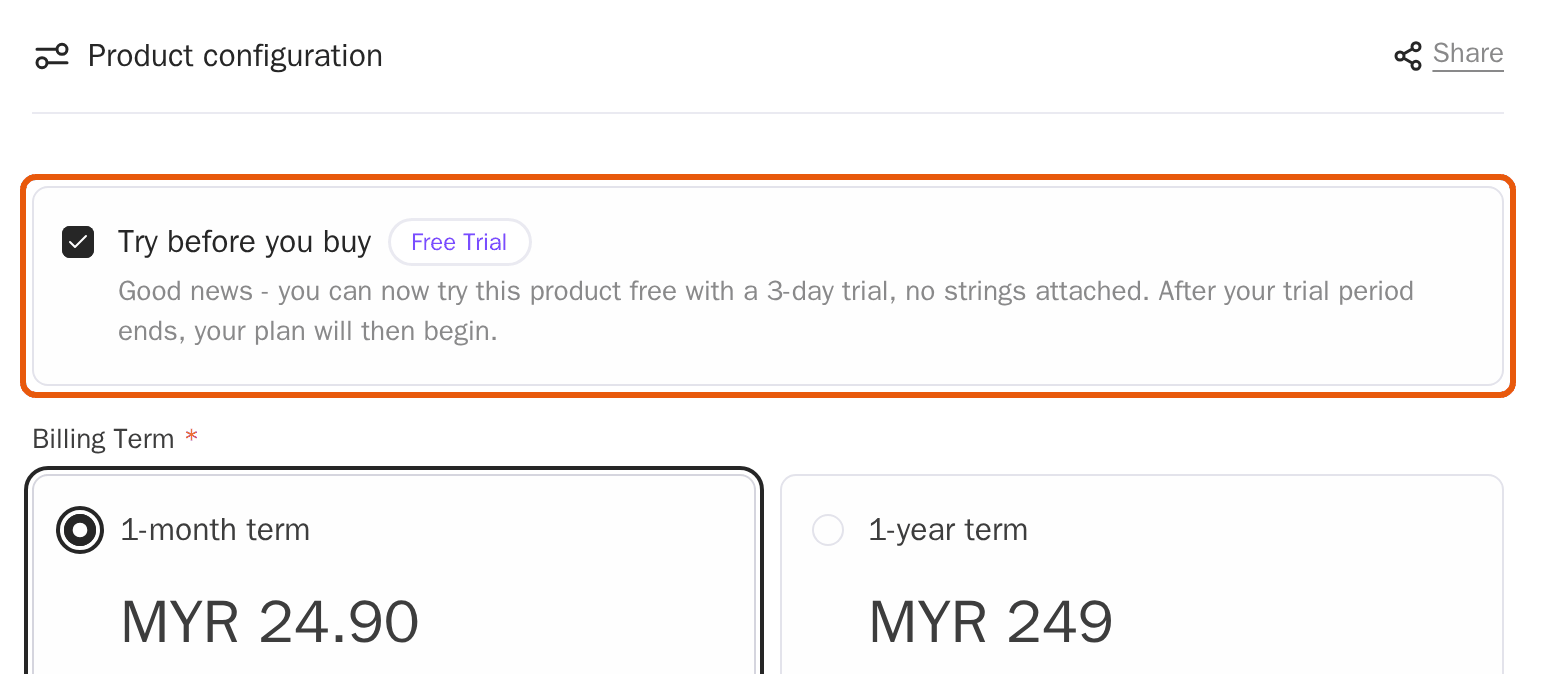
2. Choose the term
Under Billing Term, choose a month or a year: it's what you'll pay when the trial ends. A year costs the same as 10 months. Server location is Singapore, where our servers are.
Leave Cloudflare for your websites on None, unless you'd like us to set up Cloudflare Pro or Business: choose it, then use + to set how many websites it's for.
3. Add your domain
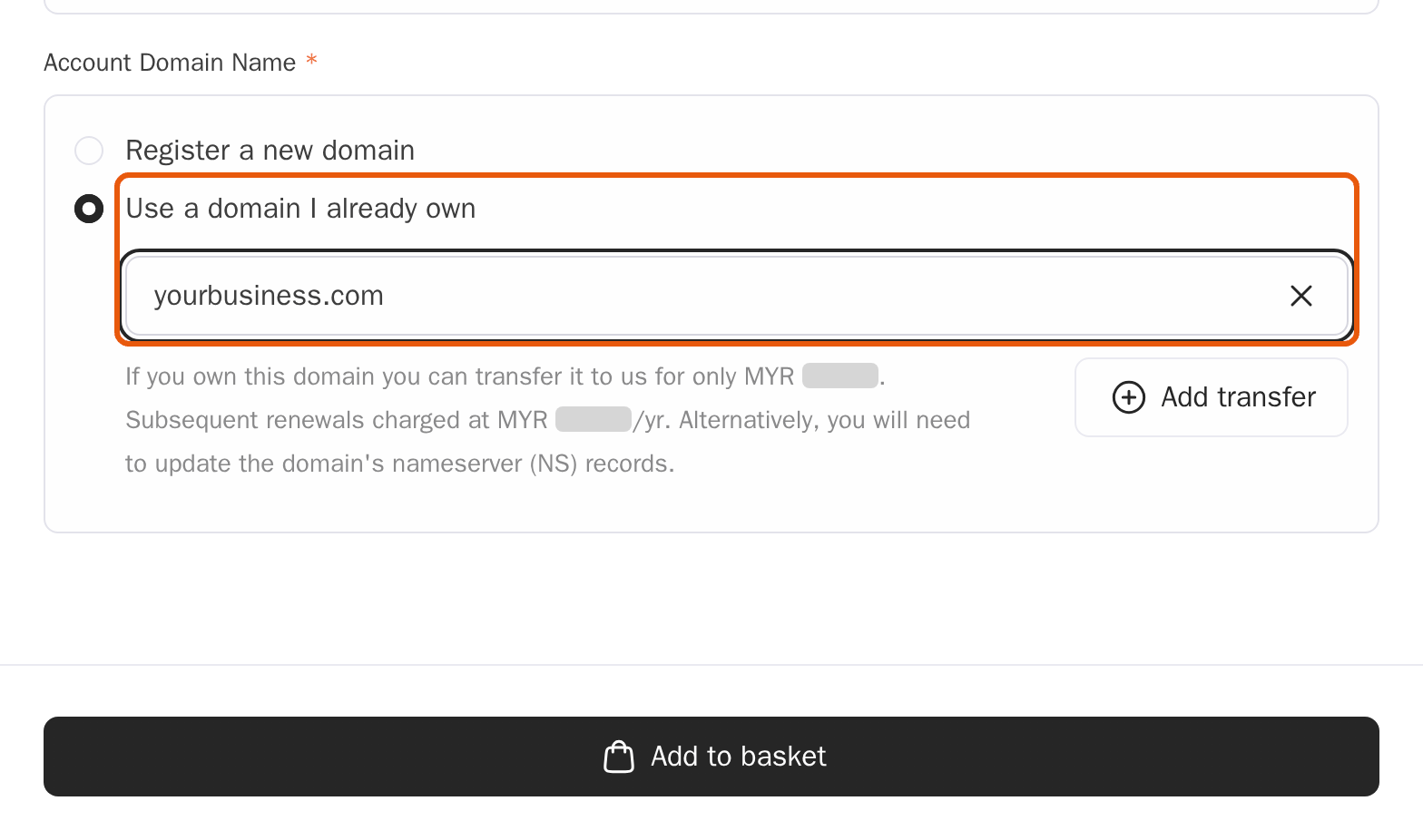
Under Account Domain Name, choose one:
- Use a domain I already own, and type it, such as yourbusiness.com. You'll point it to us later: see Point your domain to MariHost. The shop also offers to move the domain itself to us (Add transfer), but you don't need to.
- Register a new domain, to search for one and add it to your order. The free trial covers the hosting only, so a new domain is paid for with the order.
Click Add to basket.
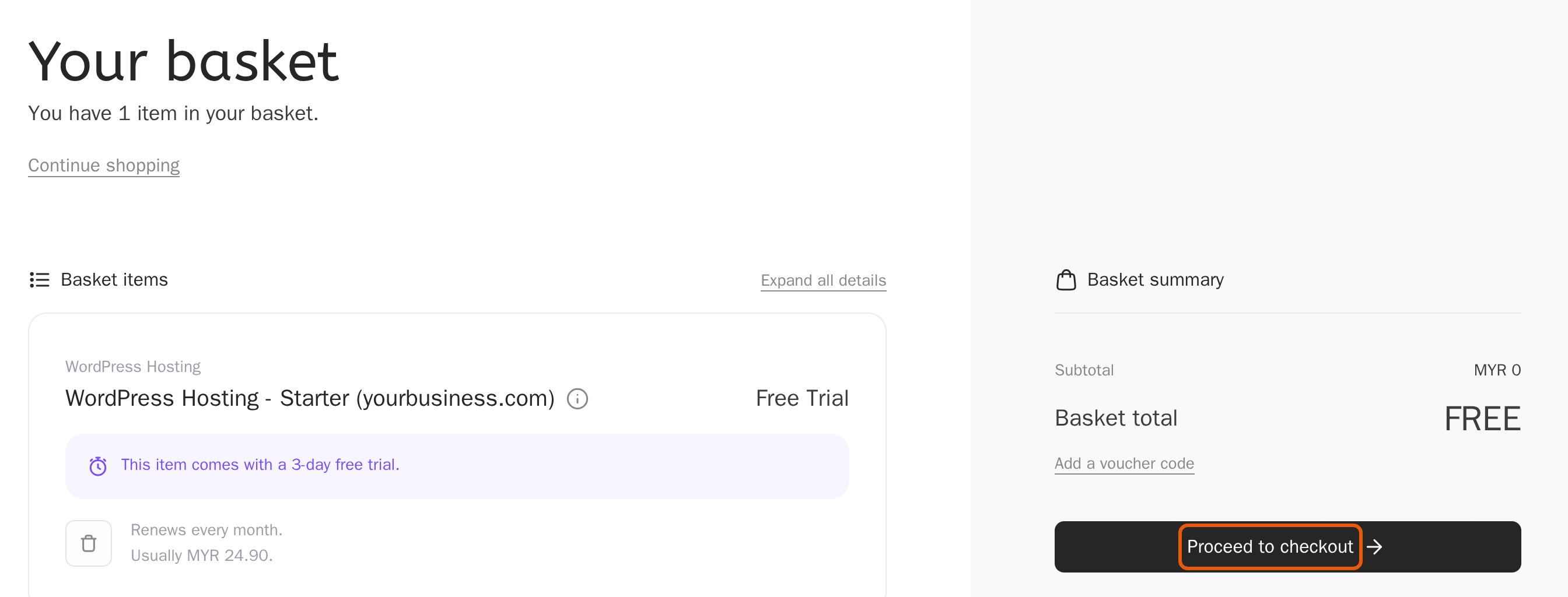
4. Check your basket
Your basket shows the plan with Free Trial: "This item comes with a 3-day free trial", and what it renews at. The Basket total is FREE.
A promotion code can't be used on a free trial order, so leave Add a voucher code empty. Click Proceed to checkout.
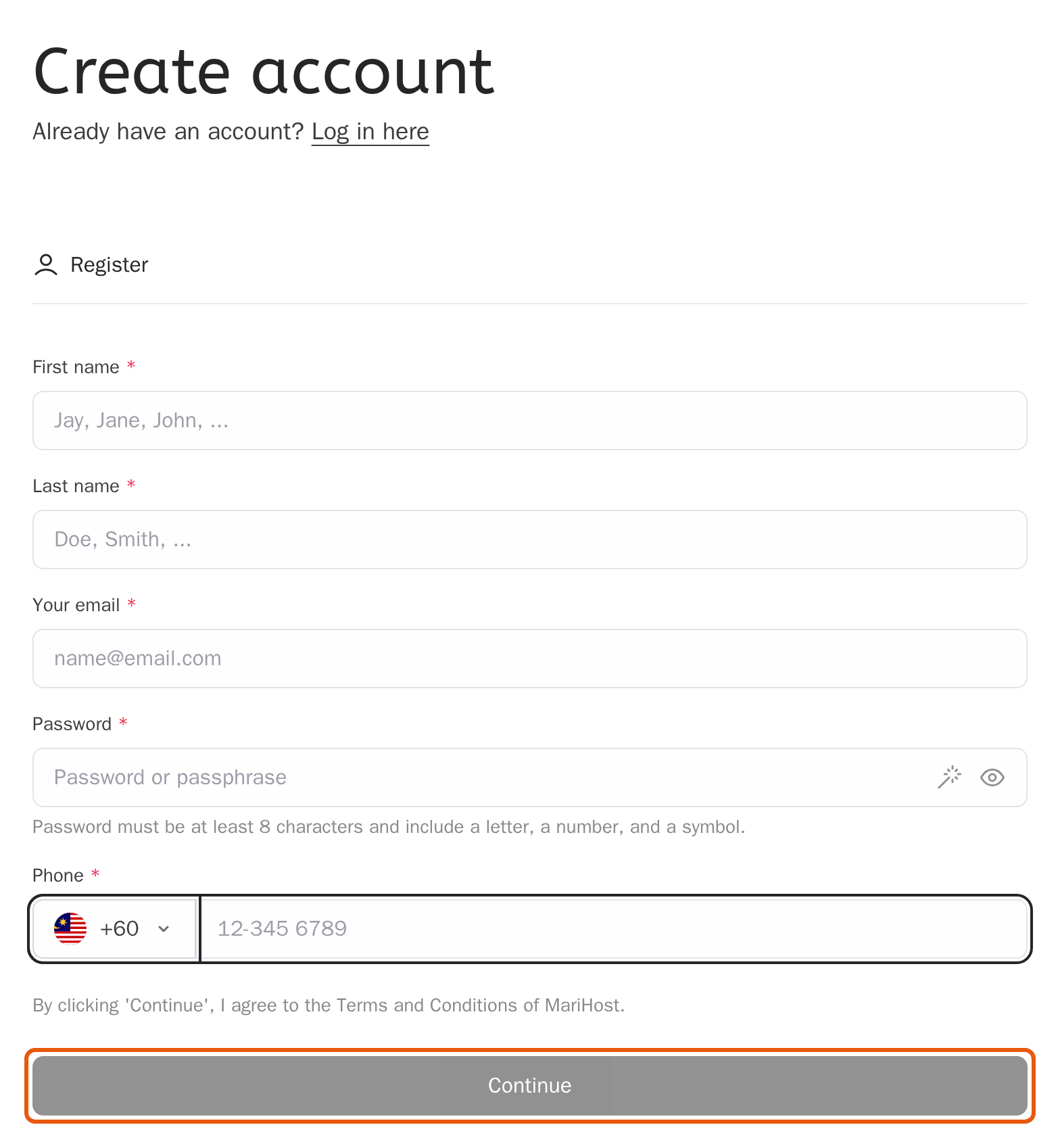
Create your account
New to MariHost? Fill in Create account: your name, email address, a password and your phone number. The password needs at least 8 characters, with a letter, a number and a symbol. Click Continue, then add your billing address on the next page.
Already a customer? Click Log in here instead, and the trial is added to your account.
Place your order
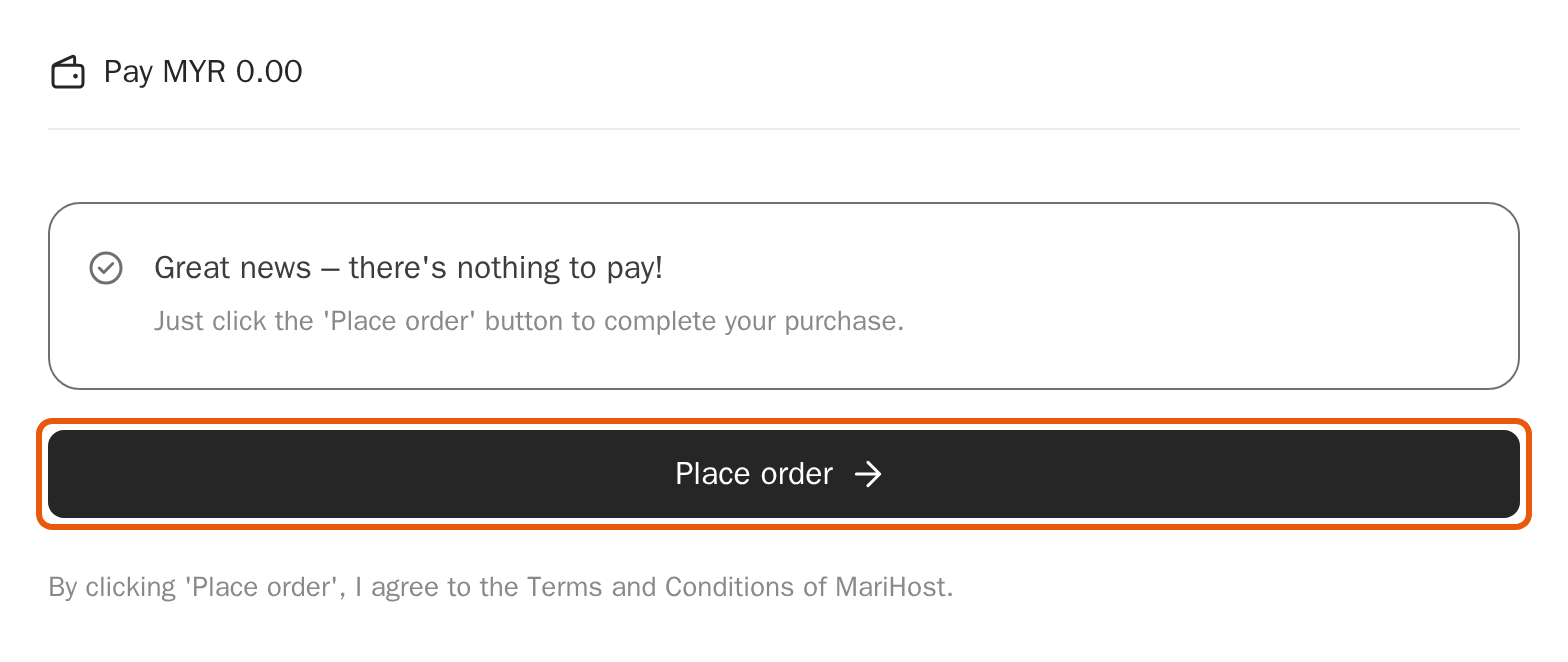
Checkout says there's nothing to pay. Click Place order: your hosting is set up straight away, and your free trial starts.
Next, sign in to your client area at billing.marihost.com and open the control panel: Log in to your client area and control panel shows how.
When the free trial ends
After 3 days, your trial carries on as your paid plan, at the price and term you chose, and your first invoice is due. Pay it from your client area, under Billing → My invoices, to keep your website running.
- Don't want to keep it? Cancel before the 3 days are up and you pay nothing: in your client area, open Products & services, click your plan, then Billing → Cancellation options.
- If the first invoice isn't paid, the hosting is suspended.
- Trying more than one plan? Each plan you order can start with its own free trial.
What's next
- Build your website: Start a WordPress website
- Have a website elsewhere? Move your site to MariHost: we do it for free.
- Point your domain: Point your domain to MariHost
Ready to try it?
Pick a plan and start your 3-day free trial: there's nothing to pay today.
Keep reading
Log in to your client area and control panel
Sign in once, open the control panel with one click, and what to do if you can't get in.
Read the guideStart a WordPress website
From choosing a domain to publishing your first page, step by step.
Read the guideChoosing a hosting plan
Websites, storage and bandwidth explained, so you can pick a plan with room to grow.
Read the guide