GuideEmail forwarding and out-of-office replies for your mailbox
Last updated: 26 October 2026
Each MariHost mailbox can forward a copy of its email to another address, and send an automatic reply while you're away. You can also add forward-only addresses, such as sales@ or info@, that send everything on to a mailbox without being one. Each takes a couple of minutes in the control panel. This guide also covers the spam settings for each mailbox, and the catch-all address, which is best left off.
Open your mailbox's settings
Sign in to your client area at billing.marihost.com, open your hosting plan and click Login to Control Panel. Click Emails in the left sidebar, then ⋮ next to the address, and choose Manage. In the pictures below, our test mailbox is [email protected].
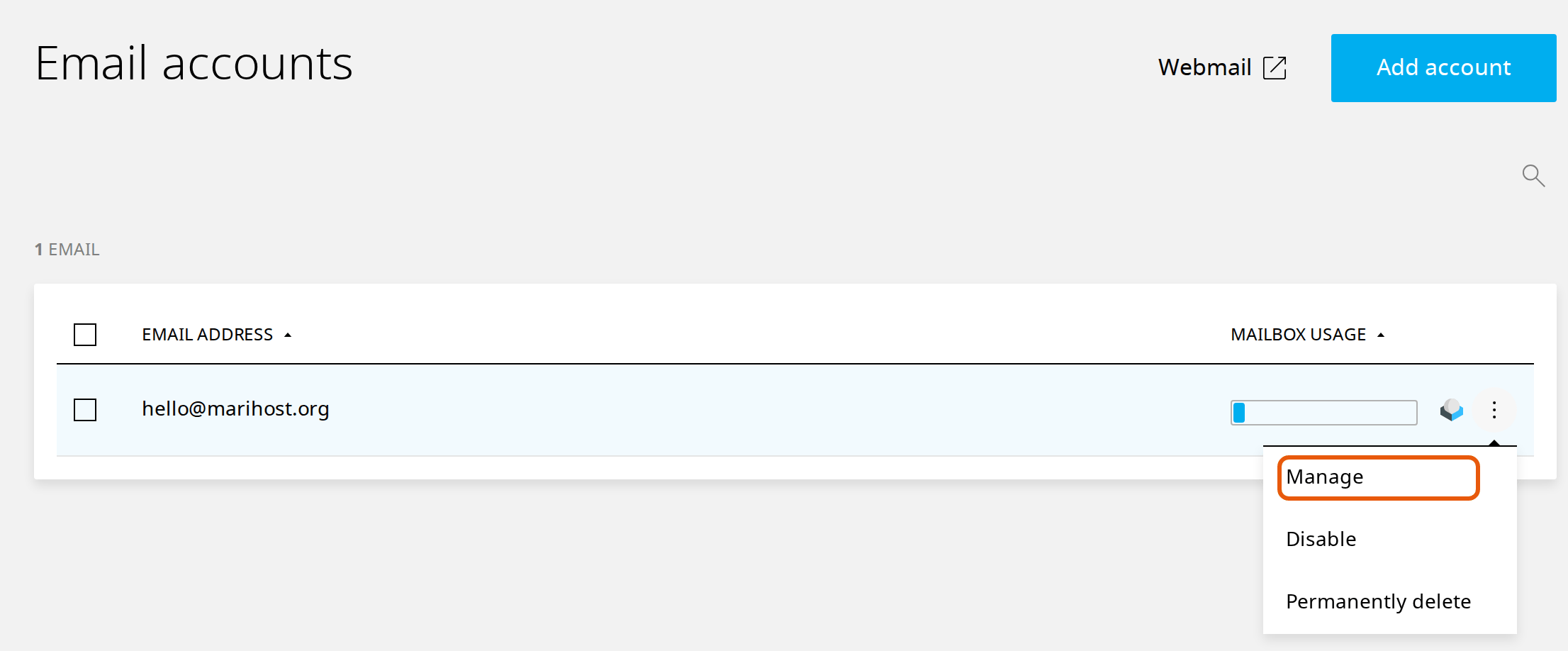
The mailbox's page has a section for each setting, also listed on the left: Mailbox, Forwarders, Catch-all, Spam settings, Out of office and Email client settings.
Set up email forwarding
Forwarding sends a copy of every email that arrives in this mailbox to another address, such as a colleague's or your personal one. The original stays in your MariHost mailbox too, so nothing is lost.
1. Go to Forwarders
On the mailbox's page, scroll to Forwarders, or click it on the left.
2. Add the address
Type the address to forward to under Forwarding address, and click Add. Want copies sent to more than one person? Add each address in turn.
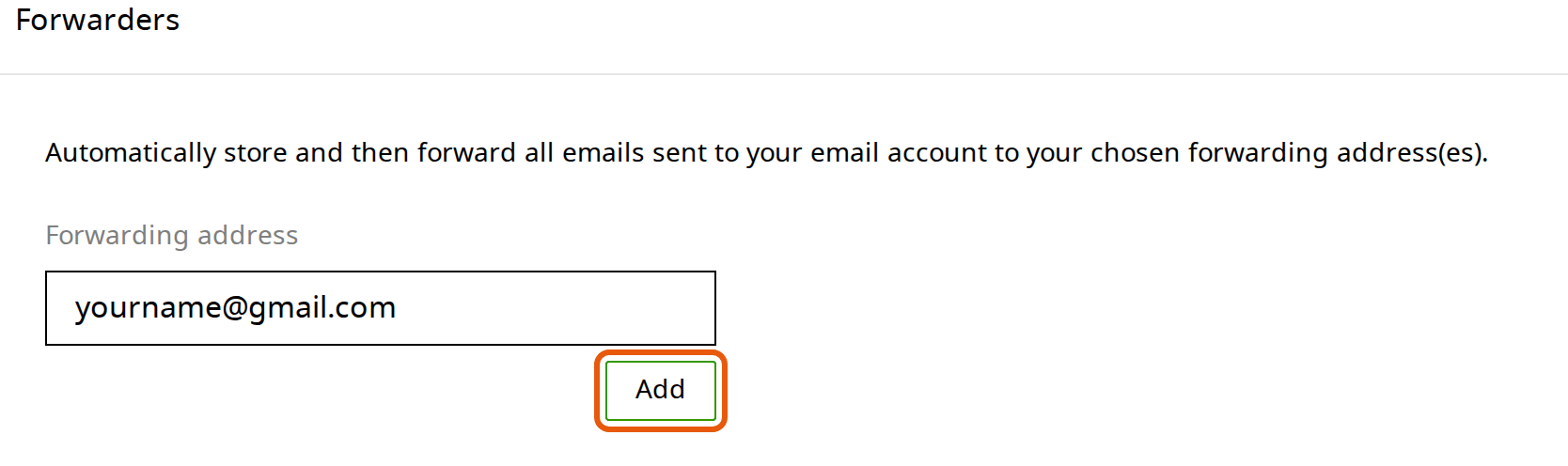
The address appears in the list under the box. From now on, every new email is stored here and forwarded. Email that arrived before isn't forwarded.
To stop forwarding to an address, click the bin icon next to it.
Forwarding to Gmail? Gmail sometimes puts forwarded email in spam, because it arrives from our servers rather than from the original sender's. Check your Gmail spam folder now and then, or read your email in the Gmail app instead: see Set up your email on a phone or in Outlook.
Forwarded email still counts towards your mailbox's storage, because the original stays here. Delete old email from time to time, or set up the mailbox in a mail app and delete it there.
Add a forward-only address
A forward-only address, such as sales@ or info@, has no mailbox of its own: everything sent to it goes straight on to the addresses you choose, such as your main mailbox. It uses none of your storage, and doesn't count as one of your plan's mailboxes. Each plan includes 5 for every website it holds: 5 on Starter, 25 on Business, 50 on Pro and 150 on Agency.
- In Emails, click Add account.
- Type the part before the @, such as sales, and choose your domain.
- Under Account type, choose Forwarder-only. It shows how many you've used, such as "0 of 5 forwarders used".
- Under Forward emails to, type the address it should send its email to, and click the Add next to it. Add more addresses the same way if several people should get it.
- Click Add at the bottom.
The new address appears in Email accounts with a forward icon. You can't send email from it: reply from the mailbox its email arrives in. To change where it forwards to, click the address and use Forwarders on its page. Convert to mailbox there turns it into a full mailbox, if your plan has one free. To remove it, click ⋮ next to it and choose Permanently delete.
Set up an out-of-office reply
An out-of-office reply answers each email you receive, for example while you're on holiday, to say when you'll be back and who to contact meanwhile.
1. Go to Out of office
On the mailbox's page, scroll to Out of office and click Add.
2. Write your reply
- Start and end date: choose when the reply starts and stops. Dates are shown month first (10/26/2026 is 26 October 2026). Or tick Send until I turn it off.
- Subject: for example "Out of office until 3 November".
- Message: say when you're back, and who to contact if it's urgent.
- Leave Enabled ticked, and click Add.
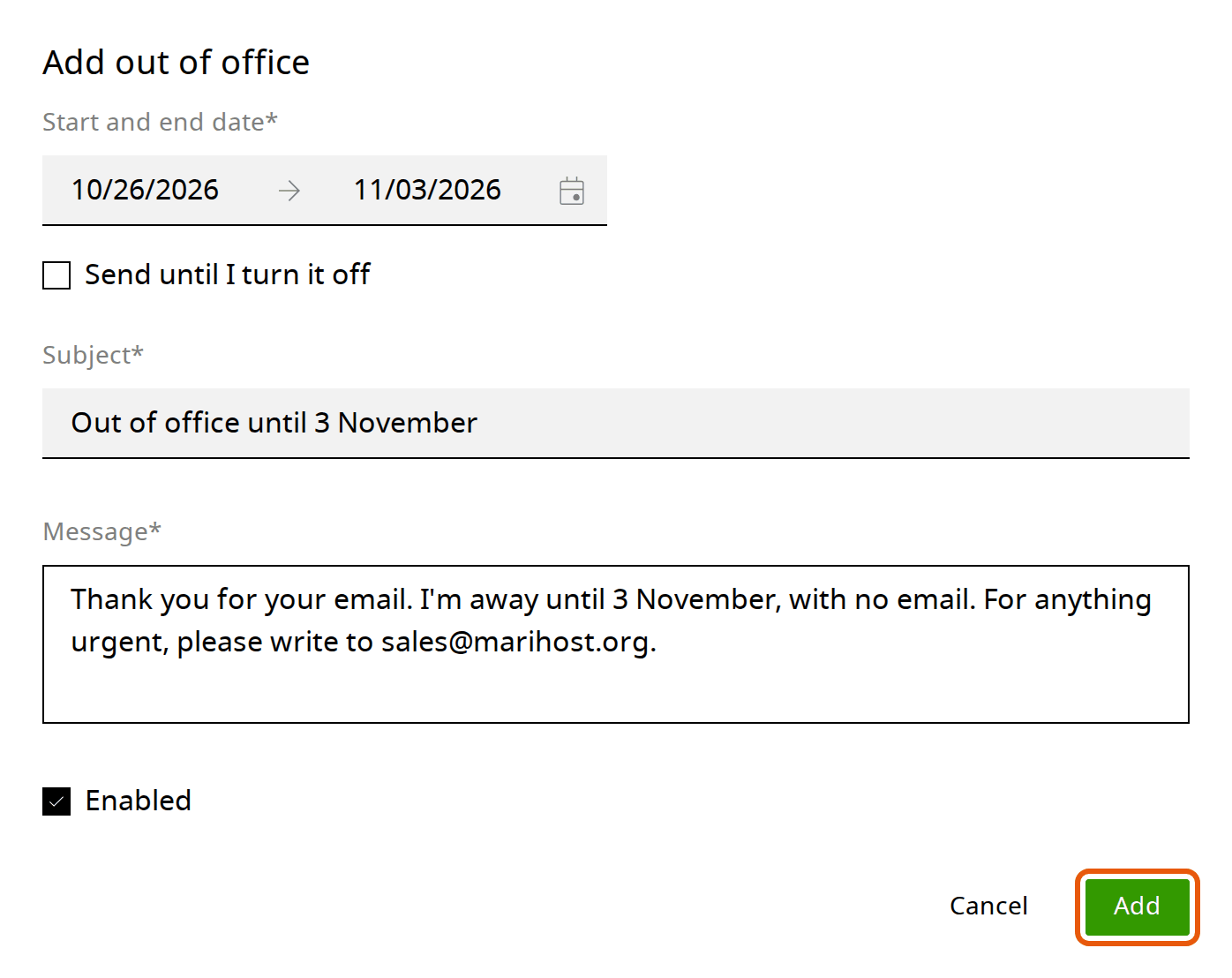
Your reply then shows under Out of office, with an Edit button. It stops by itself on the end date. To stop it early, click Edit, untick Enabled and click Save, or click Delete to remove it.
Adjust spam filtering
Every mailbox has a spam filter that gives each email a score: the higher the score, the more likely it's spam. Under Spam settings you can change what happens at each score:
- Spambox (4): above this, email goes to your Junk folder.
- Greylist (6): above this, email is held back for 5 minutes. Real mail servers try again and get through; most spam doesn't.
- Reject (8): above this, email is refused and the sender is told.
Move a slider towards Strict if too much spam reaches your inbox, or towards Permissive if real email lands in Junk. Change one setting at a time, by a point or two.
Under Allow/block list, add an address to Allow so its email always gets through, or to Block so it never does.
About catch-all addresses
A catch-all receives email sent to any address at your domain that doesn't exist, such as a mistyped name. It sounds useful, but spammers send to made-up addresses all the time, so a catch-all mostly collects spam. Leave the Catch-all switch off, and give people the right address instead.
If something's not right
Forwarded email doesn't arrive. Check the forwarding address for typos, and look in the other account's spam folder. Email that our spam filter rejects isn't forwarded.
You can't add a forward-only address. Your plan's forward-only addresses are all used: Add account shows how many. Delete one you no longer need, or move up a plan.
People get your out-of-office reply after you're back. Click Edit under Out of office, and check the end date or untick Enabled.
Too much spam, or real email in Junk. Adjust the spam settings above. For a sender you trust, add their address to Allow.
Still stuck? Open a ticket with your email address and an example: who sent it, and when.
Next steps
New to MariHost email? Start with Create an email account, and make sure your email reaches inboxes with SPF, DKIM and DMARC.
Need a hand with your email?
Tell us your address and what you'd like to set up, and we'll help.
Keep reading
Create an email account, and use webmail
A mailbox on your own domain in a couple of minutes, and your email in any browser.
Read the guideSet up your email on a phone or in Outlook
The IMAP and SMTP settings, and how to add your mailbox to your phone, the Gmail app or Outlook.
Read the guideSPF, DKIM and DMARC: keep email out of spam
What each record does, how to switch on DKIM, and the records to add if your DNS is elsewhere.
Read the guide