GuideHow to edit wp-config.php in WordPress
Last updated: 29 October 2026
wp-config.php is the file that holds WordPress's main settings, including the password to your website's database. Sometimes a plugin, a guide or a developer asks you to add a line to it. This guide shows how to do that safely on MariHost, and how to undo it if something goes wrong.
Before you start
- The control panel's file manager doesn't open wp-config.php. We block it there to keep your database password safe. If you try, you'll see an empty editor: close it without saving. You can edit it with an FTP app instead: see Edit wp-config.php over FTP. This guide uses a plugin, so you need nothing but WordPress.
- Check whether there's a switch for it. You don't need to edit wp-config.php to turn on debugging or change your website's address: both are in the control panel's WordPress Toolkit (see Fix common WordPress errors). PHP limits such as memory have their own settings: see Increase the upload size and PHP limits.
- Make a backup first. On your website's Backups page in the control panel, click Backup now. See Back up and restore your website.
- You'll need to log in to WordPress. If your website is down and you can't, use FTP instead, or see If your website breaks below.
Install a file manager plugin
A file manager plugin lets you open your website's files from your WordPress dashboard. There are several free ones. Choose one that many websites use, that was updated recently and that has good reviews. In the pictures, we use File Manager by mndpsingh287.
In WordPress, go to Plugins → Add Plugin and search for "file manager". Click Install Now on the plugin you chose, then Activate.
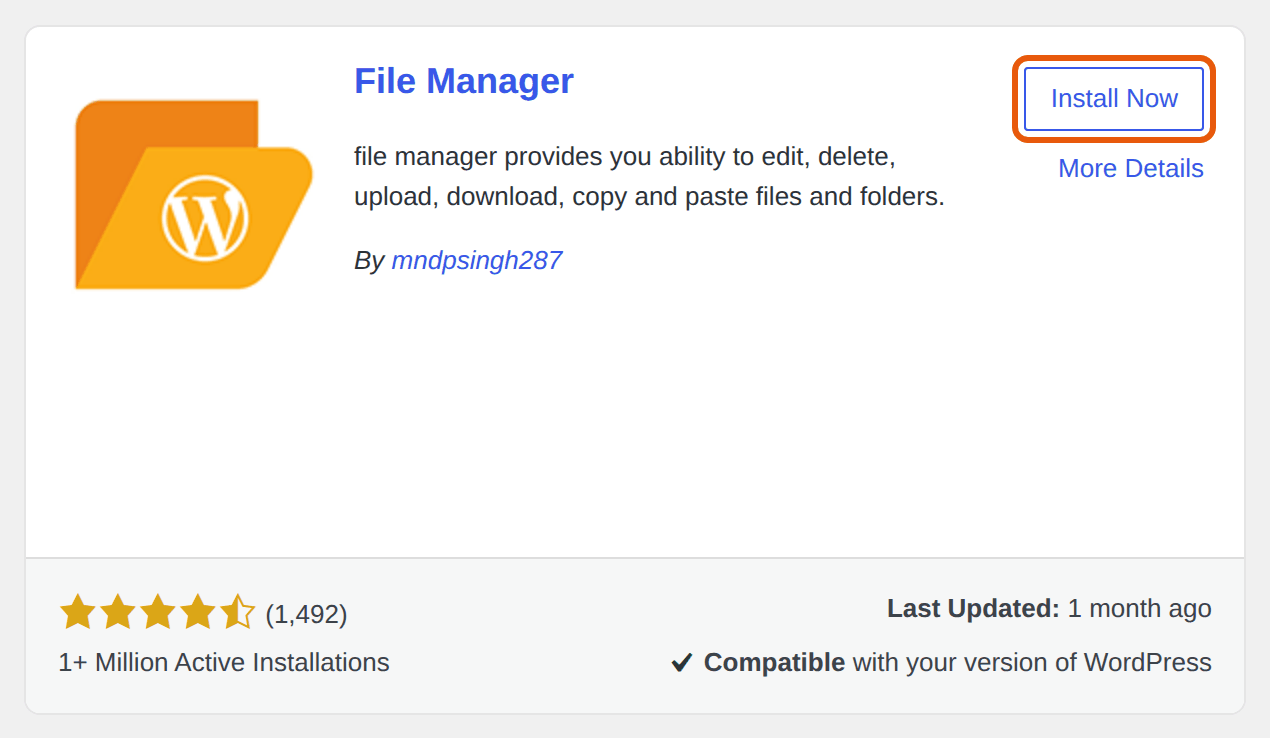
Some plugins ask you to subscribe to their news the first time you open them. You don't need to: in File Manager, click No thanks.
Open wp-config.php
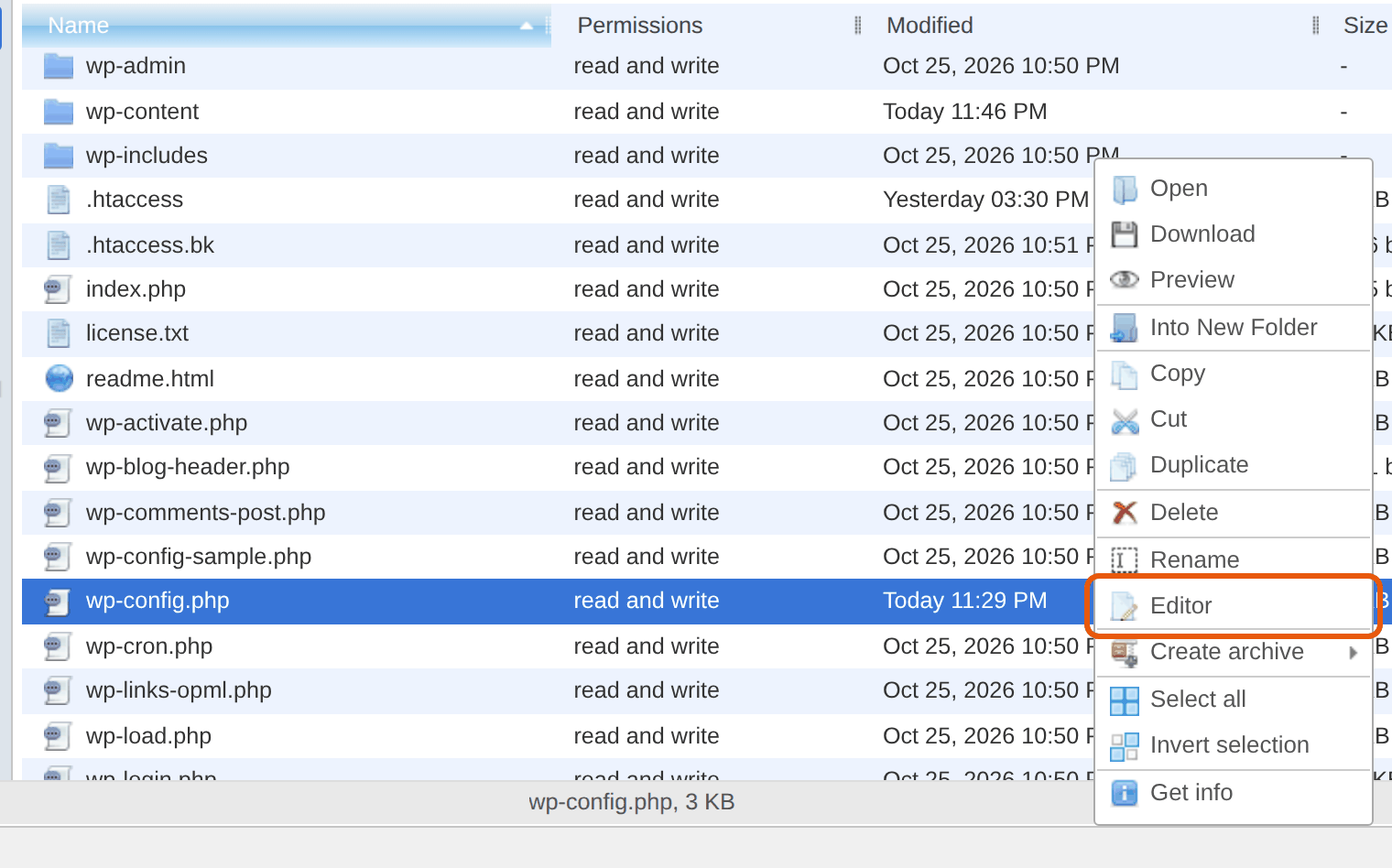
Open the plugin from the left menu: File Manager calls it WP File Manager. wp-config.php is in your website's main folder, public_html, below the wp-admin, wp-content and wp-includes folders.
Before you change anything, right-click wp-config.php and choose Download, so you have a copy of the file as it is now. Then right-click it again and choose Editor. Other plugins call it Edit or Code editor.
Add your line
Scroll to the end of the file and find this line:
/* That's all, stop editing! Happy publishing. */
Click at the start of that line, press Enter to make an empty line above it, and paste your line there. For example:
define( 'WP_POST_REVISIONS', 10 );
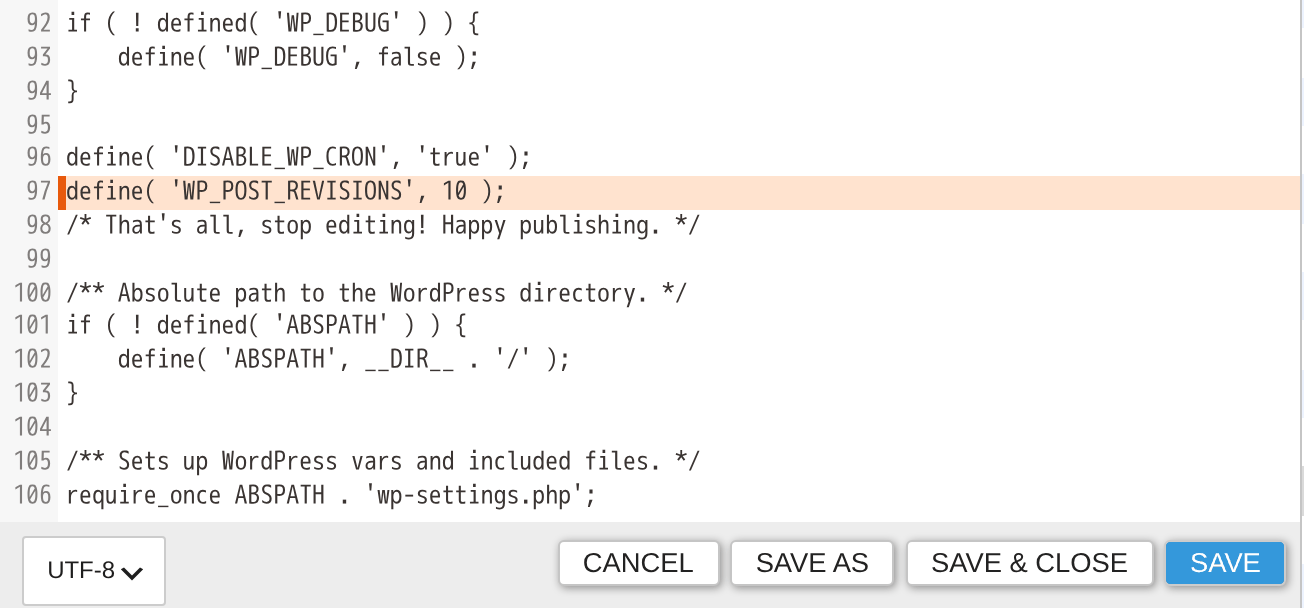
Then click Save & Close. A few rules keep the file working:
- Above "That's all, stop editing!", never at the very end. WordPress starts loading on the file's last line, so anything after it comes too late.
- One setting per line, copied exactly, with its quote marks, brackets and the semicolon at the end. Use straight quote marks ('), not curly ones (‘ ’): some websites and word processors change them when you copy.
- Is the setting already in the file? Change its line instead of adding a second one. A setting given twice keeps its first value.
- Leave everything else as it is, especially the database details at the top. If you see
define( 'DISABLE_WP_CRON', 'true' );, leave it too: our servers run WordPress's scheduled tasks for you. See Cron jobs.
Check your website
Open your website in a private browser window, and look at a page or two and your WordPress dashboard. If they work, the change is done.
Remove the plugin
When you've finished, go to Plugins, click Deactivate under the file manager plugin, then Delete. A file manager plugin can change any file on your website, so attackers look for websites that have one. Install it again the next time you need it.
If your website breaks
A mistake in wp-config.php can stop your whole website, dashboard included, with a critical error or a blank page. The plugin can't open then either, so put the file back from your backup:
- In the control panel, open your website's Backups and click Restore next to the backup you made before the change. Choose Custom.
- On the Files tab, open public_html and tick only wp-config.php.
- Click Restore now.
wp-config.php goes back to how it was before your edit, and nothing else changes. Have an FTP account? You can also upload the copy you downloaded before your change: see Edit wp-config.php over FTP. Stuck? Open a ticket and tell us what you changed.
Lines people often add
- Hide the theme and plugin file editors from your dashboard, so nobody who gets into your WordPress can change its code there:
define( 'DISALLOW_FILE_EDIT', true ); - Keep up to 10 earlier versions of each post or page instead of every one, so your database stays smaller:
define( 'WP_POST_REVISIONS', 10 ); - Empty WordPress's bin after 7 days instead of 30:
define( 'EMPTY_TRASH_DAYS', 7 );
Plugins sometimes give you a line of their own to add, such as a licence key or a cache setting. Paste it in the same place.
Next steps
When a plugin breaks your website and you can't log in, you can switch it off from the control panel: see Deactivate a plugin without logging in. For other errors, see Fix common WordPress errors.
Rather we looked after it?
WordPress Care updates your site, checks it after every update, and fixes anything an update breaks.
Keep reading
Back up and restore your website
Make a backup before a big change, and put back your whole site or only some files, without a ticket.
Read the guideFix common WordPress errors
The critical error, a blank page, database and redirect errors: find the cause and switch it off yourself.
Read the guideDeactivate a plugin without logging in
Switch off the plugin that broke your site from the control panel, even while WordPress shows an error.
Read the guide