GuideHow to fix the WordPress critical error, and other common errors
Last updated: 28 October 2026
A WordPress error usually looks worse than it is. Most of the time one plugin, theme or setting is to blame, and you can find it and switch it off yourself in the control panel, often in a few minutes and without touching any code. This guide goes through the errors we see most, starting with the most common: "There has been a critical error on this website".
Before you start
- Think about what changed last. An update, a new plugin, a different theme or a new PHP version is behind most errors. That's usually where to look first.
- Changed your PHP version? Switch it back first: see Change your PHP version. Some older plugins and page builders don't support the newest PHP yet.
- Your backups are there if you need them. Every plan keeps a daily backup for 7 days, so you can always go back to before the problem.
You'll use the control panel: sign in to your client area at billing.marihost.com, open your hosting plan and click Login to Control Panel. In the pictures below, our test website is marihost.org, broken on purpose with a plugin we made for this guide.
The WordPress critical error: "There has been a critical error"
This is WordPress's message when PHP, the language it runs on, stops with a fatal error. Your visitors see a page with only this line, and the browser gets a "500" error. Sometimes the page is simply blank.

Almost always, a plugin or theme caused it, often right after an update. Here's how to find it and switch it off.
1. Find the plugin or theme behind it
In the control panel, open Websites in the left sidebar and choose your website. Click Advanced at the top, then Developer tools. Under PHP, the php-error.log box shows PHP's latest errors. Click the refresh button next to Last refreshed to see the newest.
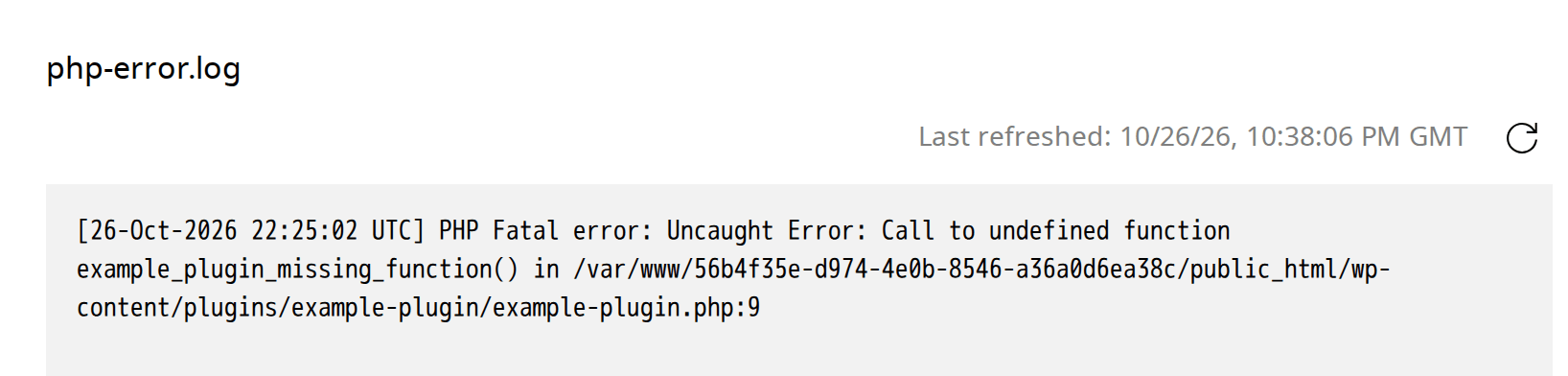
Look for "PHP Fatal error" and the file it names. The folder after wp-content/plugins/ is the plugin, here example-plugin. If it says wp-content/themes/, it's your theme.
2. Switch off the plugin in the Toolkit
On your website's dashboard, under Applications, click Toolkit next to WordPress. It works even while WordPress itself is broken.
In Plugins, click the refresh button next to the number of plugins first, so the list is up to date. Then click Deactivate under the plugin and confirm with Deactivate.
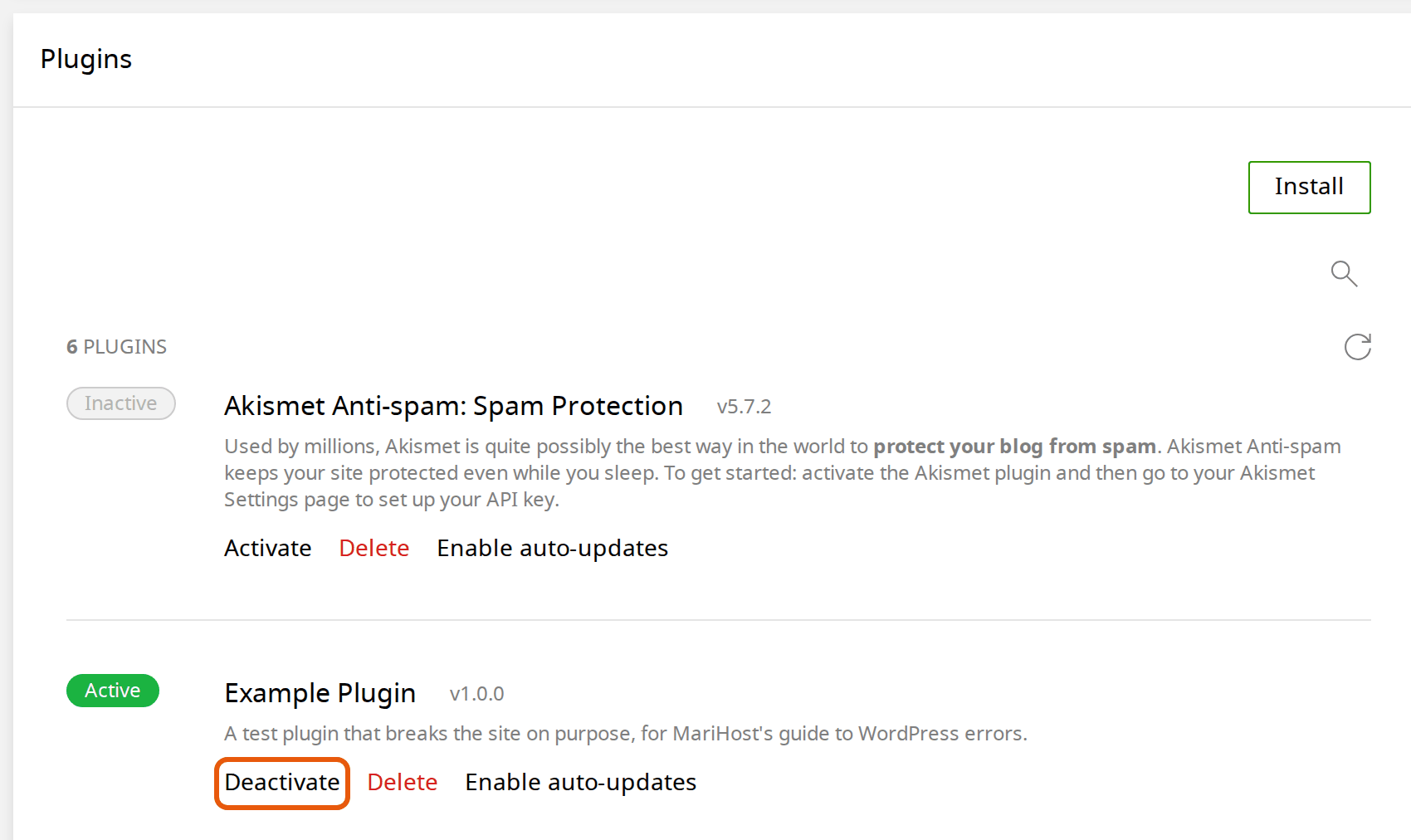
Reload your site. If it works, leave the plugin switched off and check for a fixed version, or ask its developer. If the error names another plugin now, switch that one off too. Deactivate a plugin without logging in shows each step in more detail, and how to switch the plugin back on.
If it's your theme, or the Toolkit can't help
Use the File manager instead: click Files at the top, then open public_html, wp-content and plugins (or themes). Right-click the folder named in the error, choose Rename, add -off to the end of its name and press Enter.
WordPress can't load a plugin it can't find, so it switches it off. For a theme, it goes back to a default WordPress theme, such as Twenty Twenty-Five, and tells you "The active theme is broken". Keep one default theme installed for this reason. When a fixed version is out, delete the renamed folder and install the plugin or theme again.
Or use the email WordPress sends
When this happens, WordPress also emails your site's admin address: "Your Site is Experiencing a Technical Issue". It names the plugin or theme and has a link that signs you in to WordPress in recovery mode, with the broken plugin paused for you only. Go to Plugins and deactivate it there. Check your spam folder if it hasn't arrived.
Turn on WordPress debugging
If php-error.log is empty, or a page shows something odd rather than an error, let WordPress record what's going wrong.
In the Toolkit, open Debug and switch on WP_DEBUG and WP_DEBUG_LOG. Leave WP_DEBUG_DISPLAY off on a live site: it shows the errors to your visitors.
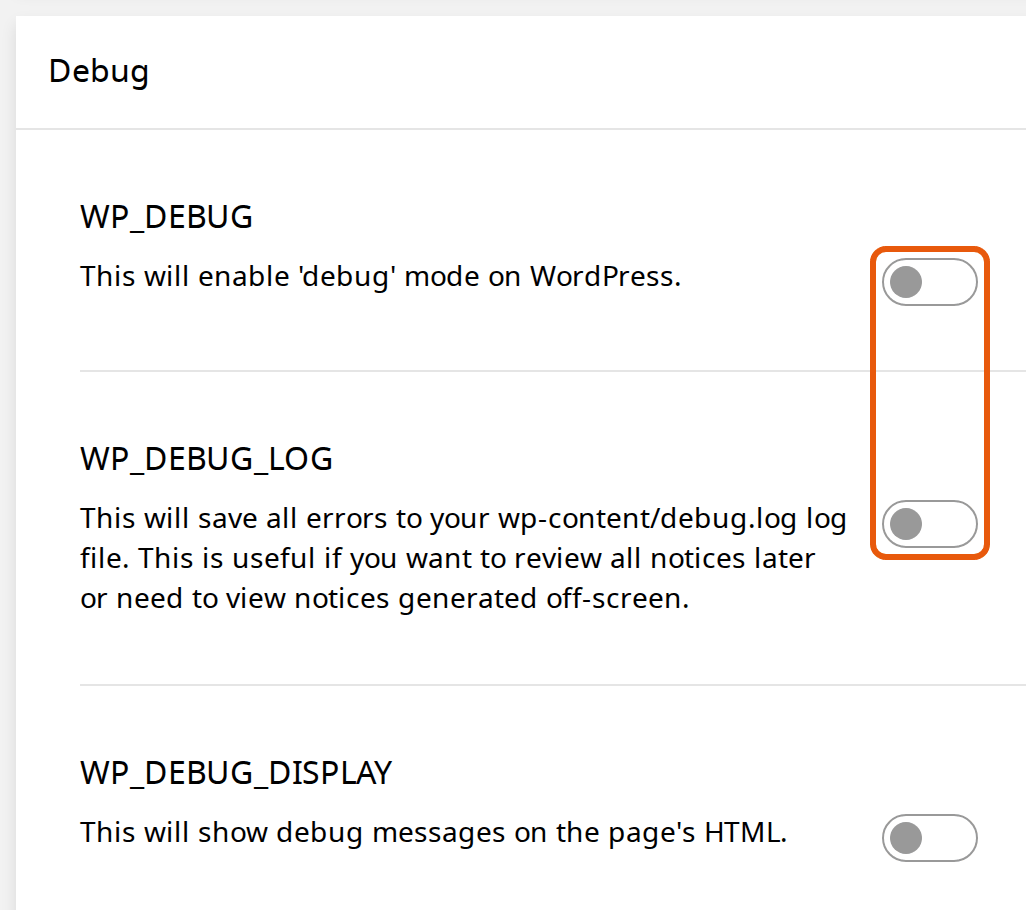
Load the broken page again, then open Files → public_html → wp-content. Right-click debug.log and choose Edit to read it, or Download. The newest errors are at the bottom.
When you've finished, switch both off again and delete debug.log: it can be read from the web.
Error establishing a database connection
WordPress can't reach its database. On MariHost this usually means the database details in your site's wp-config.php file are wrong, often after moving a site or changing the database password.
- Open Databases at the top. Click ⋮ next to your database and choose Manage. Note its name and, under Users, its user.
- Download wp-config.php with an FTP app, such as FileZilla: the control panel's file manager doesn't open this file, to keep your database password safe. Edit wp-config.php over FTP shows how. Open it in a plain text editor and check that DB_NAME and DB_USER match, and that DB_HOST is localhost.
- Not sure of the password? Back in Databases, click ⋮ next to the user, choose Manage, and under Password click Reset. Set a new one without ' or \ in it, since those break the line in wp-config.php, and click Change password. Then put the same password in DB_PASSWORD, between the quote marks, save the file and upload it back over FTP.
Make a backup before editing wp-config.php, and change only the text between the quote marks. If all the details are right and the error stays, the problem is likely on our side: open a ticket.
Briefly unavailable for scheduled maintenance
WordPress shows this while it updates itself, plugins or themes, usually for a few seconds. If an update was interrupted, it can stay. WordPress gives up on it after 10 minutes, so first wait a little.
Still there? Open Files → public_html, right-click the file named .maintenance and choose Delete. Then run the update that was interrupted again. Also check that Maintenance mode is off in the Toolkit, under General.
Allowed memory size exhausted
A page needed more memory than PHP allows. Your site may show the critical error, and the message appears in php-error.log. Raise memory_limit as our guide to PHP limits shows. If one plugin keeps using it all, that plugin is the problem.
Too many redirects
Your browser says the site "redirected you too many times". The site keeps sending visitors between two addresses.
- Using Cloudflare? Its SSL/TLS mode must be Full (strict), not Flexible. See Use Cloudflare with your website.
- Check your site's address. In the Toolkit, under General, the Site URL must match the address you use exactly: https, and with or without www.
- Then clear your cookies for the site, or try a private window.
Still broken? Restore a backup
If you can't find the cause, put your website back as it was before the problem started. You can restore the whole website, or only its files, which keeps your newest orders and posts. See Back up and restore your website.
When to contact us
Open a ticket if your website shows "Service Unavailable" or "Gateway Timeout" errors, if a database error stays with the right details, or if all your websites are down at once. Tell us the website and when the error started: see Open a support ticket.
Our hosting support covers the hosting. Fixing a plugin, theme or custom code is WordPress work, which WordPress Care does for you.
Next steps
Make a backup before your next big update with Back up and restore your website, and try updates on a staging copy first, so an error never reaches your visitors.
Rather we looked after it?
WordPress Care updates your site, checks it after every update, and fixes anything an update breaks.
Keep reading
Back up and restore your website
Make a backup before a big change, and put back your whole site or only some files, without a ticket.
Read the guideChange your PHP version
Pick the right version for WordPress, check your site first, and switch back if a plugin complains.
Read the guideIncrease the upload size and PHP limits
Which PHP limit causes which WordPress error, and how to raise it yourself.
Read the guide