GuideHow to increase upload limit and other PHP limits in WordPress
Last updated: 26 October 2026
PHP, the language WordPress runs on, has limits: how big an upload can be, how much memory a page can use, how long a task may run. At MariHost the defaults suit most websites, and you can change them yourself for each website in the control panel's php.ini editor. This guide shows which limit causes which error, and how to raise it. It takes about 5 minutes.
Your limits now
New websites at MariHost start with these PHP limits:
| Limit (php.ini name) | Default | What it controls |
|---|---|---|
| Upload size (upload_max_filesize) | 1000M | The largest file you can upload |
| Post size (post_max_size) | 1000M | The largest form or upload in one go |
| Memory (memory_limit) | 256M | How much memory one page or task can use |
| Time (max_execution_time) | 30 | How many seconds a task can run |
| Input variables (max_input_vars) | 1000 | How many fields a form can send |
So uploads of up to 1 GB already work: if WordPress says a file is too big, check the other causes below first.
To see your website's own values, go to Tools → Site Health in WordPress, open the Info tab and expand Server. Media → Add New also shows the largest file you can upload.
Which limit to change
- "Allowed memory size of … bytes exhausted", or a critical error while a big plugin works: raise memory_limit to 512M.
- A menu, a page builder layout or a product with many variations doesn't save everything: raise max_input_vars to 3000, or 5000 for very large menus or shops.
- An import, a backup plugin or a big update stops halfway with a timeout: raise max_execution_time to 120, or 300 at most.
- "The uploaded file exceeds the upload_max_filesize directive" or "The link you followed has expired" when uploading: the file is over 1 GB. Raise upload_max_filesize and post_max_size together, or see "Very large files" below.
Raise only what you need. Higher limits don't make your site faster, and a runaway task with a high limit can use up your plan's memory: each website has up to 1 GB on Starter, 2 GB on Business and Agency, and 3 GB on Pro.
Increase upload limit, or change another PHP limit
1. Open Developer tools
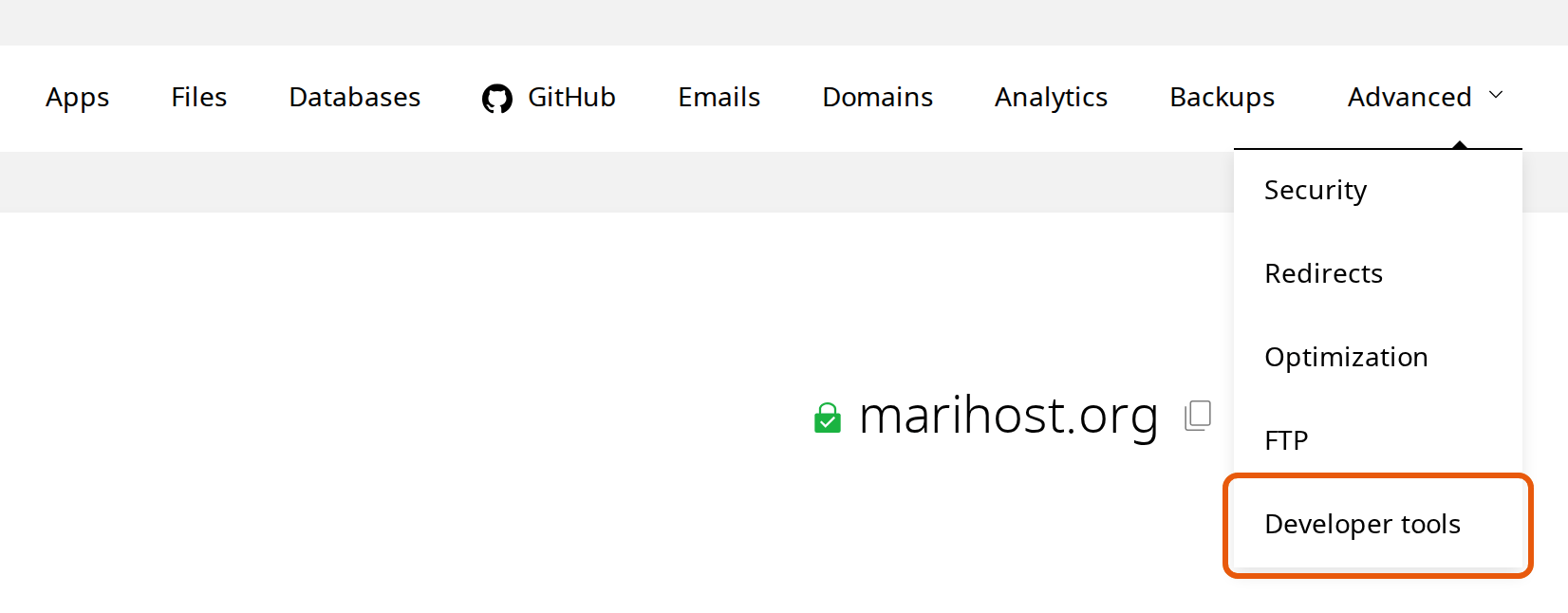
Sign in to your client area at billing.marihost.com, open your hosting plan and click Login to Control Panel. Open Websites in the left sidebar and choose your website. Open Advanced in the top menu and choose Developer tools. In the pictures below, our test website is marihost.org.
2. Add a directive
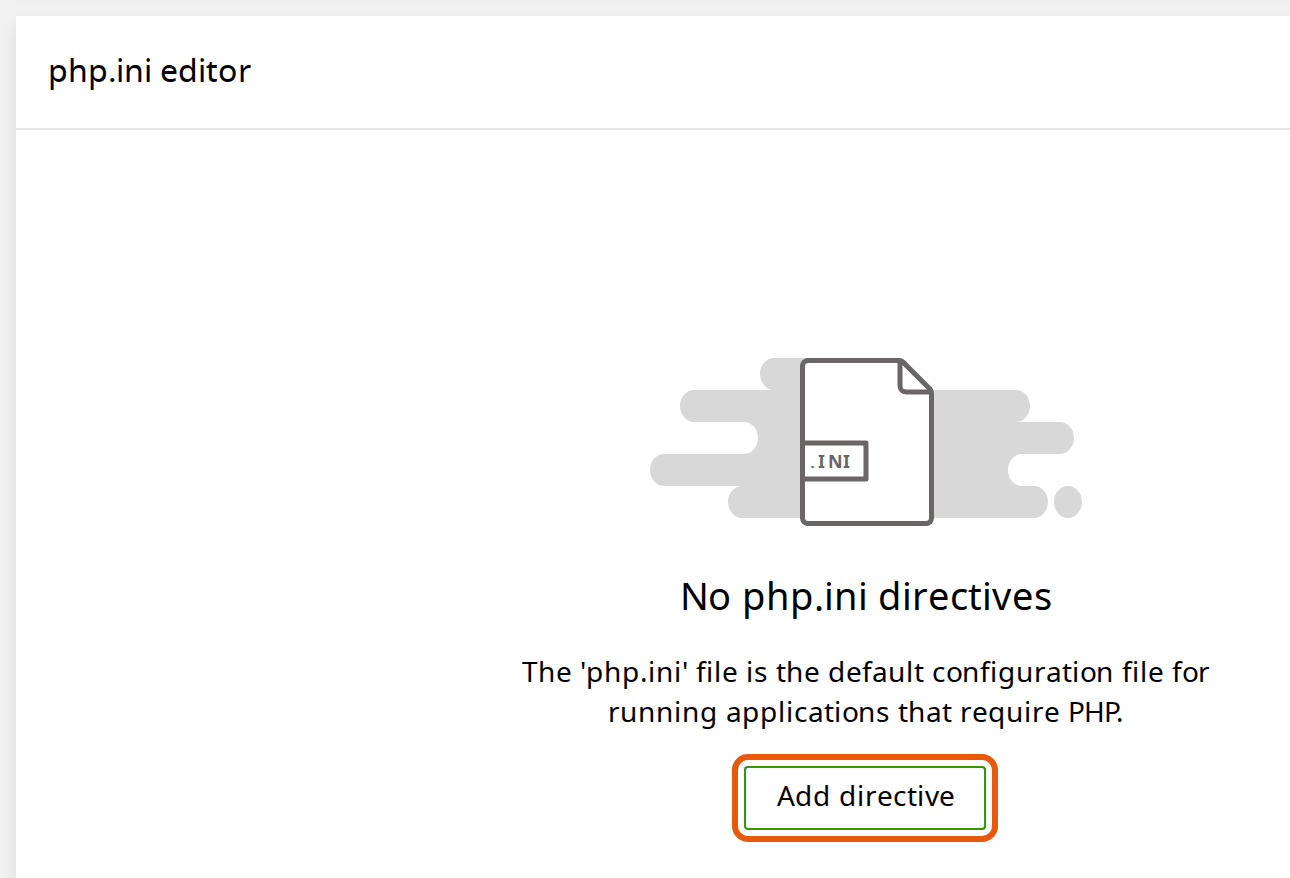
Scroll to php.ini editor, or click it on the left. A directive is one PHP setting. Click Add directive.
3. Fill it in
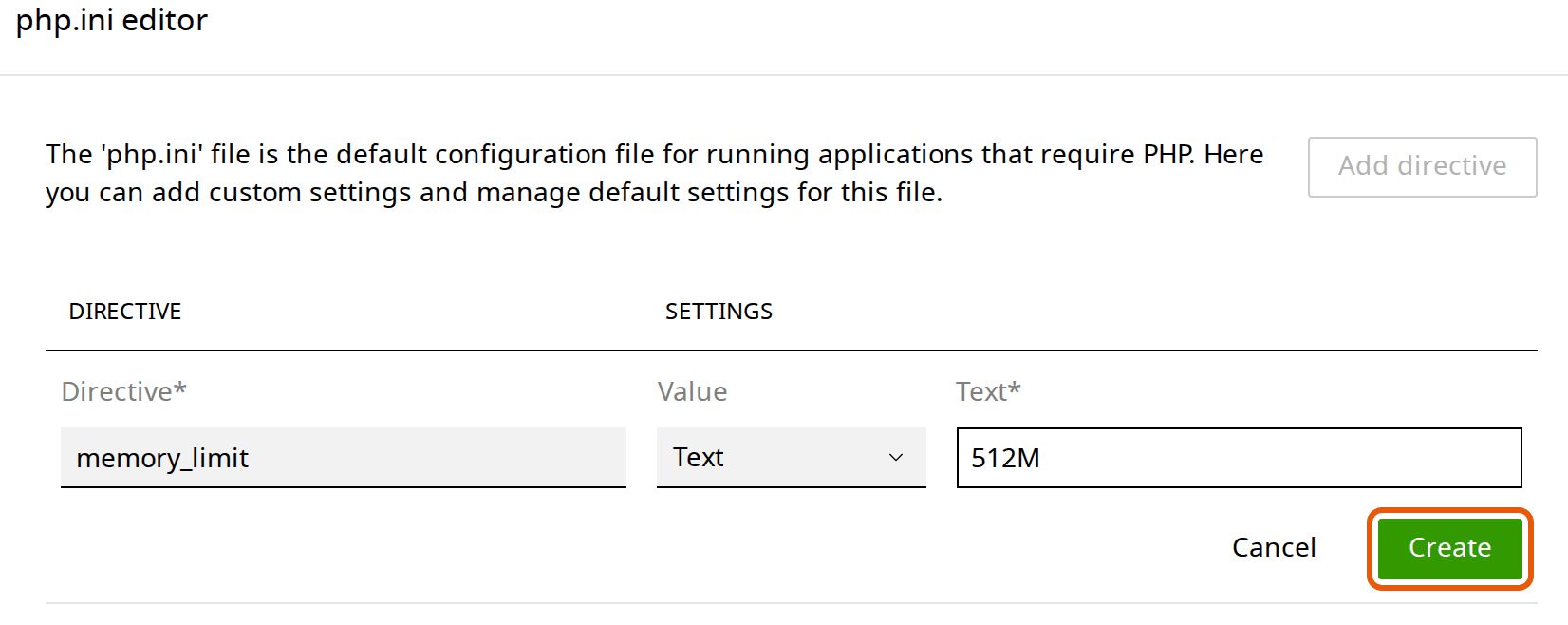
- Directive: the setting's name, exactly as in the list above, such as memory_limit.
- Value: leave Text chosen, and type the new value, such as 512M. Sizes end in M (megabytes) or G; times are a number of seconds.
Click Create.
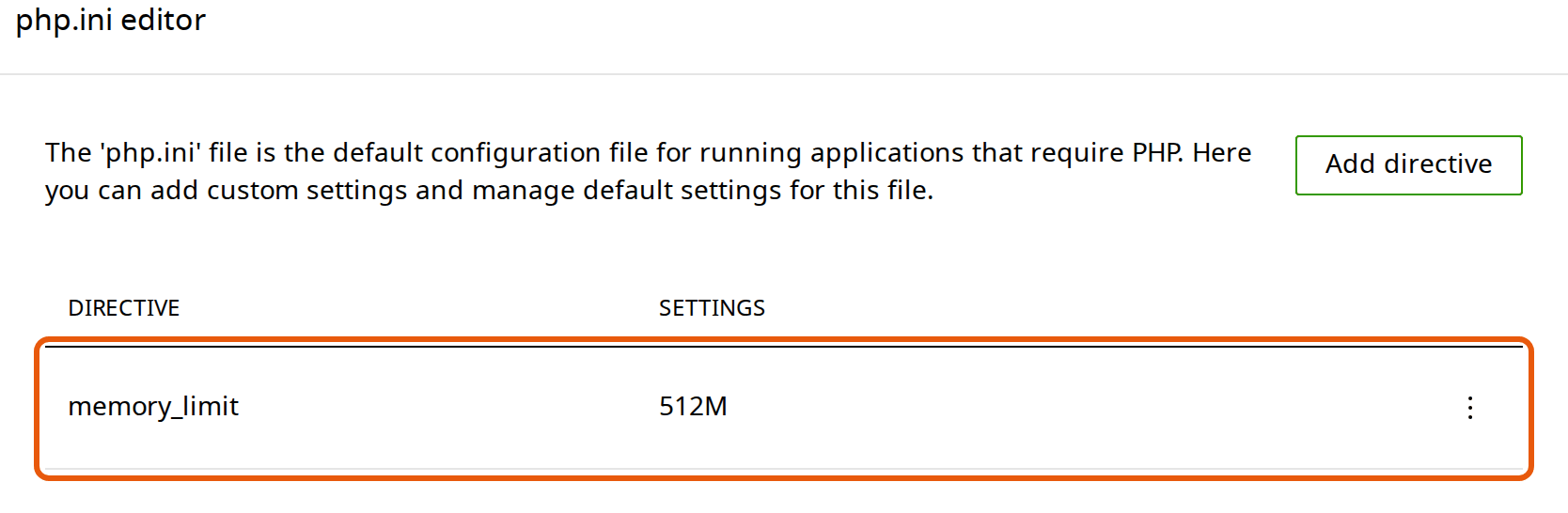
A notice says "Directive added", and the directive appears in the list. It applies straight away, to this website only.
Check the new limit
Back in WordPress, open Tools → Site Health → Info → Server again and check the new value. Then try what failed before.
To change the value later, click ⋮ next to the directive and choose Edit. To go back to the default, choose Delete and confirm.
Very large files
For files over 1 GB, such as a large video or a site backup, uploading through WordPress is slow and easily interrupted. Instead:
- Upload it with the File manager (Files in the control panel) or an FTP app, straight into your website's folder.
- Videos play better from YouTube or Vimeo, embedded in your page, than from your own hosting.
- Using Cloudflare? Its proxy refuses uploads over 100 MB on the Free and Pro plans, whatever your PHP limits. Upload from the control panel instead, or turn the proxy off (grey cloud) for the upload.
If something's not right
Site Health still shows the old value. Check the directive's name for typos: it must match exactly, such as memory_limit, not memory-limit. Then click Restart at the top of Developer tools, to restart PHP for your website.
A plugin still says the limit is too low. Some plugins read WordPress's own memory setting. Raise memory_limit as above; you don't need to edit wp-config.php.
Your site shows a critical error after the change. Delete the directive you added, and check its value: 512M, not 512MB. The php-error.log at the top of Developer tools shows what went wrong.
Not sure which limit you're hitting? Open a ticket with the error message, and we'll look at your website's error log with you.
Next steps
While you're in Developer tools, you can also change your PHP version. Making a big change? Back up your website first.
Still hitting a limit?
Tell us your website and the error, and we'll find the right setting.
Keep reading
Change your PHP version
Pick the right version for WordPress, check your site first, and switch back if a plugin complains.
Read the guideBack up and restore your website
Make a backup before a big change, and put back your whole site or only some files, without a ticket.
Read the guideStart a WordPress website
From choosing a domain to publishing your first page, step by step.
Read the guide