GuideSPF, DKIM and DMARC setup: keep your email out of spam
Last updated: 25 October 2026
Gmail, Outlook and other mail services check every email for three records in its domain's DNS: SPF, DKIM and DMARC. Without them, your emails are more likely to land in spam, or be refused. This guide explains what each one does, shows you how to switch DKIM on in the control panel, and lists the records to add if your domain's DNS is somewhere else. It takes about 10 minutes.
What SPF, DKIM and DMARC do
- SPF lists the servers allowed to send email for your domain. Ours are covered by one short entry: include:_spf.marihost.net.
- DKIM adds a digital signature to every email you send. The receiving server checks it against a key published in your DNS, which proves the email really came from you and wasn't changed on the way.
- DMARC tells receiving servers what to do with email that fails SPF and DKIM: nothing yet (p=none), send it to spam (p=quarantine) or refuse it (p=reject).
Together they stop other people sending email that pretends to be from your domain, and they help your real email reach inboxes.
If your DNS is with us
If your domain uses our nameservers, ns1.maridns.com and ns2.maridns.com, your SPF and DMARC records are set up for you when your website is added. You only need to check that DKIM is on.
1. Open your domain
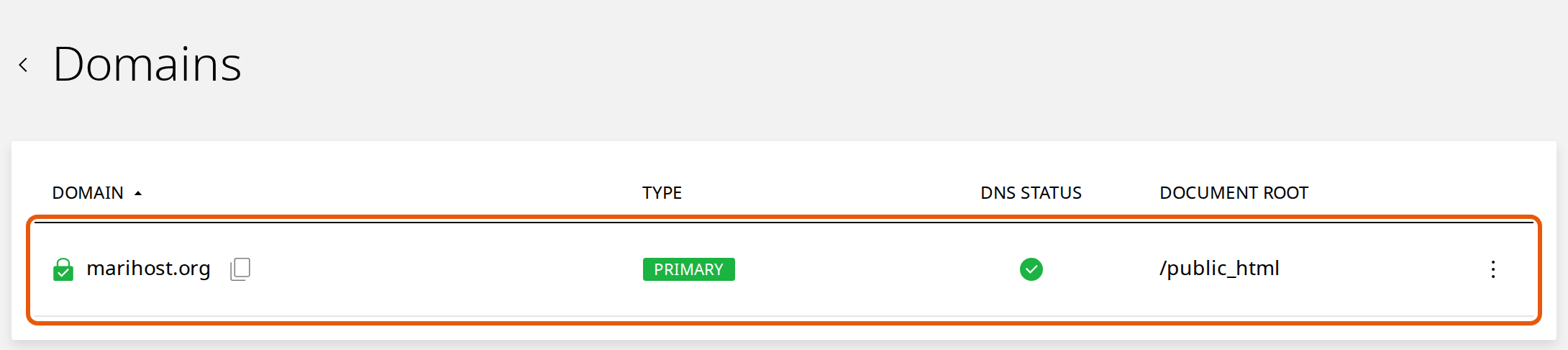
In the control panel, open Websites in the left sidebar, choose your website and click Domains at the top. Click your domain.
2. Switch DKIM on
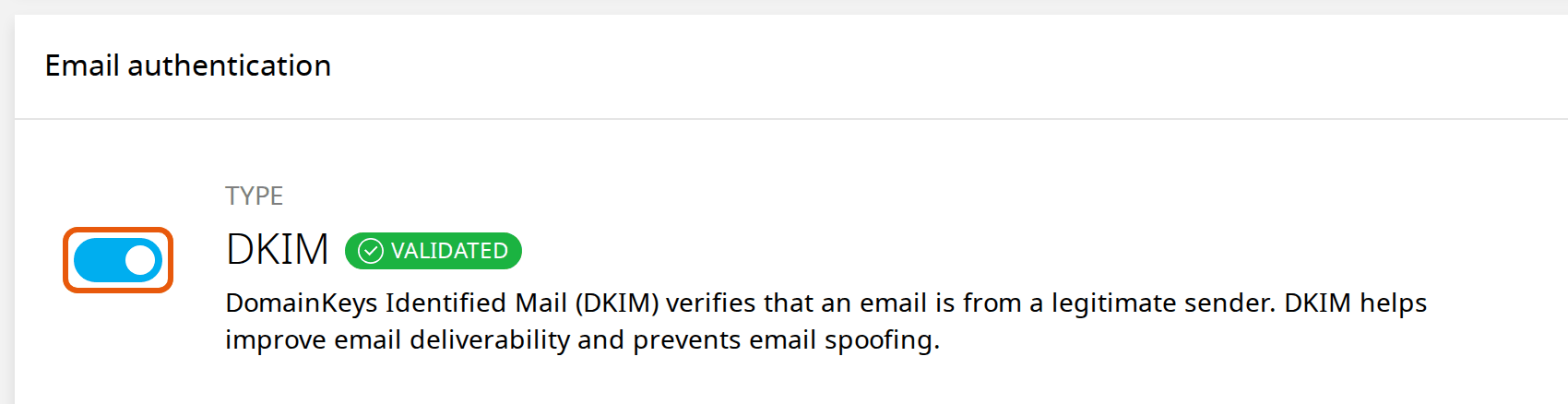
Under Email authentication, check that the DKIM switch is on. If it isn't, click it. After a few seconds it shows VALIDATED: your emails are now signed.
3. Check your records
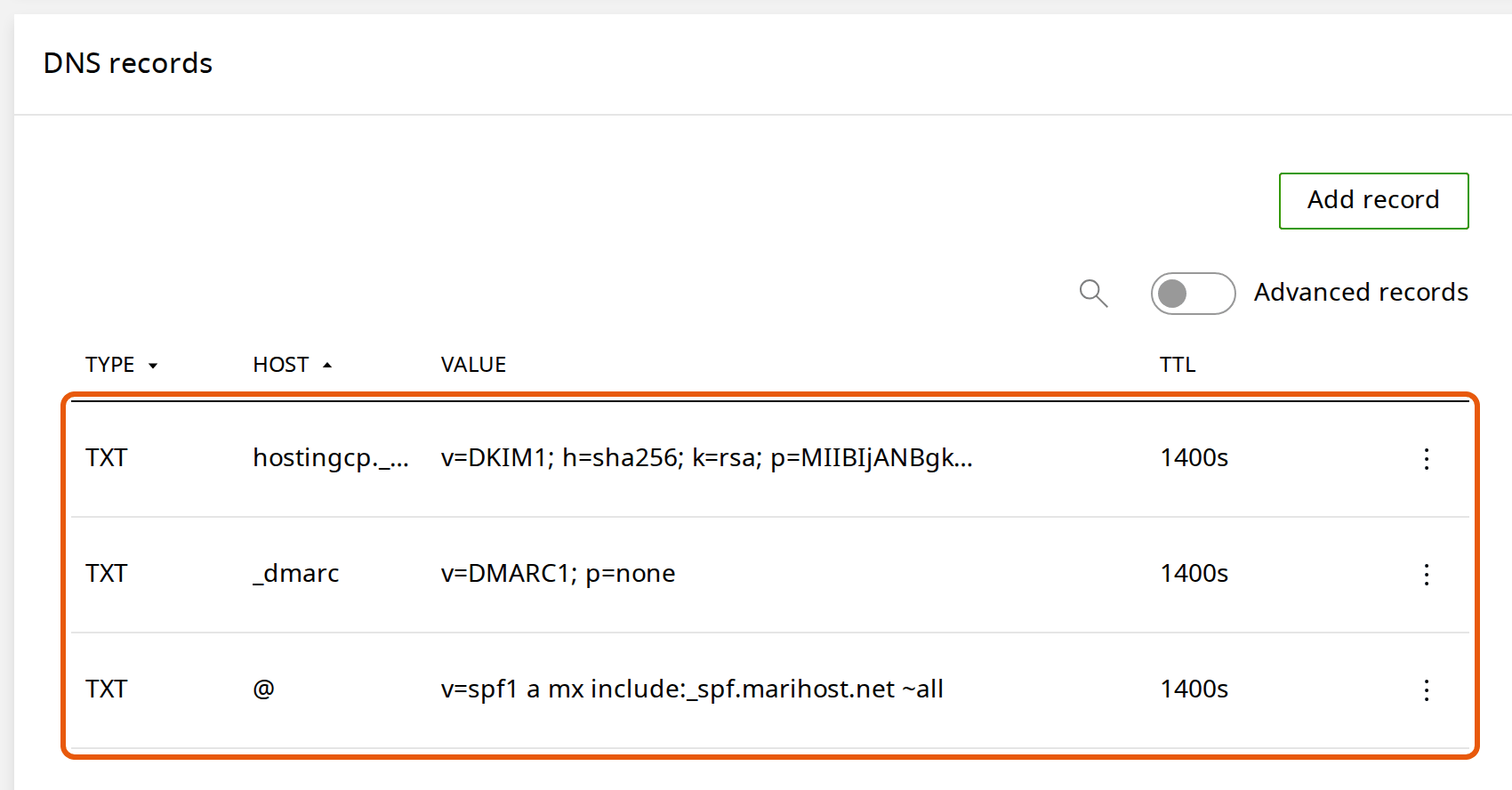
Scroll down to DNS records and click TYPE to sort the records, so the TXT records come first. You should see three:
- hostingcp._domainkey, starting v=DKIM1: your DKIM key.
- _dmarc: v=DMARC1; p=none.
- @: v=spf1 a mx include:_spf.marihost.net ~all.
That's it. Changes in our DNS take effect within minutes.
If your DNS is elsewhere
If your domain's DNS is managed somewhere else, such as Cloudflare or your domain registrar, add the records there. First switch DKIM on in the control panel (steps 1 and 2 above), so we create your key. Then add these at your DNS provider:
| Type | Name | Value |
|---|---|---|
| TXT | @ (your domain) | v=spf1 a mx include:_spf.marihost.net ~all |
| TXT | hostingcp._domainkey | the v=DKIM1 value from DNS records in the control panel, copied in full |
| TXT | _dmarc | v=DMARC1; p=none |
Already have an SPF record? A domain can have only one. Don't add a second: add include:_spf.marihost.net to the one you have, before the ~all or -all at the end. For example, if you also send from Google Workspace: v=spf1 include:_spf.google.com include:_spf.marihost.net ~all.
Using Cloudflare? Add the TXT records as they are. Cloudflare's orange cloud doesn't apply to TXT records.
DNS changes elsewhere can take a few hours to reach everyone.
Check that it works
Send an email from your mailbox to a Gmail address. In Gmail, open it, click ⋮ (More) and choose Show original. Near the top you'll see SPF, DKIM and DMARC: all three should say PASS.
Once all your email passes for a few weeks, you can make DMARC stricter, so email that fails is sent to spam: change the _dmarc value to v=DMARC1; p=quarantine. Do it only when you're sure every service that sends email for your domain passes, such as your website, your newsletter service and your accounting software.
If something's not right
SPF fails. Check there's only one SPF record, that it includes include:_spf.marihost.net, and that it has no more than 10 includes and lookups in total. Services you no longer use can come out.
DKIM fails or the switch doesn't show VALIDATED. If your DNS is elsewhere, the hostingcp._domainkey record must match the control panel's value exactly, with nothing cut off. Some DNS providers split long values: paste it in one piece.
Your emails still go to spam with all three passing. Your content and your domain's age matter too. Avoid all-capital subject lines and lots of links, and ask regular contacts to add you to their address book.
Email from your website (contact forms, orders) goes to spam. It's sent from your domain by our servers, so the same records cover it. If you send through another service with an SMTP plugin, add that service's SPF include and DKIM key as well.
Not sure what's wrong? Open a ticket with your domain, and we'll check your records.
Next steps
Create a mailbox with Create an email account, set it up on your phone or in Outlook, and if your domain isn't with us yet, see pointing your domain to MariHost.
Want us to check your email records?
Tell us your domain and we'll take a look.
Keep reading
Create an email account, and use webmail
A mailbox on your own domain in a couple of minutes, and your email in any browser.
Read the guideSet up your email on a phone or in Outlook
The IMAP and SMTP settings, and how to add your mailbox to your phone, the Gmail app or Outlook.
Read the guidePoint your domain to MariHost
Nameservers or DNS records: which to use, and how to change them at your registrar.
Read the guide