GuideCreate a business email account on your own domain
Last updated: 26 October 2026
An email address on your own domain, such as [email protected], looks more professional than a free address and stays yours when you change provider. Every MariHost plan includes one mailbox for each website it holds. This guide shows you how to create one in the control panel in a couple of minutes, and how to read and send email in webmail, from any browser.
Before you start
- Your domain should be added to your hosting as a website. If its DNS is with us (our nameservers, ns1.maridns.com and ns2.maridns.com), email works straight away. If your DNS is somewhere else, such as Cloudflare, add the mail records there too: see SPF, DKIM and DMARC.
- Your mailboxes: Starter has 1, Business 5, Pro 10 and Agency 30. Each holds up to 1 GB, which comes out of your plan's storage.
Create the business email account
1. Open Emails
Sign in to your client area at billing.marihost.com, open your hosting plan and click Login to Control Panel. Click Emails in the left sidebar, then Add account.
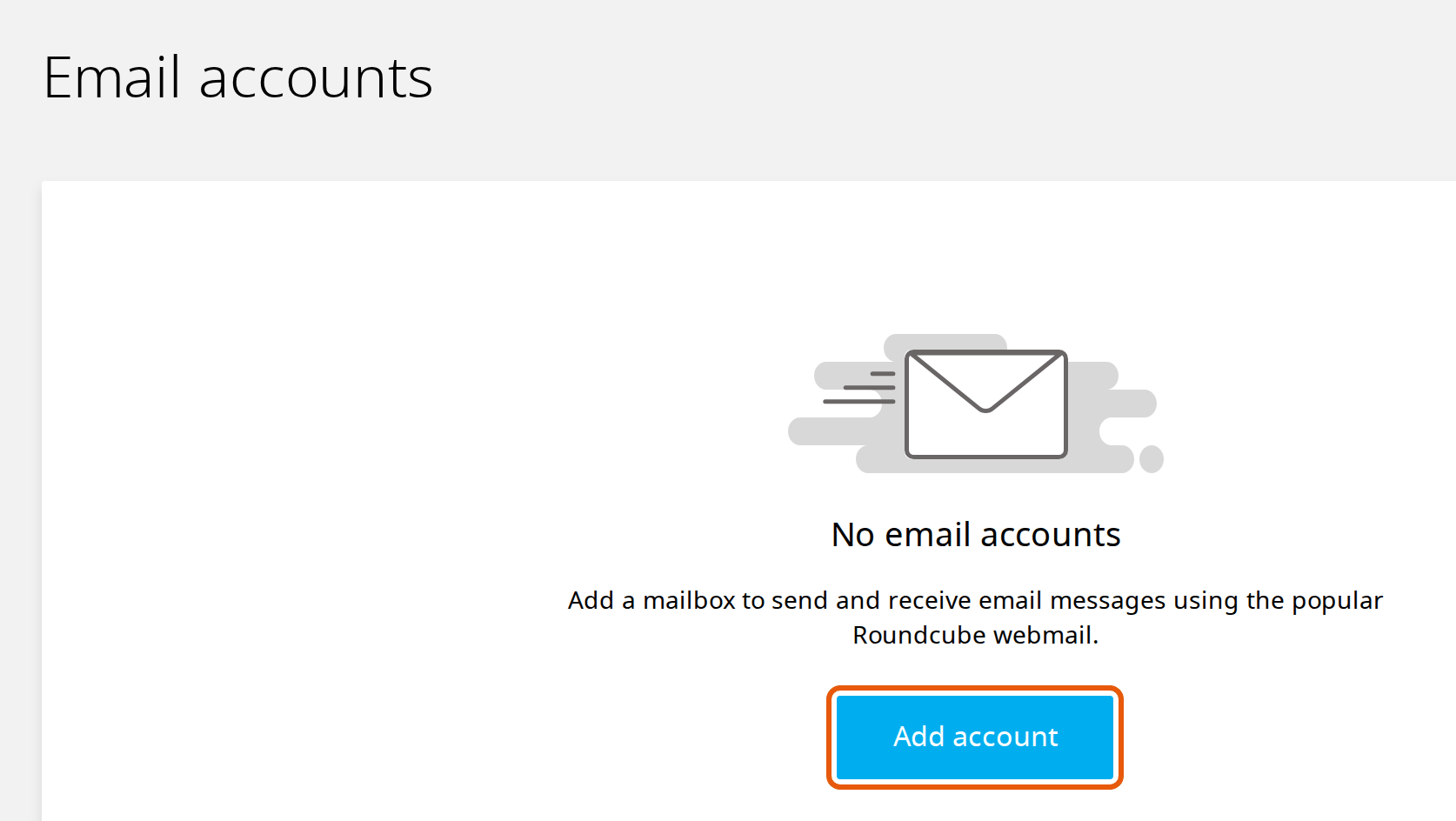
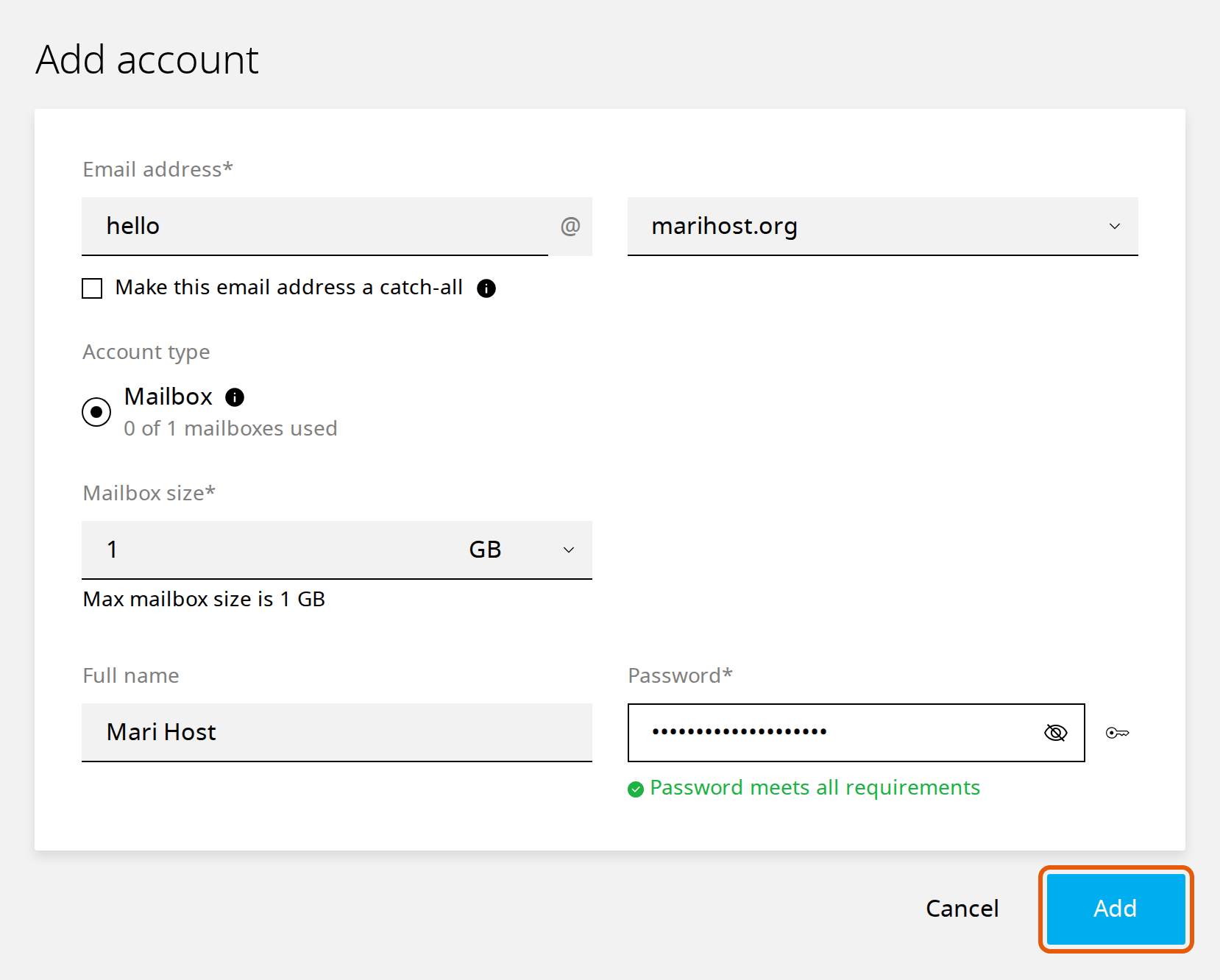
2. Fill in the details
- Email address: type the part before the @, such as hello, sales or your name, and choose your domain after it.
- Mailbox size: up to 1 GB. Choose GB and type 1, unless you want to keep storage for your website.
- Full name: the name people see when you email them, such as your name or your business.
- Password: at least 10 characters, with a capital letter, a small letter, a number and a symbol. Click the key icon next to it to make one up, and keep it in a password manager.
Leave Make this email address a catch-all unticked: a catch-all receives mail sent to any address at your domain that doesn't exist, which mostly means spam. Click Add.
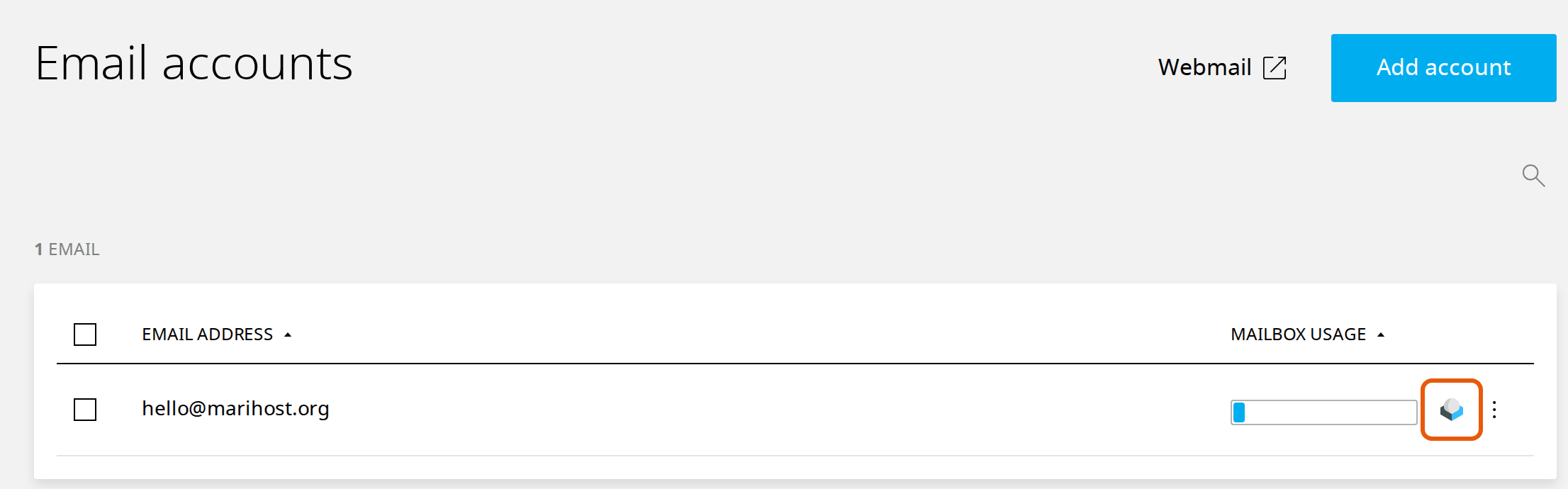
Your new address appears in the list, ready to use.
Open webmail from the control panel
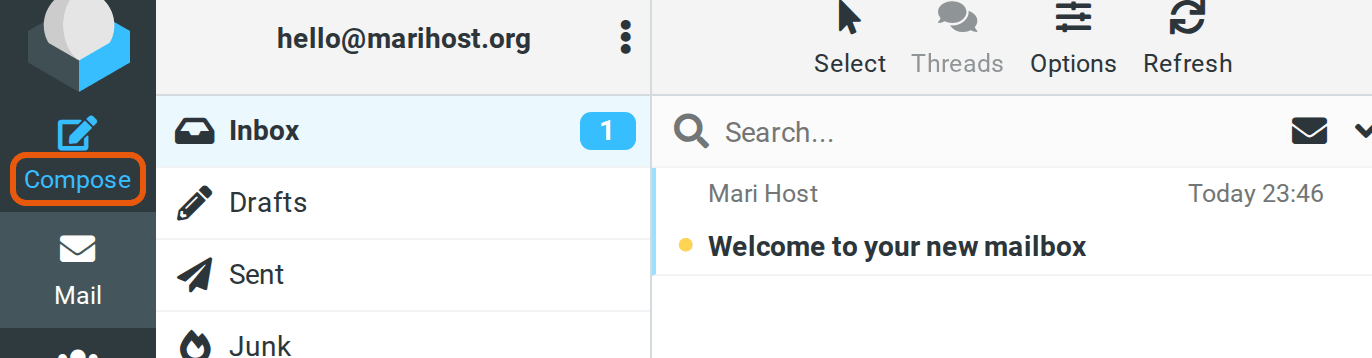
Webmail lets you read and send email in your browser, with nothing to install. In Emails, click the webmail button next to the address. Webmail opens in a new tab, already signed in.
Use webmail on its own
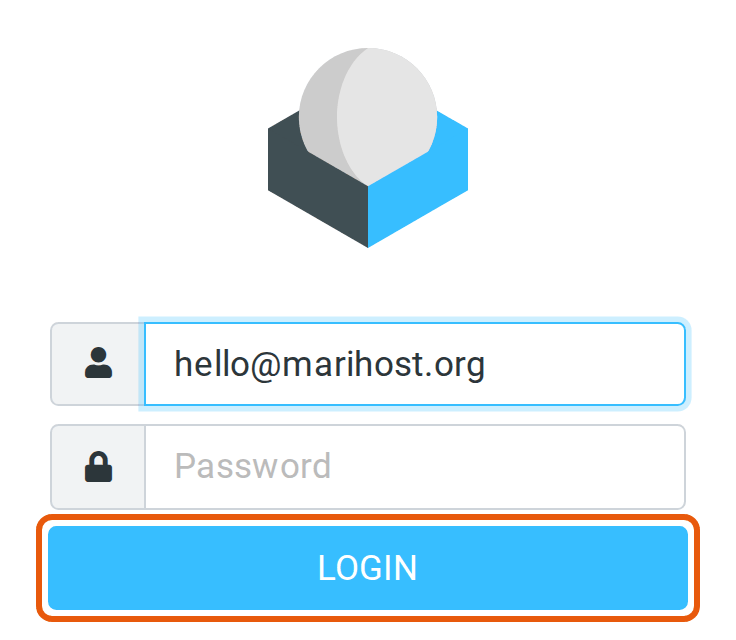
Your team don't need a control panel login to read their email. Anyone with a mailbox can sign in to webmail at mailpanel.marihost.com with their full email address and its password. It's also linked as Webmail at the top of Emails, and from our Support page.
In webmail, Compose writes a new email. Your folders are on the left: Inbox, Drafts, Sent, Junk for suspected spam, and Trash. Settings has your signature and other preferences.
Prefer your phone or Outlook? Our guide to setting up your email in a mail app has the settings.
Look after your mailbox
In Emails, click ⋮ next to the address and choose Manage. There you can:
- Change the password: under Password, click Reset.
- Forward your email to another address, under Forwarders.
- Set an out-of-office reply for when you're away, under Out of office.
- Adjust spam filtering, under Spam settings, if too much or too little lands in Junk.
Each mailbox can send up to 50 emails an hour, which is plenty for everyday business email. For newsletters, use a mailing service: our Acceptable Use Policy has the details.
If something's not right
You can't choose Mailbox, or it says all your mailboxes are used. Your plan's mailboxes are all in use. Delete one you don't need, or move up a plan in your client area.
Your email isn't arriving. If your domain's DNS isn't with us, it still needs our mail records: see SPF, DKIM and DMARC, or open a ticket and we'll tell you exactly what to add.
Your emails land in people's spam. Check that your domain has SPF, DKIM and DMARC records: our SPF, DKIM and DMARC guide shows how.
You've forgotten the mailbox password. Set a new one in the control panel: Emails → ⋮ → Manage → Password → Reset.
Webmail says your login failed. Use the full email address, not only the part before the @, and check the password.
Next steps
Set up the same mailbox on your phone, in Outlook or in the Gmail app, and make sure your email reaches inboxes with SPF, DKIM and DMARC.
Need a hand with your email?
Tell us your domain and what you'd like to set up, and we'll help.
Keep reading
Set up your email on a phone or in Outlook
The IMAP and SMTP settings, and how to add your mailbox to your phone, the Gmail app or Outlook.
Read the guideSPF, DKIM and DMARC: keep email out of spam
What each record does, how to switch on DKIM, and the records to add if your DNS is elsewhere.
Read the guideLog in to your client area and control panel
Sign in once, open the control panel with one click, and what to do if you can't get in.
Read the guide