GuideHow to make and restore a website backup
Last updated: 25 October 2026
Every MariHost plan backs up your websites once a day and keeps the backups for 7 days. You can also make a backup yourself whenever you like, and put your website back from any of them in a few clicks, without opening a ticket. This guide shows you how to make a backup before a big change, how to restore your whole website, and how to bring back only some files or a database. Making a backup or restoring a small site takes a minute or two.
How your backups work
- Every day, automatically. We back up each website's files and databases once a day. On WordPress, the files are WordPress itself, your theme, plugins and uploads; the database holds your pages, posts, settings and users.
- Kept for 7 days, on every plan. After that, the oldest backup makes way for a new one.
- Email too. If your website has mailboxes, their email is backed up as well, as a separate backup.
- Restore it yourself, whenever you need to, from the control panel.
- Your own backups too. Before a big change, make one yourself, so you can go back to exactly that moment.
Want backups kept for longer, away from our servers, and someone to restore them for you? That's part of WordPress Care.
Make a backup before a big change
Make one before you update plugins or your theme, change your PHP version, install something new, or let someone else work on your site.
1. Open Backups
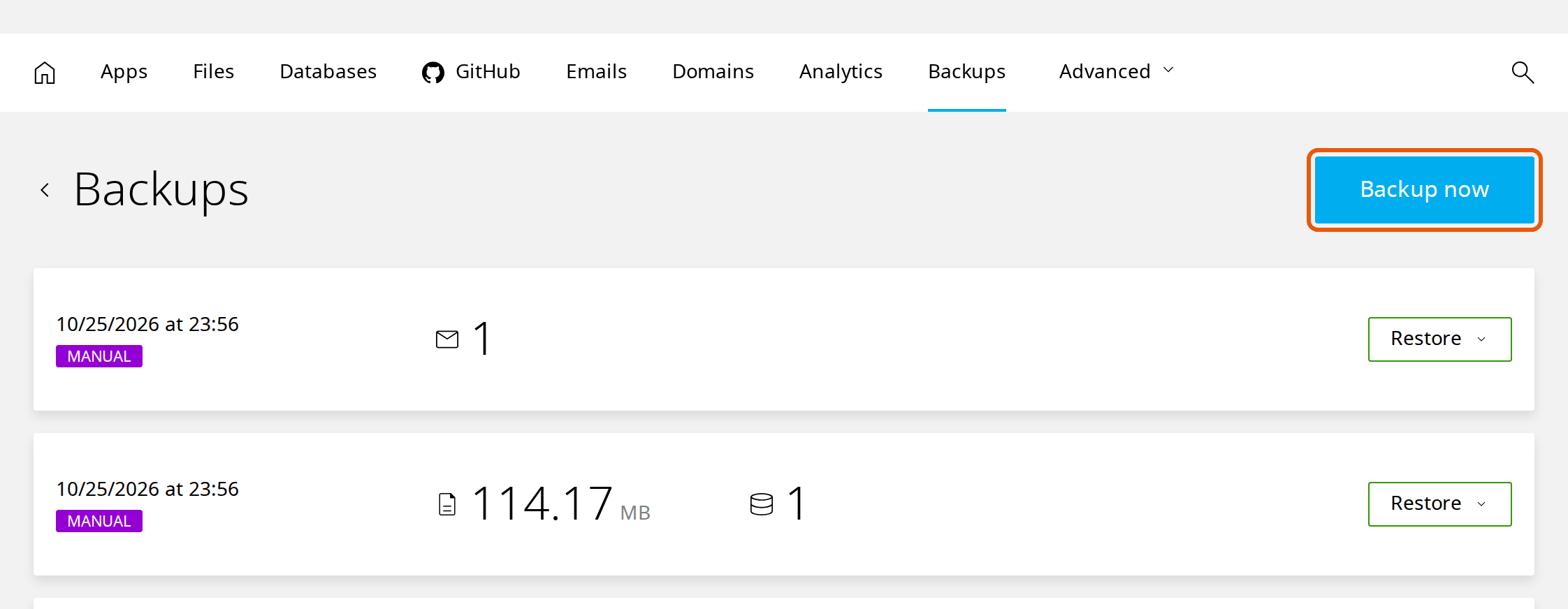
Sign in to your client area at billing.marihost.com, open your hosting plan and click Login to Control Panel. Open Websites in the left sidebar, choose your website, then click Backups at the top. You'll see your backups, newest first. In the pictures below, our test website is marihost.org.
2. Add a note and back up
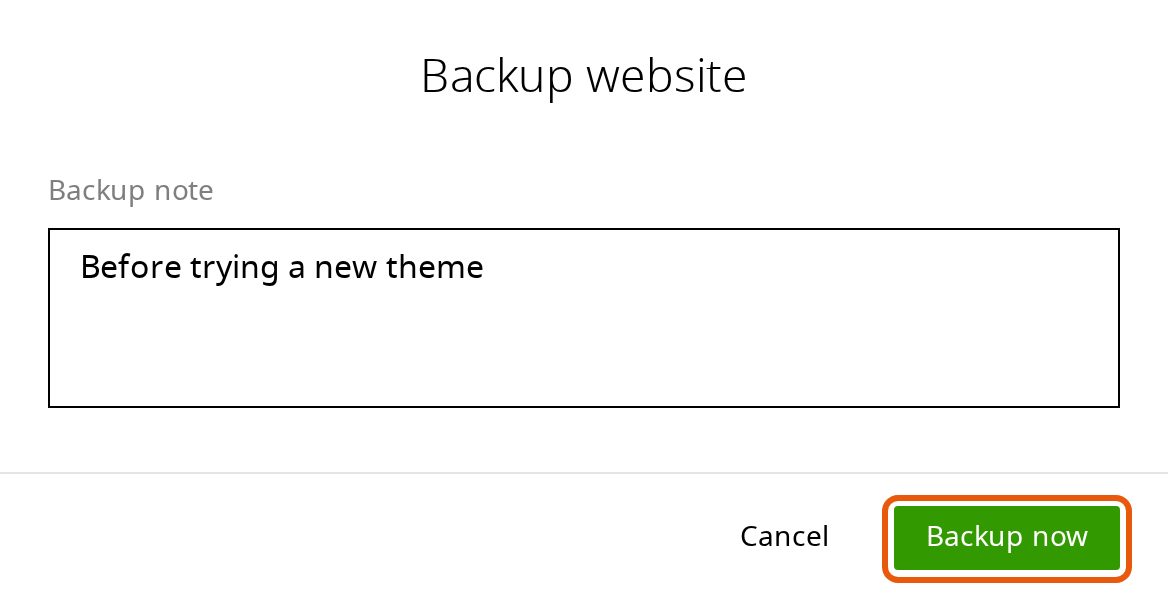
Click Backup now. A box opens where you can add a note, such as "Before trying a new theme", so you can find this backup later. The note is optional. Click Backup now again.
After a minute or so, depending on the size of your site, your backup appears at the top of the list. It's marked MANUAL, with the date and time, the size of your files and the number of databases. If your website has mailboxes, a second backup appears next to it, with an envelope and the number of mailboxes: that one holds your email. Now you can make your change.
Restore a website backup: the whole site
Restore the whole website when something has gone wrong across the site: an update broke it, pages were deleted by mistake, or it was hacked.
Everything that changed on the website after the backup is lost, including orders, comments and form entries. If your site still works and you're not sure, make a backup of it as it is now first, so you can come back to it.
1. Choose the backup
On Backups, find the newest website backup from before the problem started: the one that shows the size of your files. Click Restore next to it and choose Full website.

2. Confirm the restore
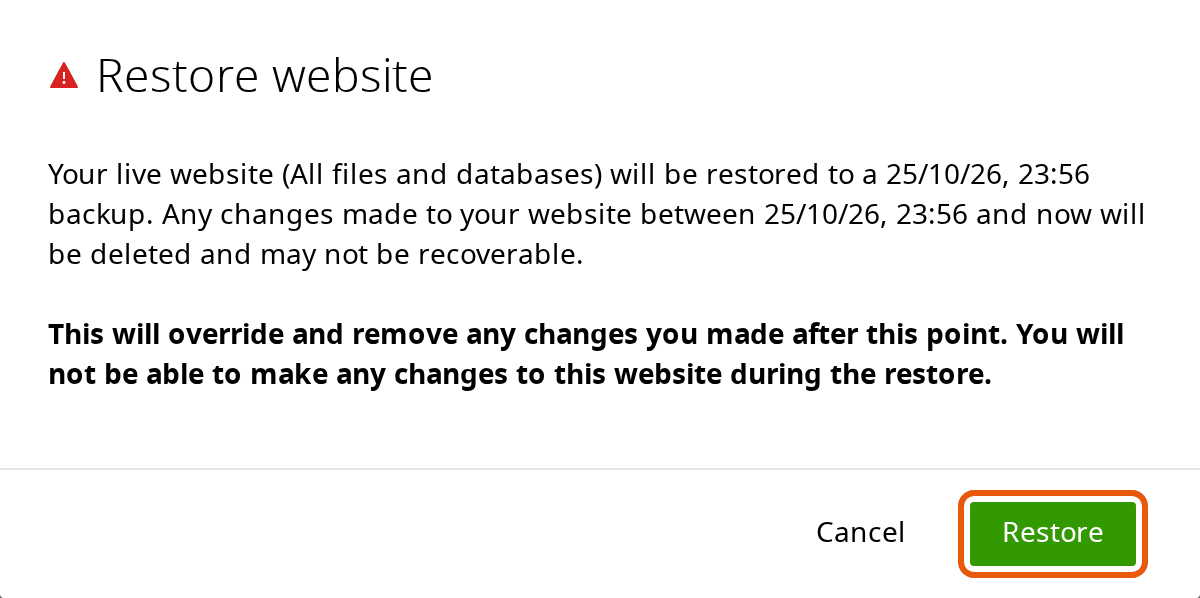
The control panel tells you exactly what will happen: your website's files and databases go back to that backup, and anything changed since is deleted. You can't make changes to the website while it's restoring. Your mailboxes aren't part of a full restore, so your email is left as it is. Click Restore.
3. Check your site
When the restore is finished, a green notice at the bottom of the screen says it's complete.

Open your website and log in to WordPress to check it. Then clear the page cache, so visitors don't see copies of pages saved before the restore: in WordPress, click the LiteSpeed Cache icon in the top bar and choose Purge All.
Restore your email
To bring back email that was deleted, find a backup with an envelope from before it went. Click Restore and choose All mailboxes, or Custom to choose only some of them. Email that arrived after that backup may be lost, so restore only the mailboxes you need.
Restore only some files or a database
When only part of your site is wrong, you can bring back just that part and leave the rest as it is now. For example, restore the files when a plugin update broke them but your recent orders are in the database, or restore the database when content was deleted but the files are fine.
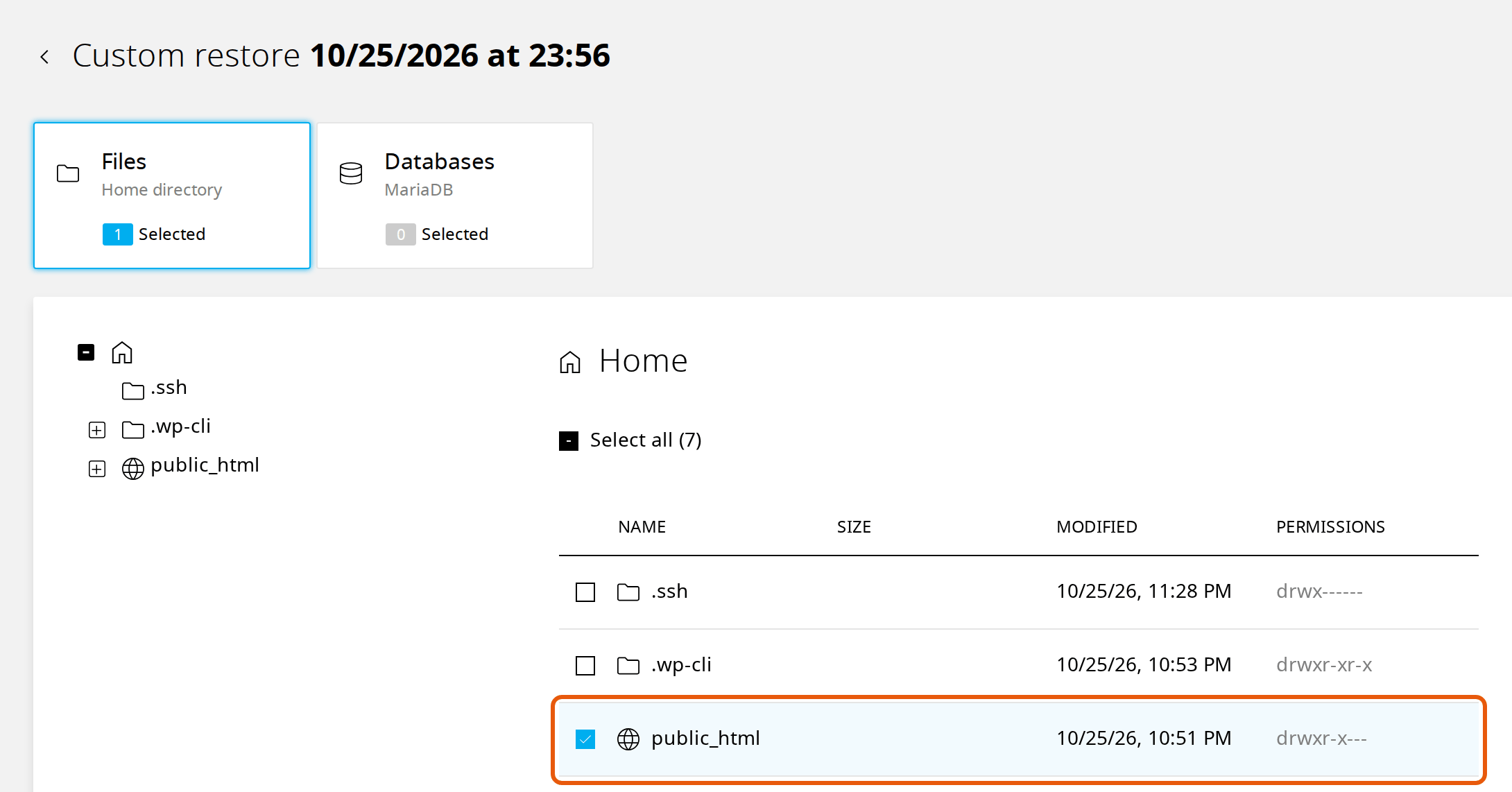
- On Backups, click Restore next to the backup and choose Custom.
- On the Files tab, tick what to restore. Your website lives in public_html. WordPress keeps your uploaded images in public_html/wp-content/uploads. Open a folder in the tree on the left to choose single files.
- On the Databases tab, tick a database to restore it.
- Click Restore now.
Restoring files and the database from different moments can leave WordPress out of step with itself, for example a plugin's files from one day and its settings from another. If in doubt, restore the whole website.
Keep a copy of your own
Our backups are kept for 7 days. To keep a copy for longer, for example before a redesign or once a month, download one. On your website's dashboard in the control panel, click Download and choose Download website data for your files and databases. Your email is a separate download, Download email data.
Keep the file somewhere safe: it contains your whole website, including the settings WordPress uses to reach its database. Downloads are limited to 2 GB. If your site is bigger, ask us and we'll help.
If something's not right
The backup you need is more than 7 days old. We no longer have it. Use a copy you downloaded, or the off-site backups from WordPress Care if you have it.
You restored the wrong backup. Restore again from another one. If you made a backup just before restoring, that one brings back what you had.
Your site still shows the problem. Purge the LiteSpeed cache as above, and check in a private browser window. If it's still there, the problem may be older than the backup: try an earlier one.
The restore shows an error, or doesn't finish. Don't start another one. Open a ticket with your website and the date and time of the backup, and we'll look at it.
Next steps
Before your next update, try it on a staging copy of your website first, where nothing you do can affect your visitors. Changing PHP versions? Our guide to changing your PHP version starts with a backup too.
Need a hand with a restore?
Tell us your website and what went wrong, and we'll help you choose the right backup.
Keep reading
Make a staging copy of your website
Try updates or a redesign on a private copy, then push it live in one step.
Read the guideChange your PHP version
Pick the right version for WordPress, check your site first, and switch back if a plugin complains.
Read the guideStart a WordPress website
From choosing a domain to publishing your first page, step by step.
Read the guide