GuideHow to change PHP version for your WordPress site
Last updated: 25 October 2026
PHP is the programming language WordPress runs on, and each version is faster and safer than the last. At MariHost you choose the PHP version for each website yourself, in the control panel. This guide shows you how to change it, what to check first, and how to undo it if a plugin doesn't like the new version. It takes about 5 minutes, plus a few minutes of checking your site.
Which version to choose
Choose the newest version that your theme and plugins support. WordPress itself recommends PHP 8.3 or newer, and the current WordPress works with every version we offer.
In the list, the newest version is marked Latest. Older versions stop getting security fixes after a few years, so moving up is worth doing even when nothing seems wrong. If you're not sure, ask the developer of your theme or of any plugin your site can't do without.
Before you change it
- Make a backup. In the control panel, open Backups, click Backup now (Create backup if your website has none yet), then Backup now again. If something goes wrong, you can put your site back as it was. Our guide Back up and restore your website shows how.
- Update WordPress, your theme and your plugins. In WordPress, go to Dashboard → Updates and update everything. New PHP versions are usually supported by the latest version of a plugin, not by older ones.
- Try it on a staging copy first, if your site matters to your business. A staging copy is a private copy of your site where you can test the change without visitors seeing anything: see Make a staging copy of your website.
Change PHP version in the control panel
1. Open your website in the control panel
Sign in to your client area at billing.marihost.com, open your hosting plan and click Login to Control Panel. Open Websites in the left sidebar and choose your website. In the pictures below, our test website is marihost.org.
2. Open Developer tools
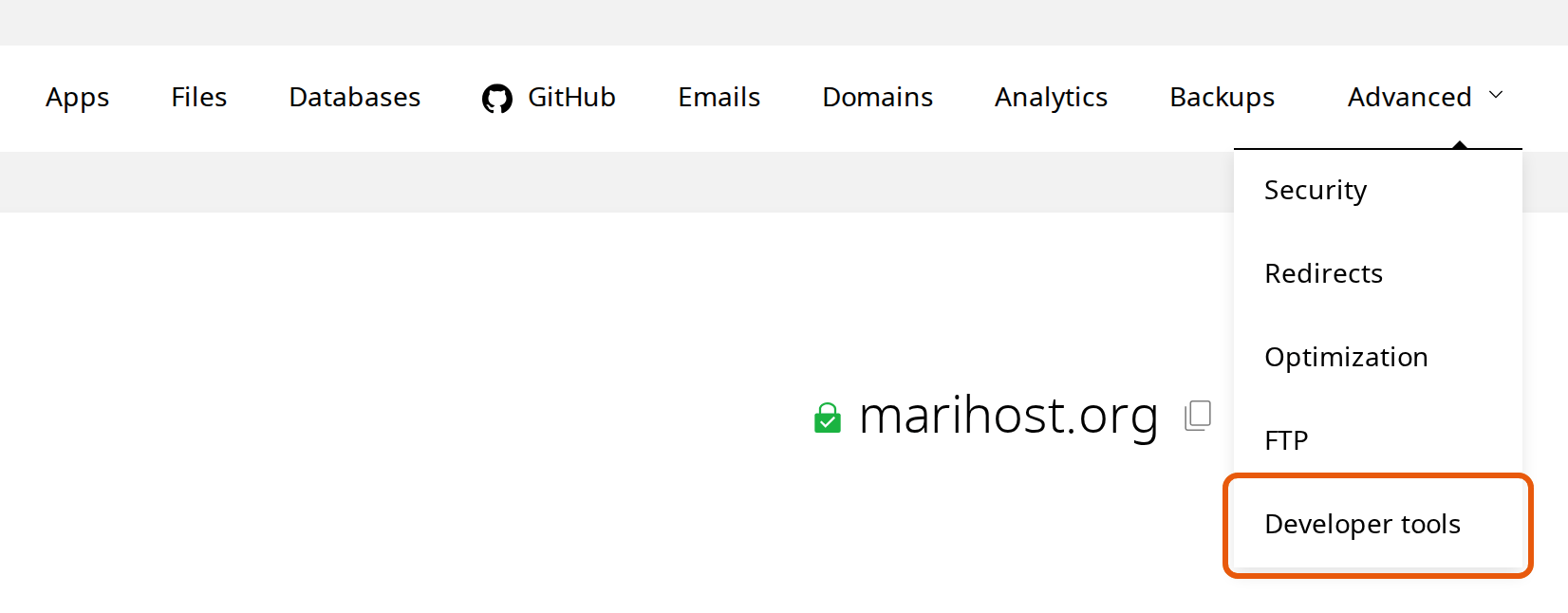
Open Advanced in the top menu and choose Developer tools. The PHP settings are the first section.
3. Choose the new version
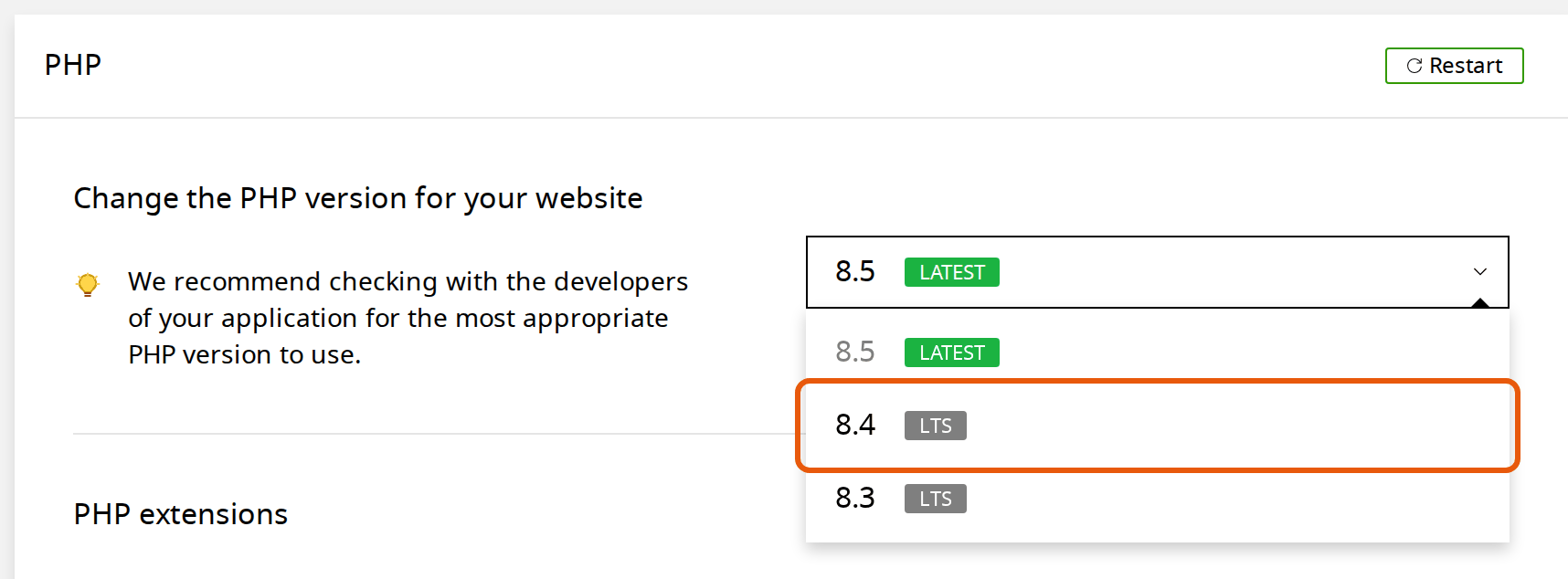
Under Change the PHP version for your website, click the version shown now. The list opens with the versions you can choose.
4. Confirm the change
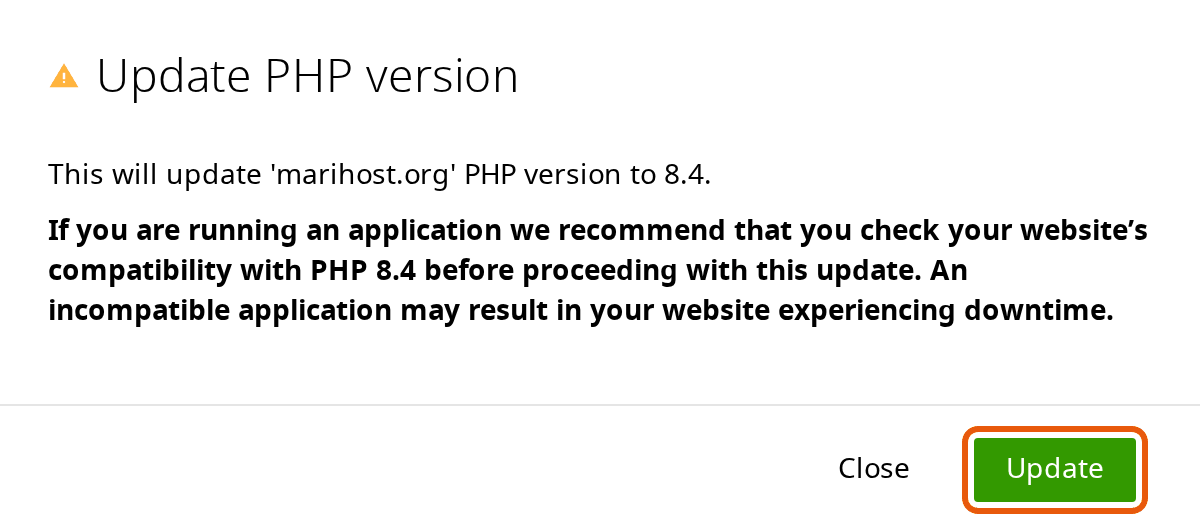
The control panel asks you to confirm, and reminds you to check that your site works with the new version. Click Update.
5. Check the new version is set
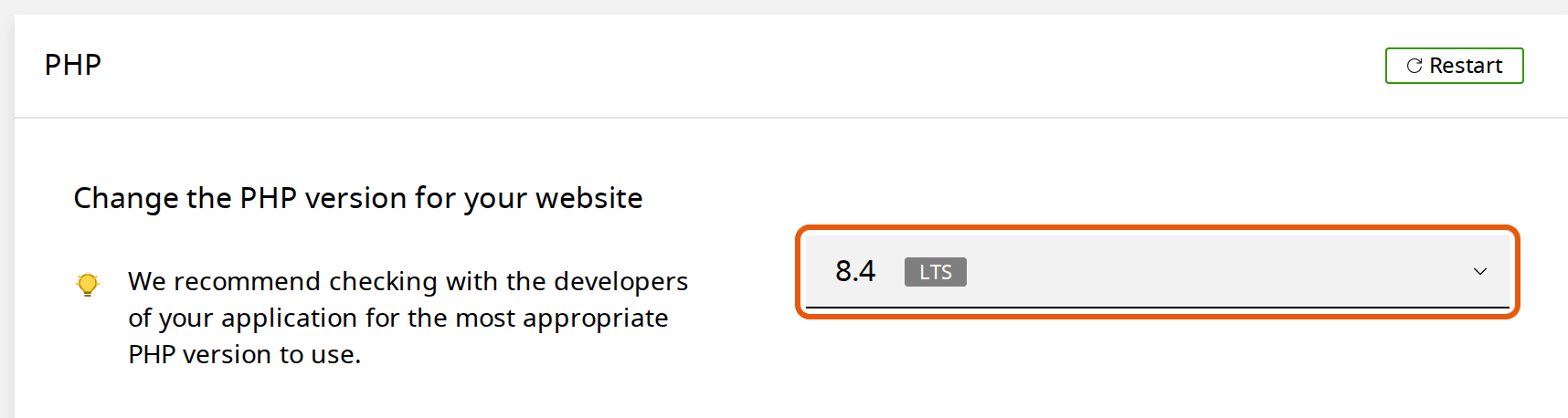
After a few seconds, the selector shows the new version. The change applies to this website only: your other websites keep their own PHP version.
Check your site
- Open your site and click through a few pages, including the ones that matter most: your contact form, your shop's checkout or your booking page.
- Log in to WordPress and check the dashboard opens as usual.
- Check the version WordPress sees: go to Tools → Site Health, open the Info tab and expand Server. The PHP version is listed there.
If something's not right
Your site shows "There has been a critical error on this website", or a page is blank. A theme or plugin doesn't work with the new version yet. Go back to Advanced → Developer tools and choose the version you had before: your site works again as soon as the change is made. Then update the theme or plugin, or ask its developer when it will support the newer version.
WordPress emailed you about a "technical issue". WordPress sends this to the site's admin email when a plugin or theme fails, with the plugin's name and a link that lets you log in and turn it off. Switch back to the previous PHP version first if your visitors can't use the site.
Only one feature broke. Note what you were doing when it failed, switch back to the previous version, and tell the plugin's developer which PHP version caused it.
Still stuck? Open a ticket and tell us your website and the version you chose. We can check the website's error log with you.
Next steps
Developer tools also has a php.ini editor, for PHP settings such as the largest file you can upload, and Cron jobs, for tasks that run on a schedule. Before your next big change, read Back up and restore your website, and try updates safely on a staging copy.
Need a hand?
Tell us your website and what you see, and we'll help you find the right PHP version.
Keep reading
Back up and restore your website
Make a backup before a big change, and put back your whole site or only some files, without a ticket.
Read the guideTurn on SSL and force HTTPS
Check your free certificate, switch WordPress to HTTPS and send every visitor to the secure address.
Read the guideStart a WordPress website
From choosing a domain to publishing your first page, step by step.
Read the guide