GuideHosting control panel login: your client area and control panel
Last updated: 25 October 2026
Your MariHost account has two parts. The client area at billing.marihost.com is where you order, pay invoices, see your plans and open support tickets. The control panel is where you run your websites: WordPress, files, databases, email, backups and staging. You sign in once, to the client area, and open the control panel from there with one click. This guide shows you how, and what to do if you can't get in.
Sign in to your client area
1. Go to billing.marihost.com
Open billing.marihost.com in your browser, or click Log in at the top of any page of our website. Type the email address you ordered with under USERNAME, then your password, and click Login.
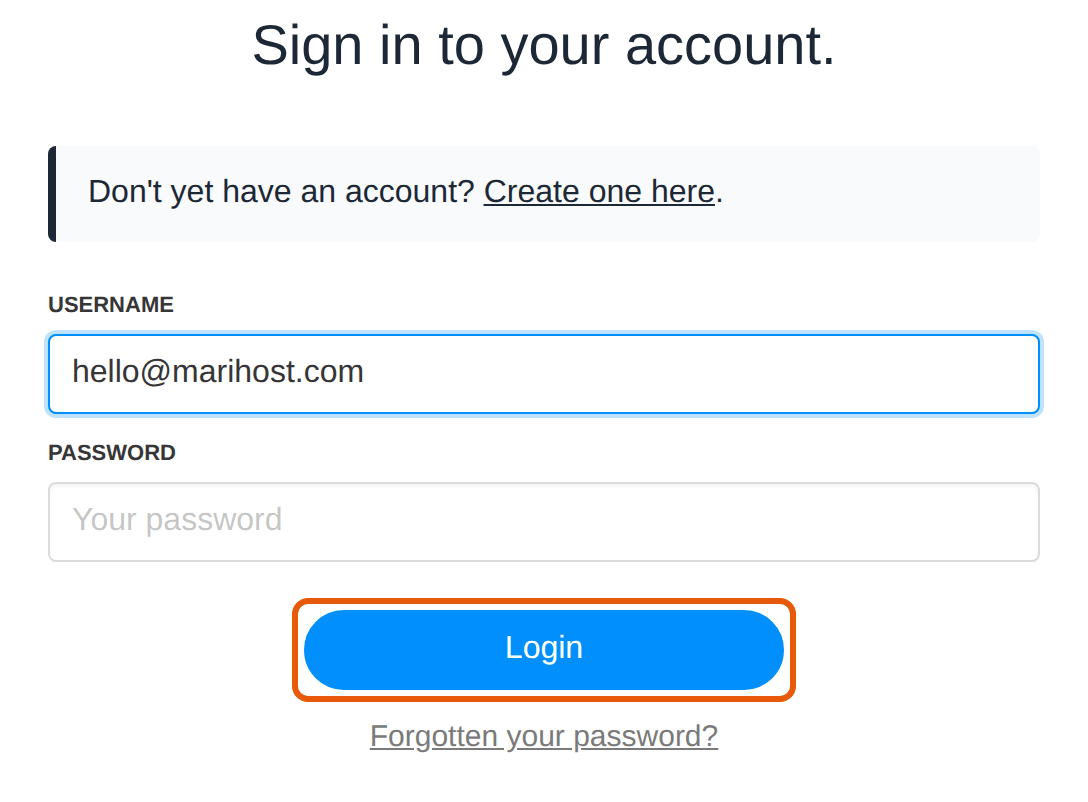
New to MariHost? Your account is created when you place your first order, or with Create one here on the same page.
Hosting control panel login
2. Click Login to Control Panel
Your client area's dashboard lists your Active products. Next to your hosting plan, click Login to Control Panel. Have more than one plan? Each has its own button, which opens the control panel for that plan.

The control panel opens in a new tab, already signed in, so there's no second password to remember.
3. Choose what to work on
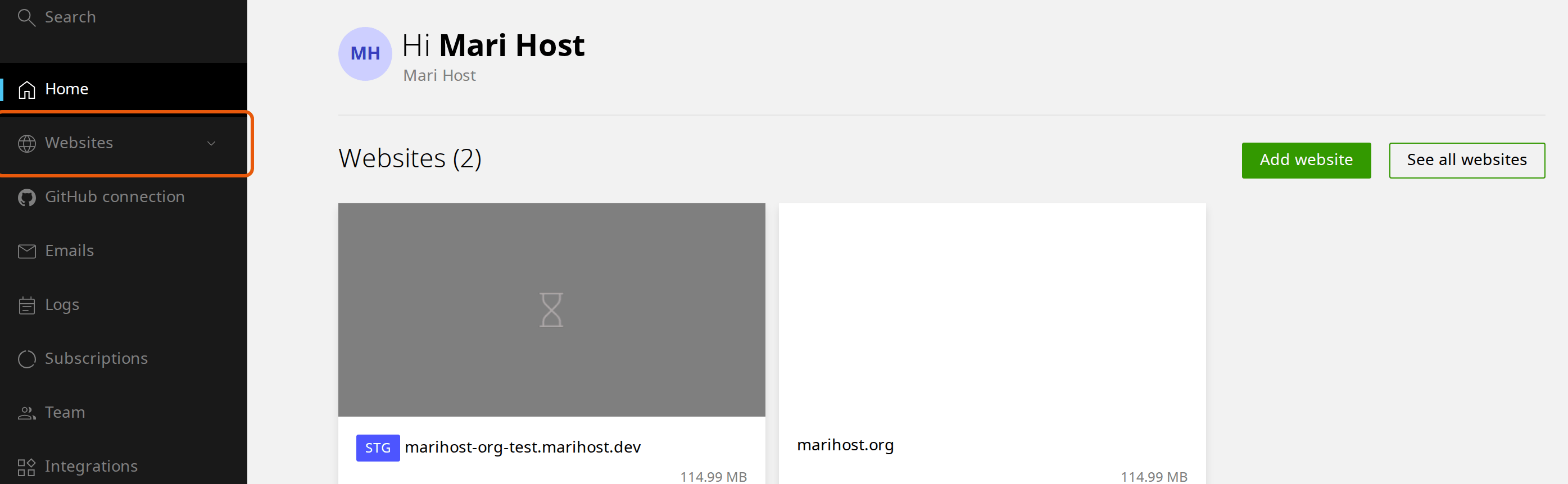
The control panel's home page greets you by name and shows your websites. Click one to open it, or use the menu on the left: Websites for all your sites, Emails for mailboxes and Team to give someone their own login.
Find your way around
When you open a website, the menu along the top takes you to what you'll use most:
- Apps: WordPress and other applications, with one-click login to WordPress.
- Files and Databases: the file manager, and your website's databases.
- Emails: the mailboxes on this website's domain.
- Domains: the website's domains.
- Backups: your daily backups, and backups you make yourself.
- Advanced: security and SSL, PHP version and other developer tools.
Back in the client area, Billing has your invoices and payment cards, and Support is where you open a ticket.
If you can't sign in
You've forgotten your password. On the client area's sign-in page, click Forgotten your password? and enter your email address. We'll email you a link to choose a new one. Check your spam folder if it doesn't arrive within a few minutes.
You don't know which email address you used. Try the addresses you use for work and personal email. Still stuck? Contact us from the email address you think it is, and tell us your domain.
The control panel doesn't open. Your browser may have blocked the new tab: allow pop-ups for billing.marihost.com and click Login to Control Panel again. If your plan shows as suspended, or isn't under Active products, check Billing for an unpaid invoice: we suspend a plan when its invoice is 3 days overdue.
You see a "Sign up" link instead. You're on the control panel's own sign-in page. Go to billing.marihost.com and sign in there instead.
Keep your account safe
- Use a strong password that you don't use anywhere else, and keep it in a password manager.
- Don't share your login. To let a developer, a colleague or a client work on a website, give them their own login under Team in the control panel, and remove it when they're done.
- On a shared computer, sign out of the client area and the control panel when you're done.
Next steps
Start with installing WordPress, or, before any big change, back up your website.
Can't get in?
Tell us your domain and the email address you think you used, and we'll help.
Keep reading
Start a WordPress website
From choosing a domain to publishing your first page, step by step.
Read the guideBack up and restore your website
Make a backup before a big change, and put back your whole site or only some files, without a ticket.
Read the guideTurn on SSL and force HTTPS
Check your free certificate, switch WordPress to HTTPS and send every visitor to the secure address.
Read the guide