GuideHow to use phpMyAdmin and manage your WordPress database
Last updated: 29 October 2026
Your WordPress website keeps its posts, pages, settings, users and orders in a MySQL database, and its files in public_html. This guide shows where to find your database in the control panel, how to download a copy and import one, how to open phpMyAdmin, and how to add a database or change a database password. It takes about 10 minutes.
Find your database
- In the control panel, open Websites in the left sidebar and choose your website.
- Click Databases at the top.
You'll see each database with its size and how many users can sign in to it. A website made with WordPress in the control panel has one. Every name starts with the same prefix, which the control panel adds for you.
- To see a database's details, click ⋮ next to it and choose Manage.
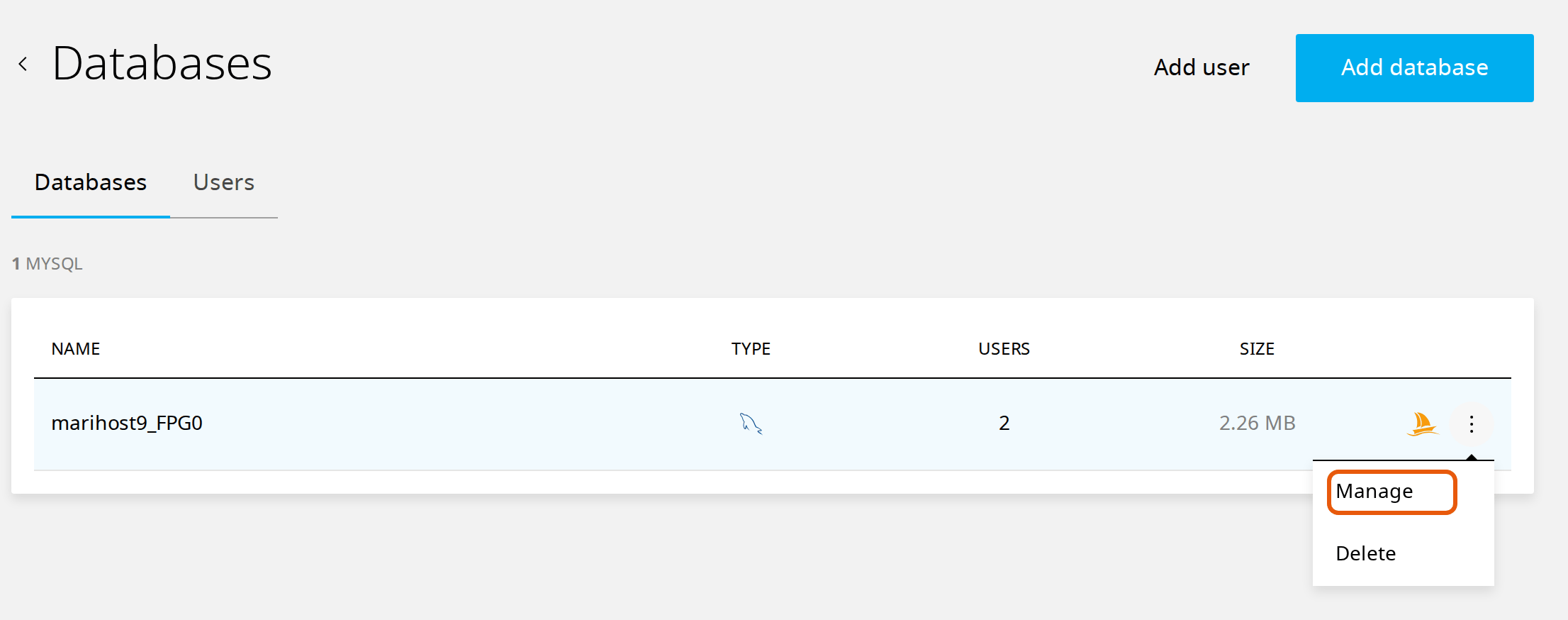
Connection info at the top of that page is what an app needs to reach the database: for WordPress and other PHP apps on your website, the host is localhost.
Download a copy of your database
Your website's daily backups already include its database: see Back up and restore your website. Download a copy of your own before you change the database yourself, in phpMyAdmin or with a plugin, or to keep one on your computer.
- Next to the database, click ⋮ and choose Manage.
- Under Export SQL file, click Download.
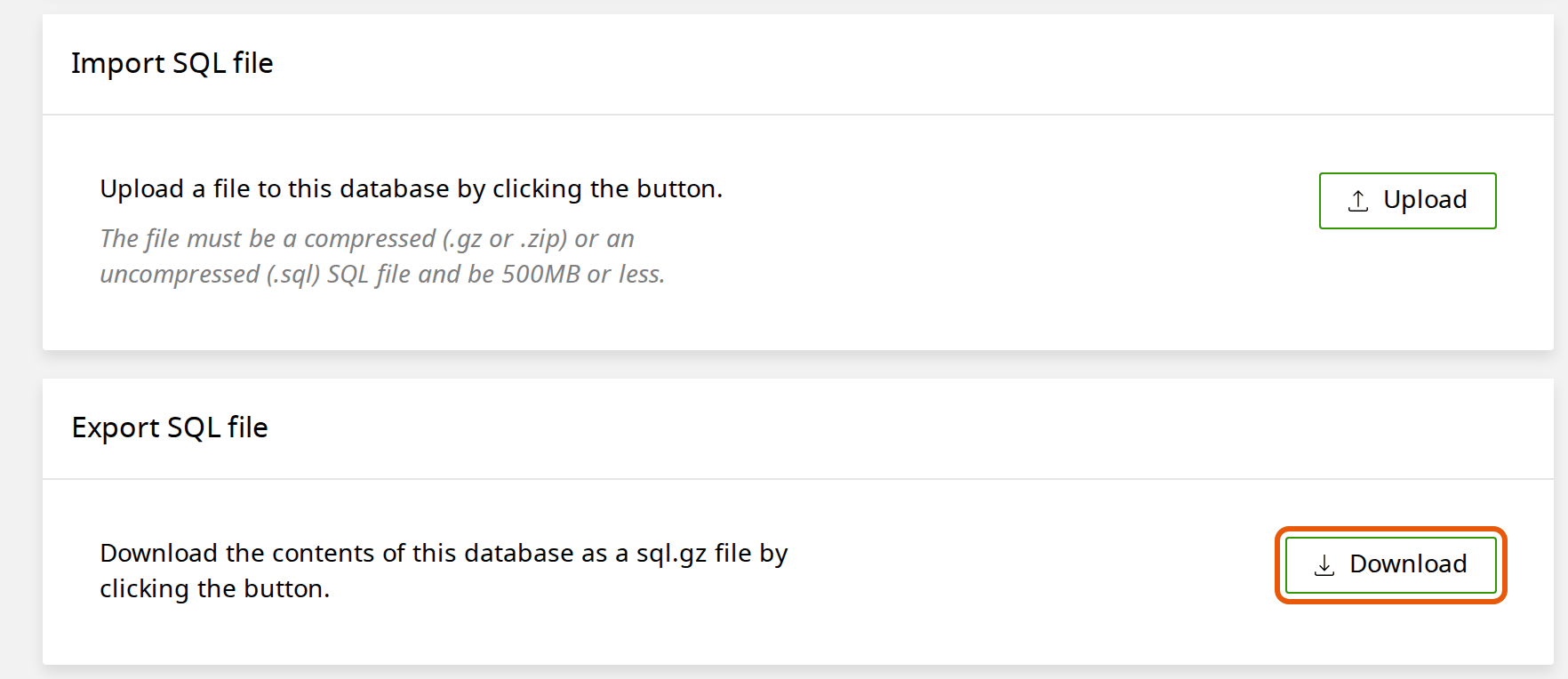
You get a .sql.gz file: the whole database, compressed.
Import a database
Under Import SQL file, click Upload and choose the file. It can be a .sql file, or one compressed as .gz or .zip, up to 500 MB.
An import writes straight into the database you chose. If your website uses that database, its pages change as soon as the import finishes, so download a copy first. When you can, import into a new, empty database instead (see Add a database) and point WordPress to it once you've checked it.
Moving a website from another host? We copy it for you, for free, if you ask within 30 days of your first hosting order: see Move your site to MariHost.
Open phpMyAdmin
phpMyAdmin lets you look inside your database: its tables, how big each one is, and the rows in them.
- In Databases, click the orange phpMyAdmin button next to your database. You'll find a PhpMyAdmin button on its Manage page too.
- phpMyAdmin opens in a new tab, already signed in. Click your database on the left.
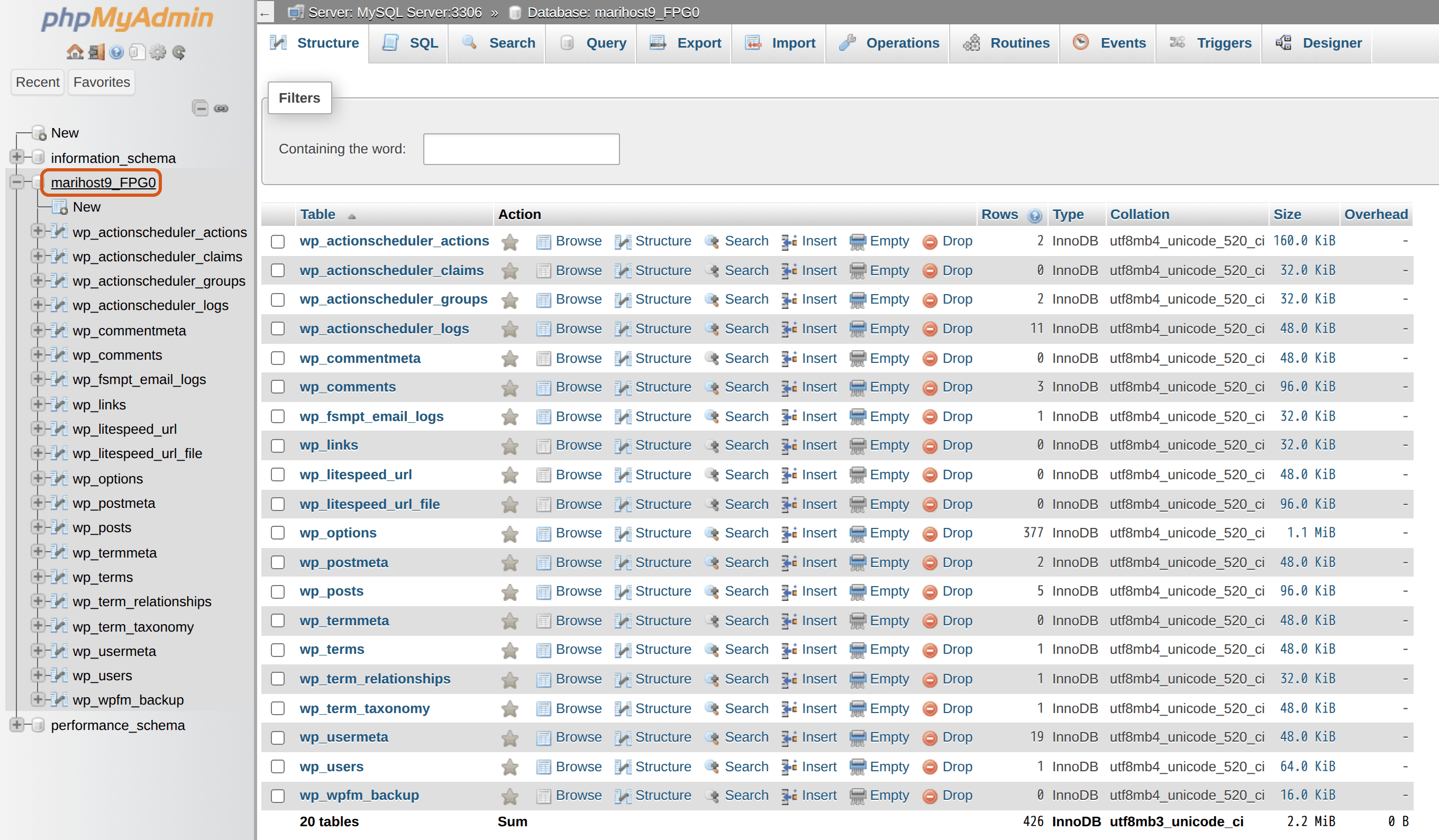
WordPress's tables start with wp_, or with the prefix chosen when WordPress was installed. The Size column shows what makes your database big, often a plugin's log or statistics table. Browse shows a table's rows, Search finds text in it, and Export at the top downloads only the tables you tick.
Be careful with Empty and Drop: they delete a table's rows, or the whole table, straight away, with no undo. Change data in phpMyAdmin only when you know what the change does, and after downloading a copy. For everyday clean-ups, such as old post revisions and spam comments, LiteSpeed Cache → Database in WordPress is safer.
You may see a database user ending in _phpma once you've opened phpMyAdmin: the control panel adds it for phpMyAdmin. Leave it.
Add a database
Need a database for another app, or for a copy of WordPress you install by hand? (Installing WordPress from Apps makes its own.) Your plan includes two databases for each website.
- In Databases, click Add database.
- Type a Database name. The prefix is added for you.
- Under Add database user, tick an existing user, or click Create new user and type a username and a password. The password needs at least 10 characters, with a lowercase letter, a capital letter, a number and a special character.
- Click Add.
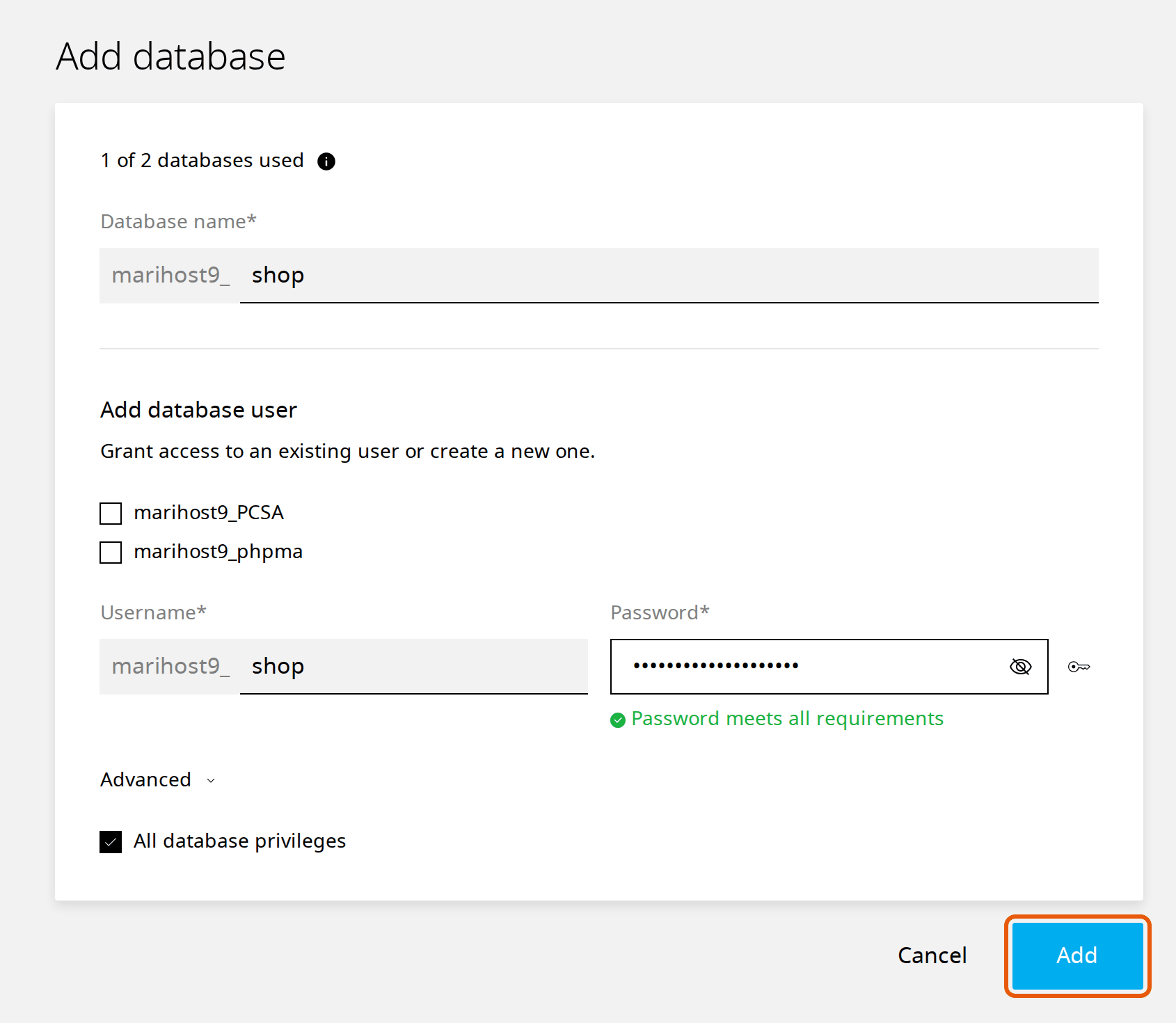
To connect your app, give it the host localhost, the database name and the username, both with the prefix, and the password.
Change a database password
- In Databases, open the Users tab.
- Click ⋮ next to the user and choose Manage.
- Under Password, click Reset, set a new password and click Change password.
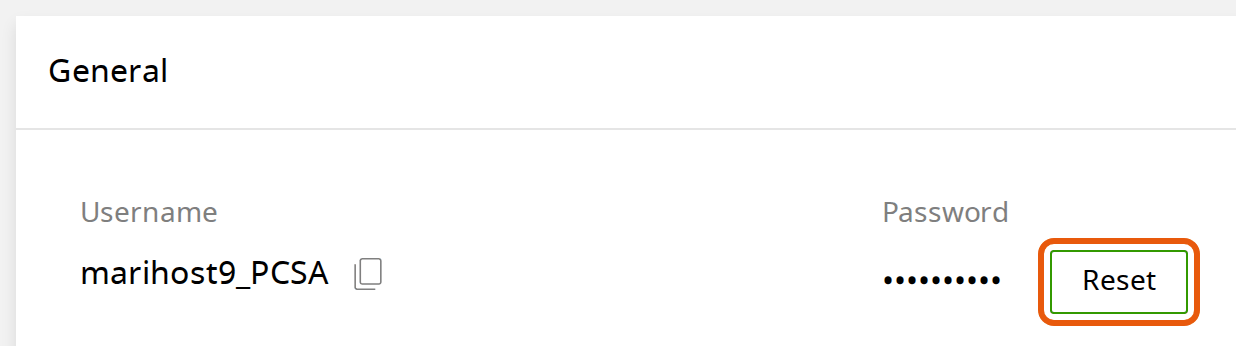
WordPress signs in to its database with this password. Put the new one in your website's wp-config.php file straight away, on the DB_PASSWORD line, or your website shows "Error establishing a database connection". Avoid ' and \ in the password: they break that line. The control panel's file manager doesn't open wp-config.php, so use FTP: see Edit wp-config.php over FTP.
If something goes wrong
- "Error establishing a database connection" means WordPress can't sign in to its database: see Fix common WordPress errors.
- Imported the wrong file, or deleted something in phpMyAdmin? Restore only the database from last night's backup: see Restore only some files or a database.
- A file over 500 MB? Open a ticket and we'll help you import it.
Next steps
Before you change your database, see Back up and restore your website. WordPress's database login is in wp-config.php: see Edit wp-config.php.
Rather we looked after it?
WordPress Care updates your site, checks it after every update, and fixes anything an update breaks.
Keep reading
Back up and restore your website
Make a backup before a big change, and put back your whole site or only some files, without a ticket.
Read the guideEdit wp-config.php
Add a setting to WordPress's main settings file safely, and put the file back if something goes wrong.
Read the guideFix common WordPress errors
The critical error, a blank page, database and redirect errors: find the cause and switch it off yourself.
Read the guide