GuideHow to set up a WordPress cron job in the control panel
Last updated: 29 October 2026
A cron job is a task the server runs on a schedule: every 15 minutes, every hour, or every night at 3:00. WordPress uses one to publish the posts you schedule, check for updates and run the jobs that plugins give it, such as backups and emails. This guide shows when WordPress's cron job runs on MariHost, how to make it run more often, and how to add a cron job of your own. It takes about five minutes.
How the WordPress cron job works
WordPress keeps a list of tasks to do later: publish a post at 9:00, check for updates, send a plugin's emails. On most hosts, WordPress looks at that list each time someone visits your website, so tasks run late when nobody visits, and visitors' pages do extra work.
On MariHost, the server does it instead. When a website is set up with WordPress, the control panel adds a cron job that runs WordPress's due tasks once an hour, at a minute picked at random, so that websites don't all run at the same moment. Your wp-config.php has define( 'DISABLE_WP_CRON', 'true' ); so that visits don't do the same work: leave it there.
Once an hour suits most websites. But a post scheduled for 9:05 only goes out at the next run, and until then WordPress lists it as "Missed schedule". If your posts, shop, bookings or newsletter need tasks to run sooner, change it as shown below.
Find your cron jobs
- In the control panel, open Websites in the left sidebar and choose your website.
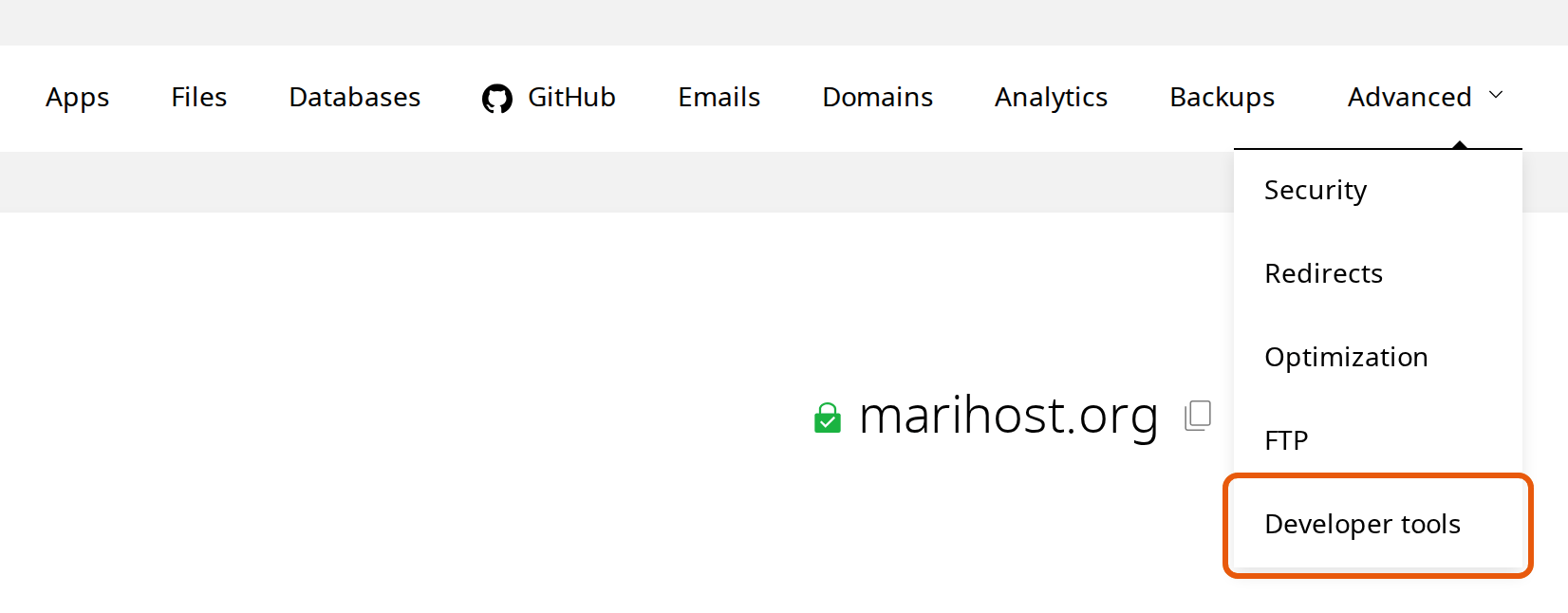
- Click Advanced at the top, then Developer tools.
- Scroll down to Cron jobs, or click Cron jobs in the list on the left.
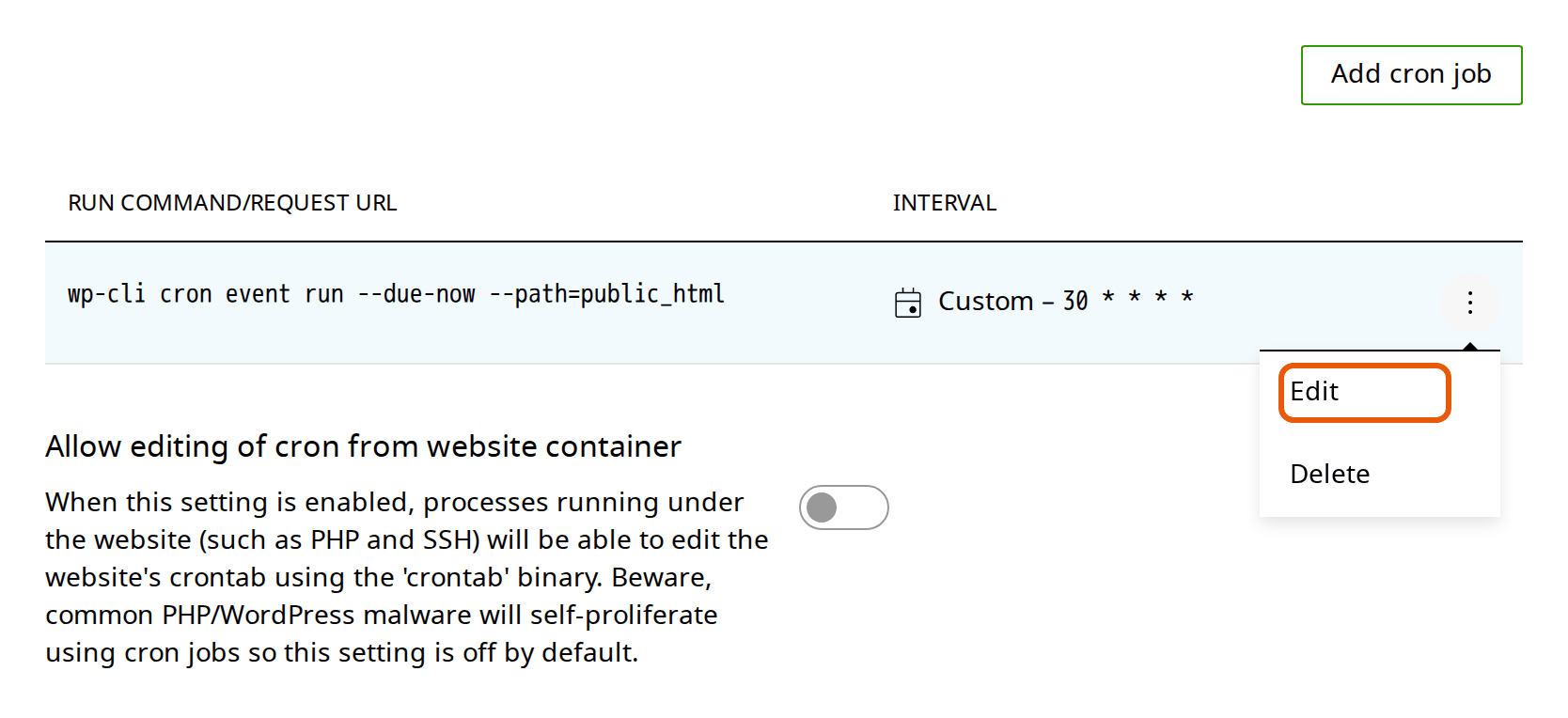
Each job shows its command or web address, and its Interval. WordPress's job starts with wp-cli cron event run. Its interval, Custom with 30 * * * *, means at minute 30 of every hour: 9:30, 10:30 and so on. The five parts are the minute, the hour, the day of the month, the month and the day of the week, and * means every one.
No wp-cli job in your list? If you moved your website here yourself, it may not have one, and WordPress runs its tasks when people visit, as it does on most hosts. That still works. To run them on time instead, add a job with the command wp-cli cron event run --due-now --path=public_html (see Add a cron job), then add the DISABLE_WP_CRON line above to wp-config.php: see Edit wp-config.php.
Run WordPress's tasks more often
- Click ⋮ next to WordPress's job and choose Edit.
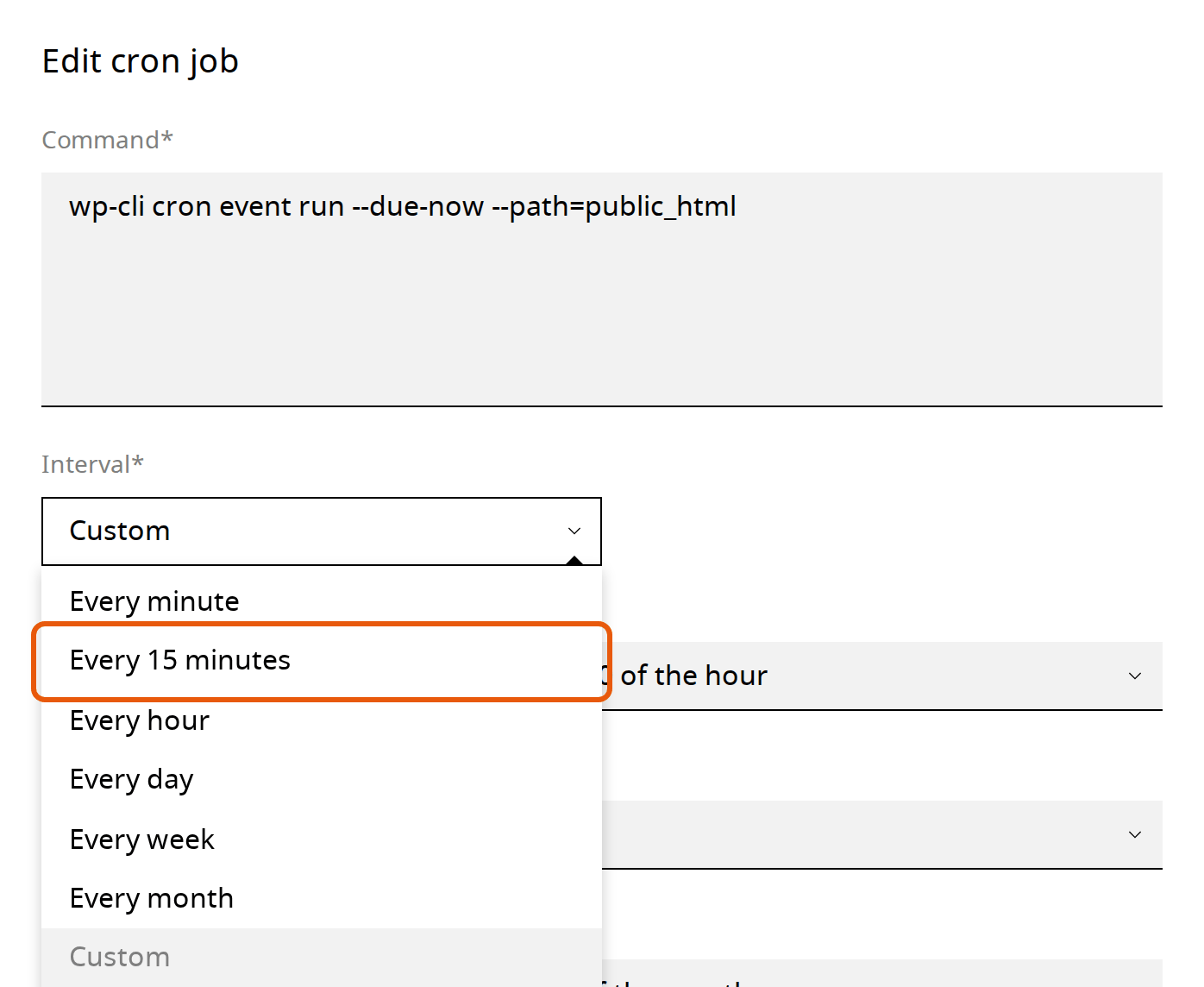
- Open Interval and choose Every 15 minutes. Leave the Command as it is.
- Click Save.
Every 15 minutes is enough for scheduled posts, shops and most plugins. Every minute is there too, but each run uses some of your website's CPU and memory, so choose it only if a plugin asks for it.
Don't delete WordPress's job. Without it, WordPress's scheduled tasks stop: scheduled posts stay unpublished, and plugins' tasks don't run.
Add a cron job
Some plugins ask you to set up a "real cron job" or a "server cron", and give you a web address or a command for it.
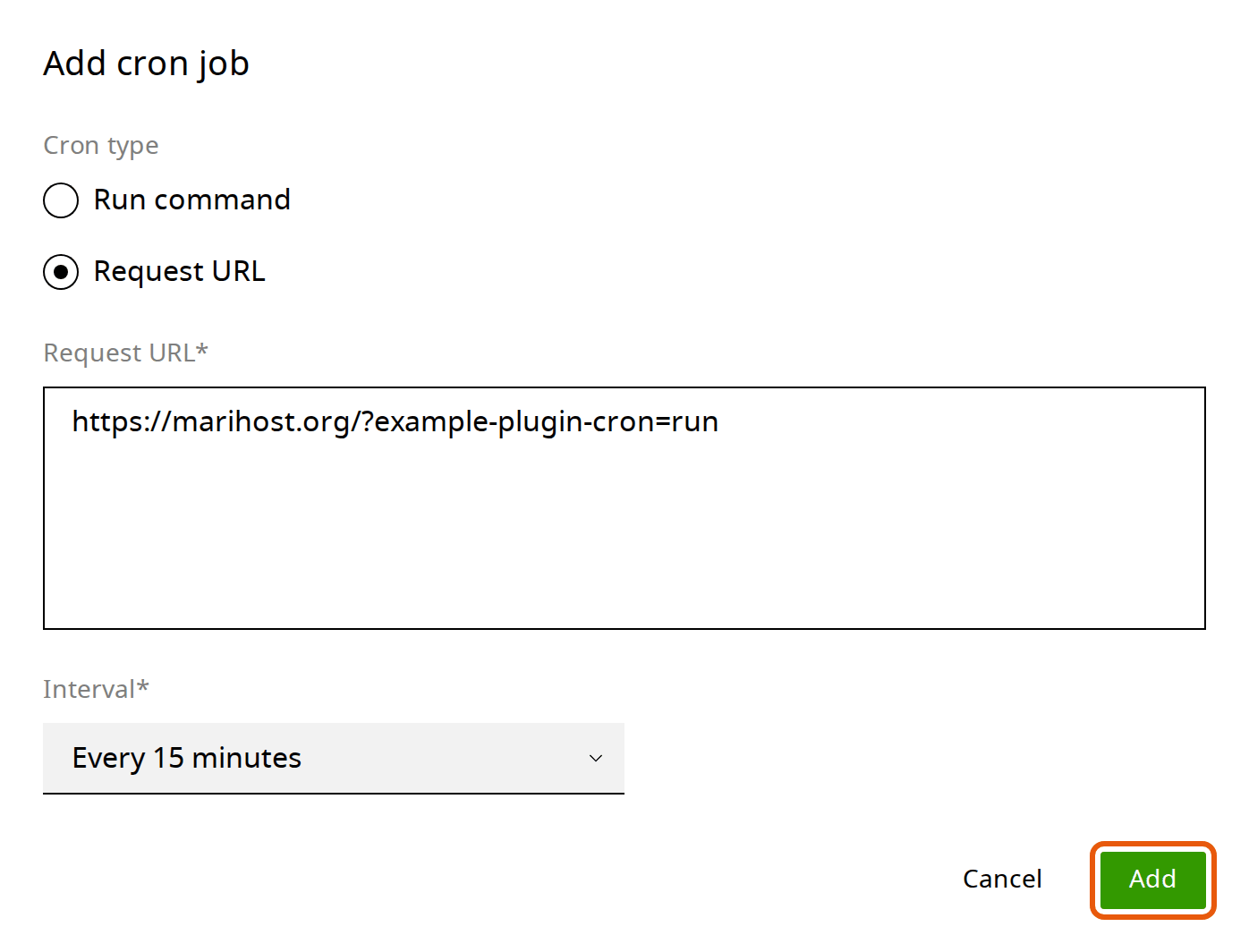
- In Cron jobs, click Add cron job.
- Under Cron type, choose Request URL for a web address, or Run command for a command.
- Paste the address or the command into the box.
- Choose the Interval, then click Add.
For commands:
- They start in your website's home folder, so your website's files are in
public_html, as in WordPress's own job. - For WP-CLI, use
wp-cliand add--path=public_html, as WordPress's job does. A plugin'swp action-scheduler runbecomeswp-cli action-scheduler run --path=public_html. - Write
\%wherever a command has%, such as in a date format. Cron reads%as the end of the line, so the command fails without a message.
To change a job or remove it later, click ⋮ next to it and choose Edit or Delete.
Run a job at a set time
For a job that should run once a day, for example at 3:00 at night while your website is quiet:
- In the job's form, open Interval and choose Custom.
- Type 0 in Minute and 3 in Hour. Leave the other boxes at
*.
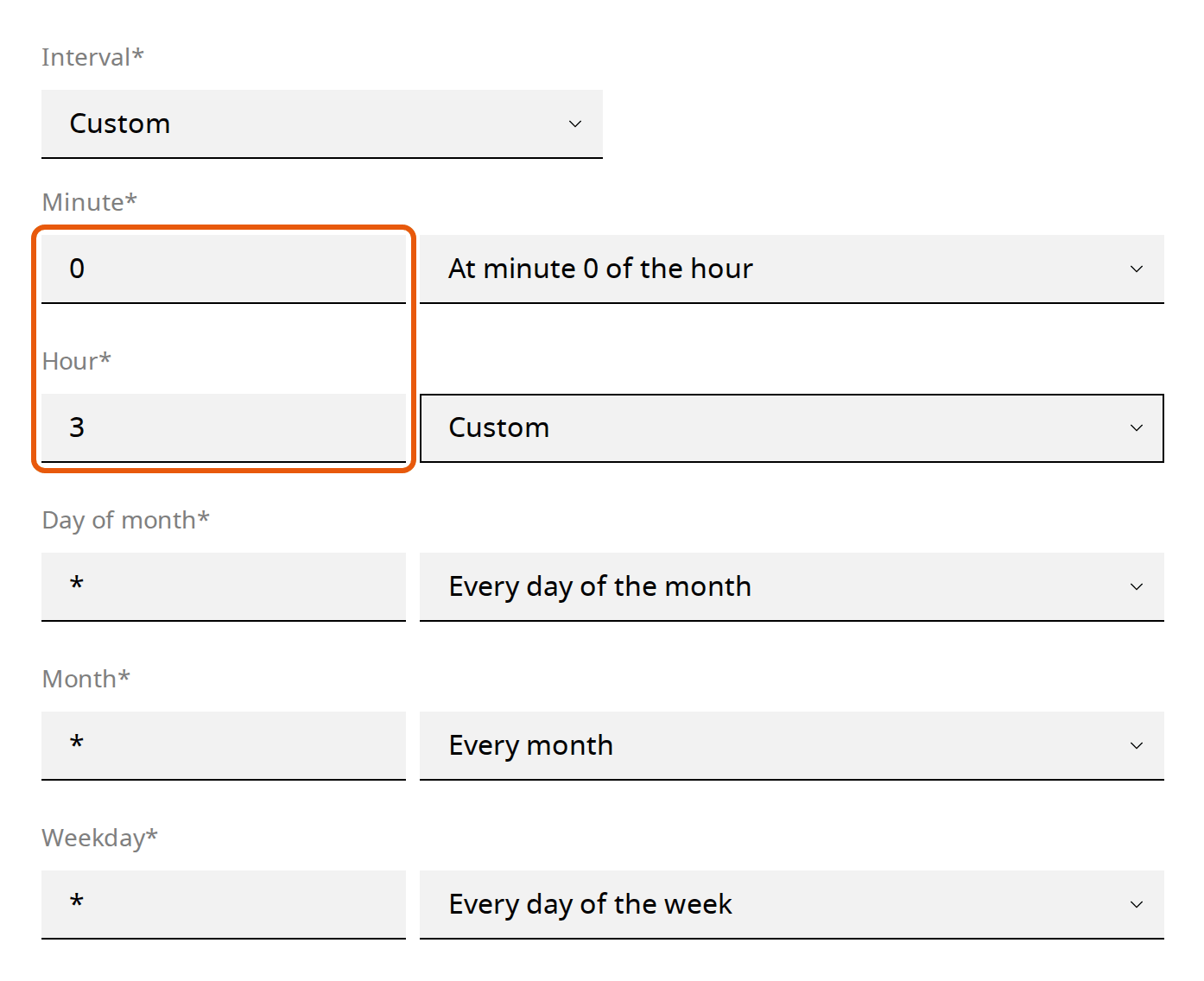
- Click Add, or Save if you're changing a job.
The menu next to each box puts what you typed into words, such as "At minute 0 of the hour". Hours go from 0 to 23, and the times are Malaysia and Singapore time (UTC+8), our servers' clock. To run a job on some days only, use Weekday: 1 is Monday and 0 is Sunday.
If a cron job doesn't run
- Check the command for a
%without a\before it, and for paths that don't start from your home folder. - Open the web address in your browser. A Request URL job opens it from our server, without your login, so an address that only works while you're logged in, or that a security plugin blocks, won't work as a cron job.
- See WordPress's own tasks. A plugin such as WP Crontrol lists every task WordPress has scheduled and when each runs next.
- Leave "Allow editing of cron from website container" off. It lets scripts on your website change your cron jobs, and malware uses that to come back after it's been cleaned up. Turn it on only if a developer you trust needs it, and off again when they've finished.
Still stuck? Open a ticket with the job's command or address and what it should do.
Next steps
Cron jobs sit in Developer tools next to your PHP settings: see Change your PHP version and Increase the upload size and PHP limits. If a scheduled task breaks your website, see Fix common WordPress errors.
Rather we looked after it?
WordPress Care updates your site, checks it after every update, and fixes anything an update breaks.
Keep reading
Change your PHP version
Pick the right version for WordPress, check your site first, and switch back if a plugin complains.
Read the guideEdit wp-config.php
Add a setting to WordPress's main settings file safely, and put the file back if something goes wrong.
Read the guideFix common WordPress errors
The critical error, a blank page, database and redirect errors: find the cause and switch it off yourself.
Read the guide