GuideHow to open a hosting support ticket at MariHost
Last updated: 26 October 2026
The quickest way to get help with your hosting is a ticket in your client area. It keeps your question, our replies and any files in one place, and only you and our team can see it, so it's also the safe place for passwords. This guide shows how to open a ticket, what to put in it so we can help first time, and how to reply to or close it. It takes about 5 minutes.
Open a support ticket
1. Go to Support
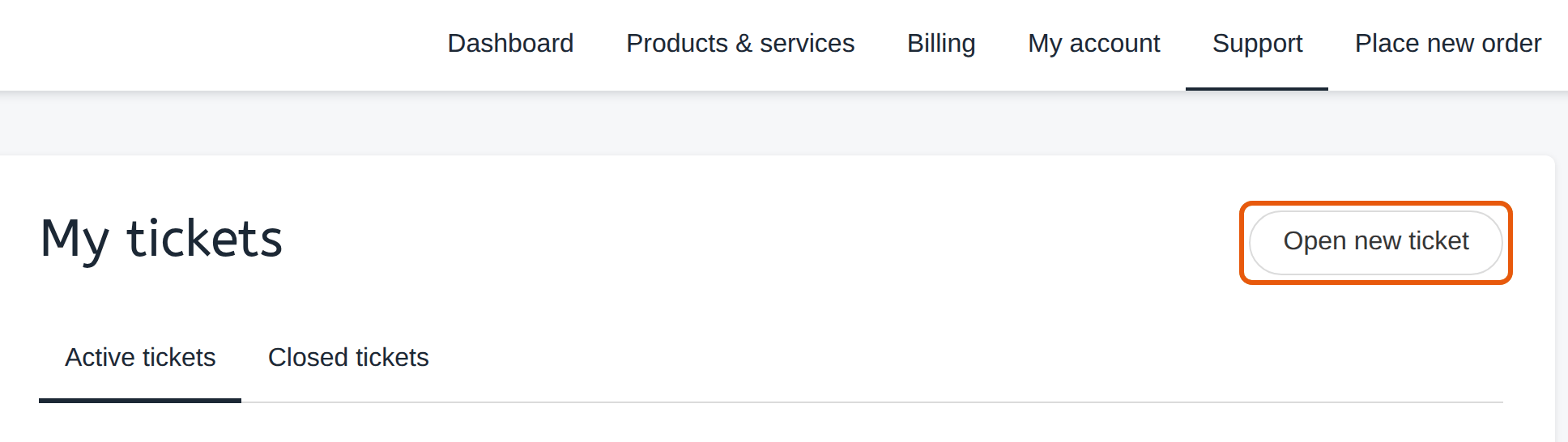
Sign in to your client area at billing.marihost.com: our guide to logging in shows how. Click Support in the top menu. My tickets lists your open tickets, and the Closed tickets tab keeps the old ones. Click Open new ticket.
2. Write your ticket
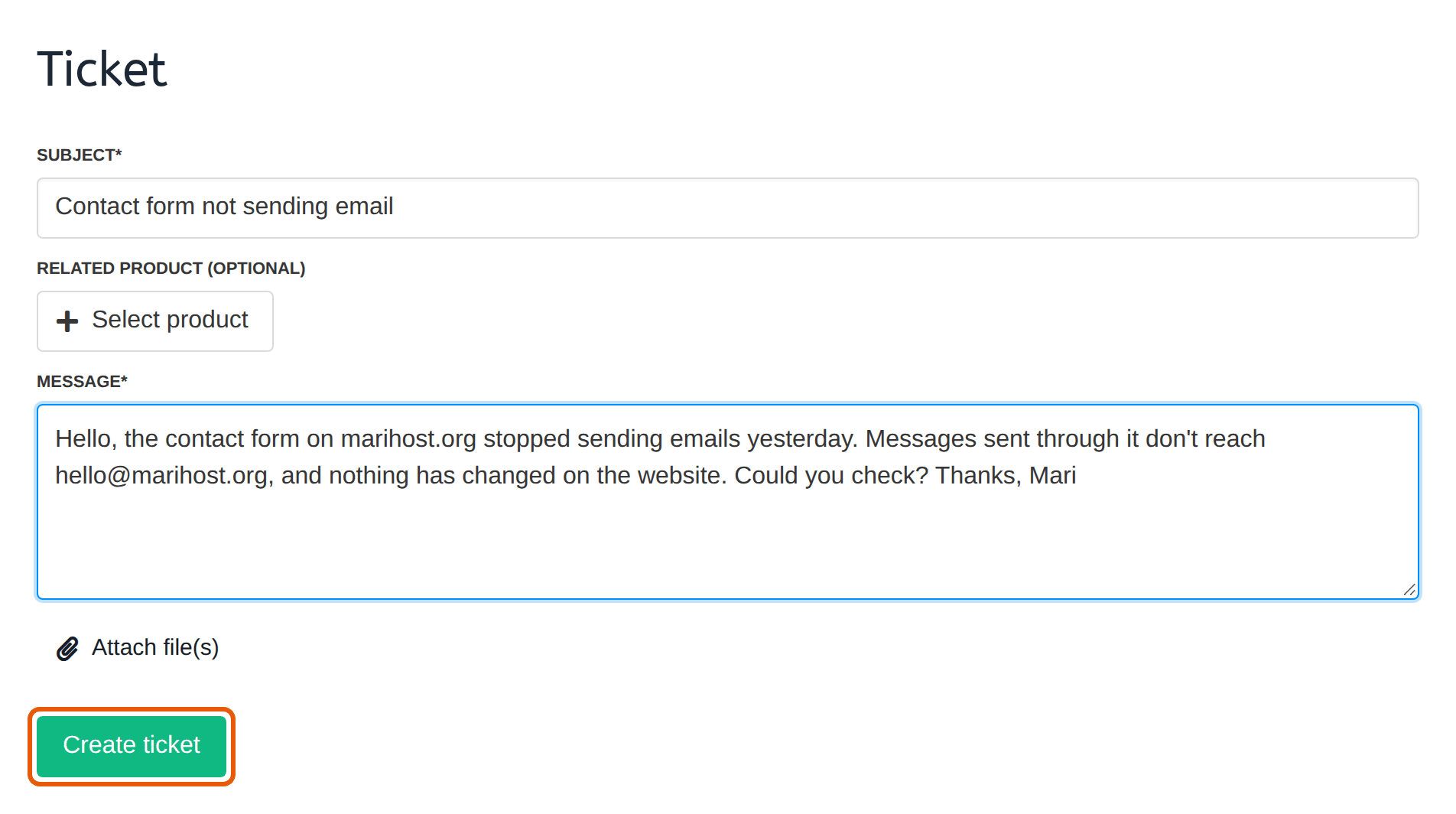
- Subject: the problem in a few words, such as "Contact form not sending email".
- Related product (optional): click Select product to link the ticket to one of your products, such as your hosting plan.
- Message: what's wrong, in your own words. The next section lists what helps us most.
- Attach file(s): add screenshots of any error, if you have them.
Click Create ticket.
3. Your ticket is open
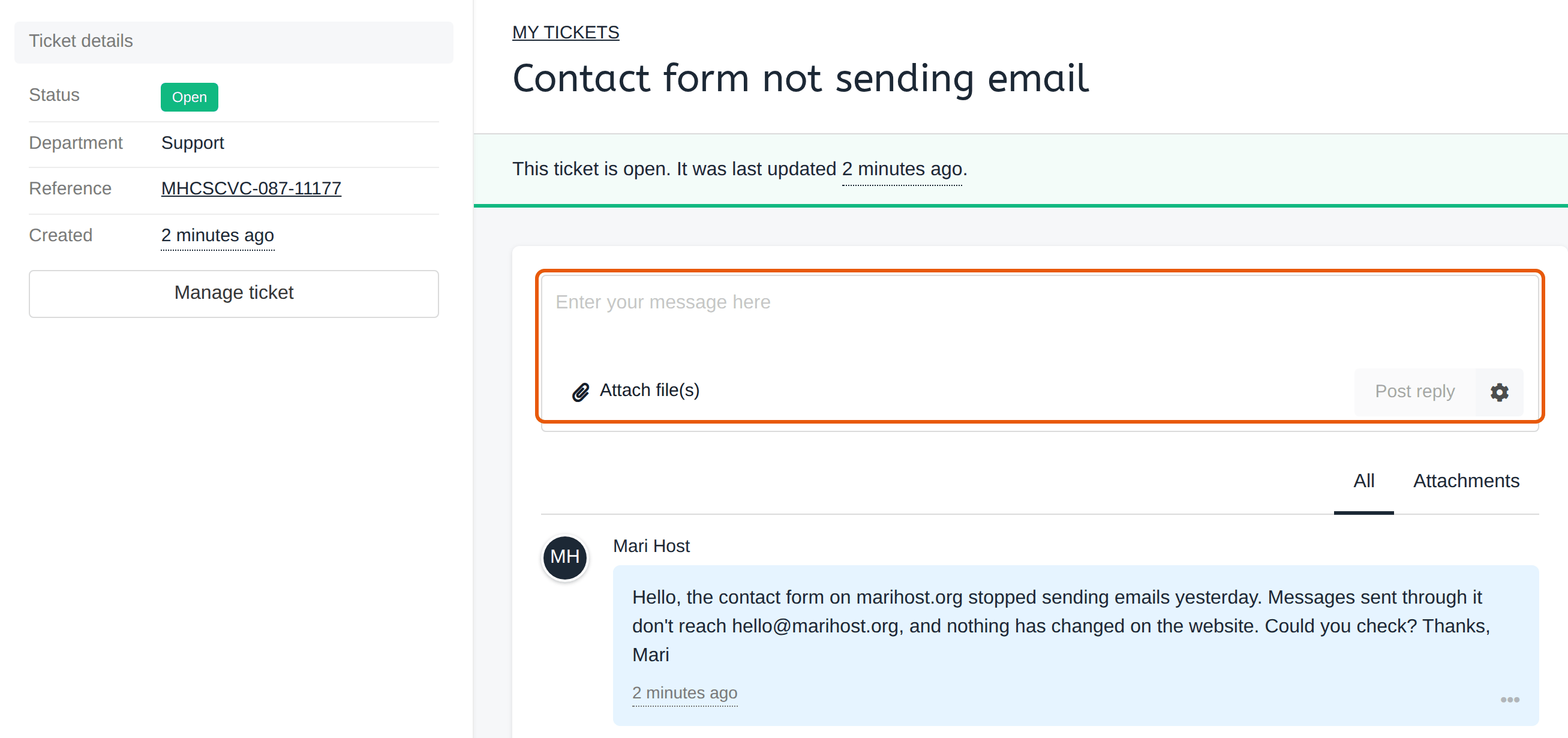
Your ticket opens on its own page, with the status Open and a reference number: quote it if you contact us about the same problem another way. When we reply, we email you, and the reply is waiting in the ticket.
What to include
A ticket with the details below can usually be solved in one reply:
- Which website or domain it's about, such as example.com.
- What happened, and what you expected to happen.
- The exact error message. Copy and paste it, or attach a screenshot.
- When it started, and anything that changed around then: an update, a new plugin, a change to your domain.
- What you've tried already.
- Logins, if we need them, such as your old host's control panel for a migration. A ticket is the place for them: never send passwords by email, WhatsApp or our contact form.
One ticket per problem, please. Two problems in one ticket are easy to mix up, and separate tickets get each one solved sooner.
Reply to or close a ticket
To add something, or answer us, reply in the same ticket instead of opening a new one: everything stays together. Open Support, click the ticket, type in the box at the top of its page, and click Post reply. You can attach files to a reply too.
When the problem's solved, click Manage ticket on the left and choose Close ticket. It moves to Closed tickets, where you can still read it.
When we reply
We reply within 2 business days, usually sooner. Business days are Monday to Friday, UK time, excluding UK public holidays. Need faster replies? Priority and Enterprise support have shorter reply times: see our Support page.
Our hosting support looks after the server, the control panel, email and backups. Help with WordPress itself, such as plugins, themes and changes to your pages, is part of WordPress Care.
Is your site down? If a server has a problem, we work on it as soon as we spot it: our status page shows what's happening. If it shows nothing wrong, open a ticket.
Not a customer yet?
Ask your question through our contact form, or WhatsApp us. Don't put passwords in either. Can't sign in to your client area? Click Forgotten your password? on the sign-in page.
Next steps
Moving a site to us? Our guides show what to send in your ticket: from cPanel, from Plesk and from DirectAdmin. Before you open a ticket, our guides may already have the answer.
Need help now?
Open a ticket in your client area, and we'll take it from there.
Keep reading
Log in to your client area and control panel
Sign in once, open the control panel with one click, and what to do if you can't get in.
Read the guideMove from a cPanel host
Share your cPanel login safely, and we move your websites, databases and email for you, free.
Read the guideMove your site to MariHost
How a move works, what we do for you for free, and how to switch without downtime.
Read the guide