GuideGive a developer access to one website, with their own login
Last updated: 26 October 2026
Working with a web designer, a developer or a colleague? Don't share your password. Give them their own login to the control panel instead, for just the websites they work on. They can manage those websites, but not your other sites, your plan or your invoices, and you can take their access away at any time. It takes about 2 minutes.
Two kinds of access
- Collaborator: can manage only the websites you choose: files, databases, WordPress, email, backups and settings for those websites. This is the right choice for a developer or a client.
- Super admin: has unrestricted access to every website on your plan. Give it only to someone you'd trust with everything, such as a business partner.
Neither can see your billing: invoices, payment cards and orders stay in your client area at billing.marihost.com, which only you sign in to.
Give a developer access: invite them
1. Open Team
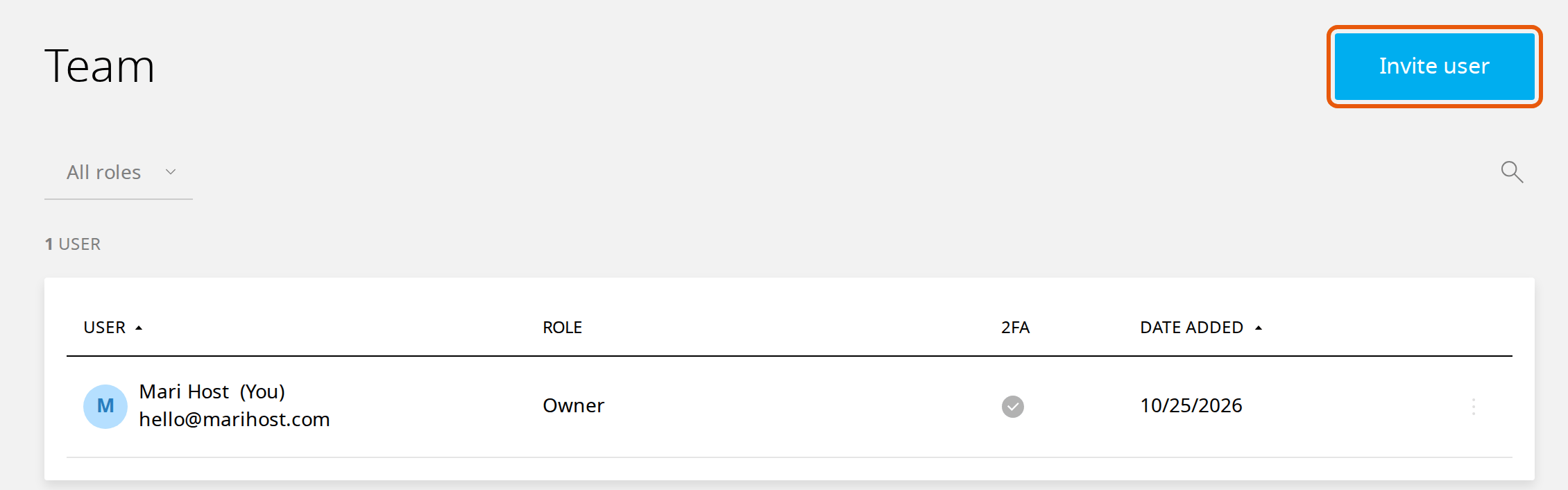
Sign in to your client area at billing.marihost.com, open your hosting plan and click Login to Control Panel. Click Team in the left sidebar, then Invite user.
2. Fill in their details
- Full name and Email address: the person you're inviting.
- Invite method: leave Invite with email ticked, and we'll email them an invitation. Or tick Invite with link instead, and the control panel shows you a link to send them yourself. It's shown only once, so copy it straight away.
- User roles: choose Collaborator.
- Websites: tick each website they should manage. Your staging copies are listed too, so you can give someone a staging copy only.
Click Invite.
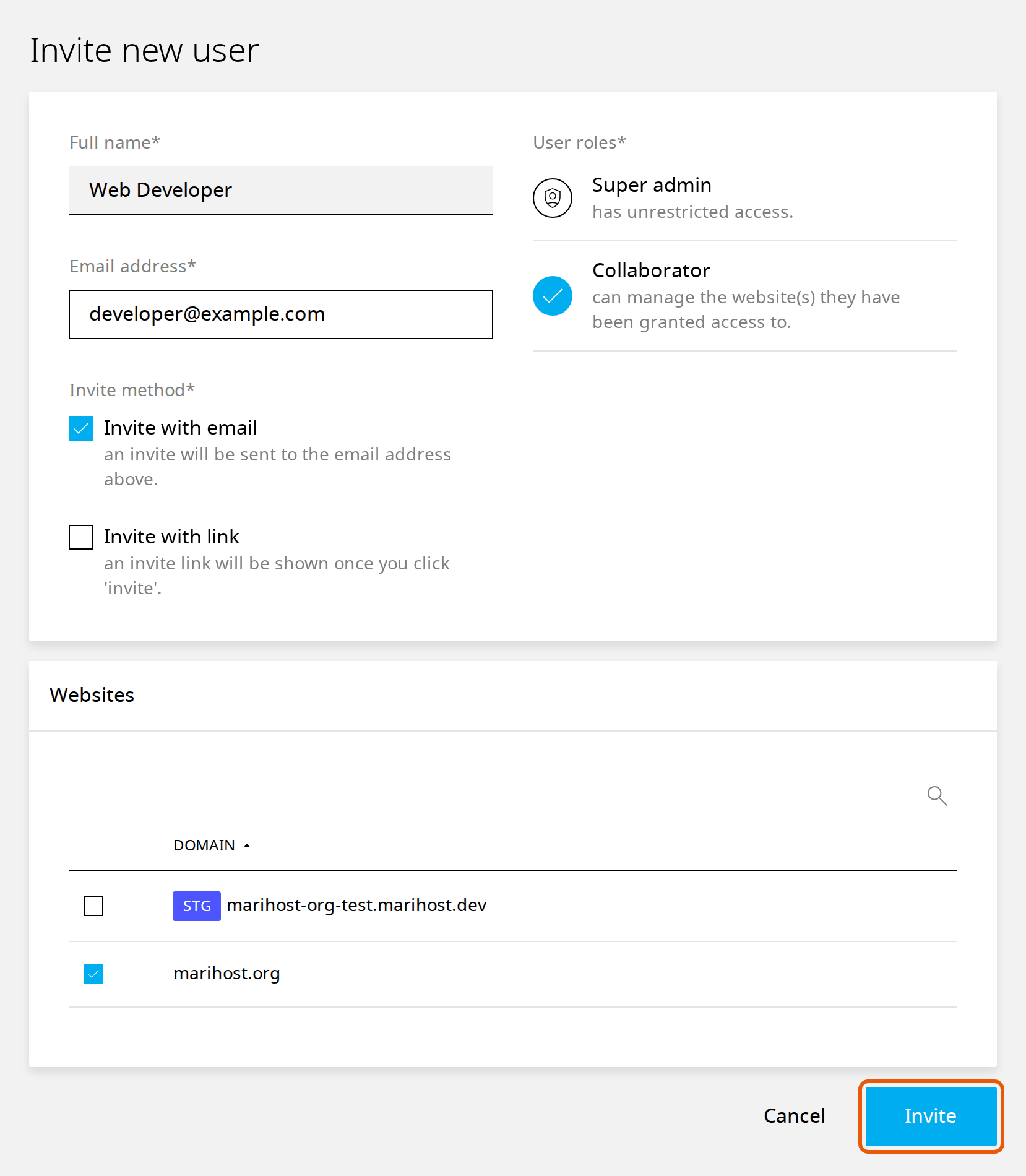
They appear under Team. They open the invitation, choose a password and click Accept invite, and then they can sign in.
What they see
Team members sign in to the control panel at panel.marihost.com with their own email address and password. They see only the websites you gave them.
Ask them to turn on two-factor login for their account, so a stolen password alone can't open your websites.
Remove someone
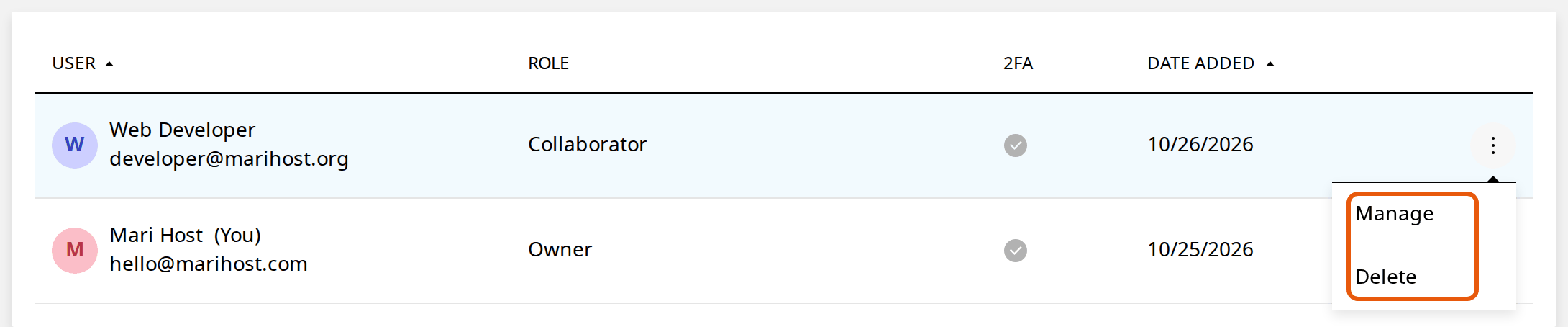
When the work is done, take their access away. Under Team, click ⋮ at the end of their row, choose Delete and confirm. They can no longer sign in to your account.
To change which websites they can manage instead, choose Manage, tick or untick websites under Websites, and click Save.
If they had their own WordPress login as well (below), remove that in WordPress too, under Users.
Access to WordPress itself
A collaborator can open your WordPress admin with the Admin button on the website's dashboard, as you do. If they only need WordPress, not the control panel, you can instead add them as a user in WordPress: Users → Add User, with the Administrator role for a developer, or Editor for someone who only changes content.
Building sites for clients? You can host your clients' websites on your plan, give each client access to their own website, and bill them yourself: our contract is with you. If a client later wants the website in their own MariHost account, ask us and we'll move it. See Agency Hosting.
If something's not right
They didn't get the invitation. Ask them to check their spam folder. Under Team, click ⋮ next to them and choose Resend invite by email, or Resend invite by link to send them a link yourself. Cancel invite withdraws it.
They can't see a website. It wasn't ticked. Under Team, click ⋮ next to them, choose Manage, tick the website under Websites and click Save.
They see a "Sign up" link. That's the control panel's own sign-in page. They don't need a new account: they sign in with the email address you invited.
Still stuck? Open a ticket with their email address and the website.
Next steps
Before someone works on your site, make a backup, or give them a staging copy to work on, so your live site isn't touched until you're happy.
Working with an agency or freelancer?
Tell us what you need, and we'll help you set up access.
Keep reading
Make a staging copy of your website
Try updates or a redesign on a private copy, then push it live in one step.
Read the guideBack up and restore your website
Make a backup before a big change, and put back your whole site or only some files, without a ticket.
Read the guideLog in to your client area and control panel
Sign in once, open the control panel with one click, and what to do if you can't get in.
Read the guide